 Docker: Traefik Base Configuration
This documentation is part of the HTTPS Routing guide. You can view the complete guide here: How to manage HTTP routing and TLS encryption (HTTPS) in your Docker containers.
Welcome to the Stackhero documentation
Stackhero offers a ready-to-use Docker cloud CaaS (Containers as a Service) platform, designed for fast and reliable container deployments:
- Deploy to production with a single
docker-compose upcommand. No additional configuration required: just launch your containers.- Choose your own domain name, automatically secured with HTTPS (for example: https://api.your-company.com, https://www.your-company.com, or https://backoffice.your-company.com).
- Take advantage of high performance and enhanced security on private, dedicated infrastructure.
- Apply updates with a single click for simple, effortless maintenance.
Your containers can be running in production in about five minutes. Stackhero manages the infrastructure, updates, and security for you, so you can focus on developing your applications. Learn more about Docker CaaS cloud hosting.
In all the following configuration examples, you will have to replace
<XXXXXX>.stackhero-network.comwith your Stackhero for Docker instance domain name.
Below is a basic example of a docker-compose.yml file:
services:
  test:
    image: nginx
    labels:
      - "traefik.enable=true" # Enable Traefik to route traffic to this container
      - "traefik.http.routers.test.rule=Host(`<XXXXXX>.stackhero-network.com`)" # Define the host
      - "traefik.http.routers.test.tls.certresolver=letsencrypt" # Use 'letsencrypt' as the TLS certificate resolver
In this example, a container named test runs using the Nginx image. The key configuration is provided in the labels section. You simply need to copy these lines into your docker-compose.yml file and replace <XXXXXX>.stackhero-network.com with your service domain.
You can deploy the container using:
docker context use <XXXXXX>.stackhero-network.com
docker-compose up
After the container starts, visit https://<XXXXXX>.stackhero-network.com/ to see the "Welcome to nginx!" page.
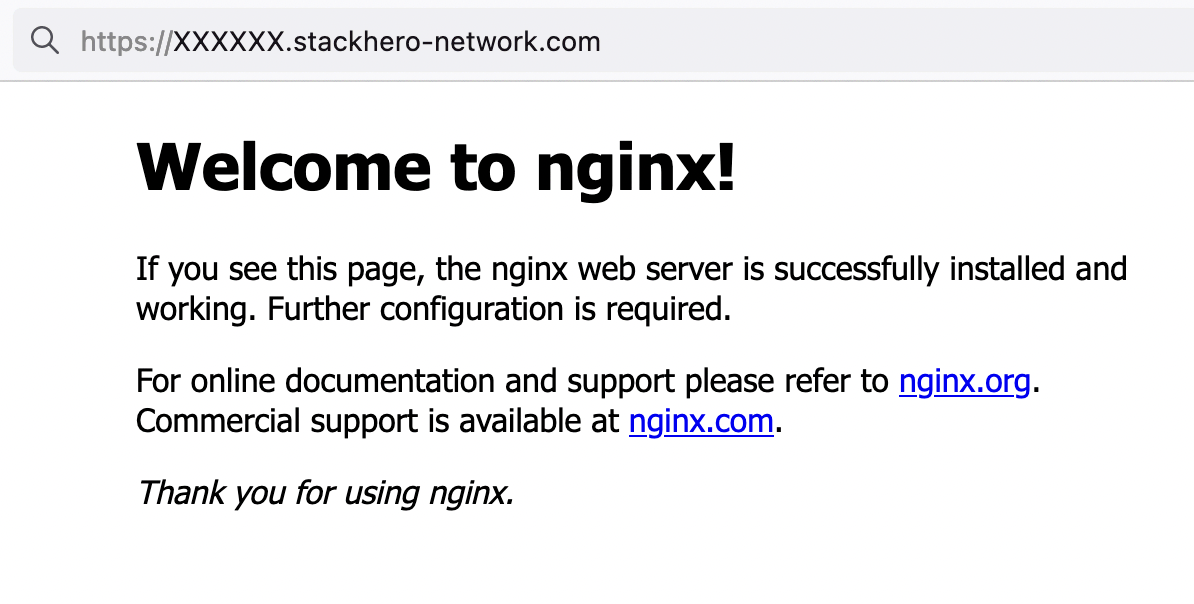 Nginx welcome page
If you do not see the Nginx welcome page, check the Traefik dashboard for possible errors!
With this configuration, HTTP requests sent to <XXXXXX>.stackhero-network.com are routed to your test container and Traefik automatically creates and manages TLS certificates for HTTPS.