 Python: Configure SSH keys
This documentation is part of the Deploy with GitHub Actions guide. You can view the complete guide here: How to deploy your Python code using GitHub Actions.
👋 Welcome to the Stackhero documentation!
Stackhero offers a ready-to-use Python cloud solution designed to simplify your deployments:
- Deploy your application to production in just seconds with a simple
git push.- Use your own domain name, with automatic HTTPS certificate setup for secure connections managed for you.
- Take advantage of automatic backups, one-click updates, and predictable pricing, so you can focus on your code instead of infrastructure management.
- Benefit from high performance and security on a private, dedicated infrastructure. Your environment is isolated and protected.
Save time and streamline your workflow: your code can be up and running with Stackhero's Python cloud hosting in just 5 minutes.
SSH keys allow GitHub Actions to securely connect to your Python service for code deployment. This step is essential to protect your Stackhero services.
On your computer, you can generate new SSH keys by running:
ssh-keygen -C "" -f /tmp/ssh_key -N ""
Set the public key
First, display the public key you just generated:
cat /tmp/ssh_key.pub
Next, in your Stackhero dashboard, select your "production" Python service and click the "Configure" button.
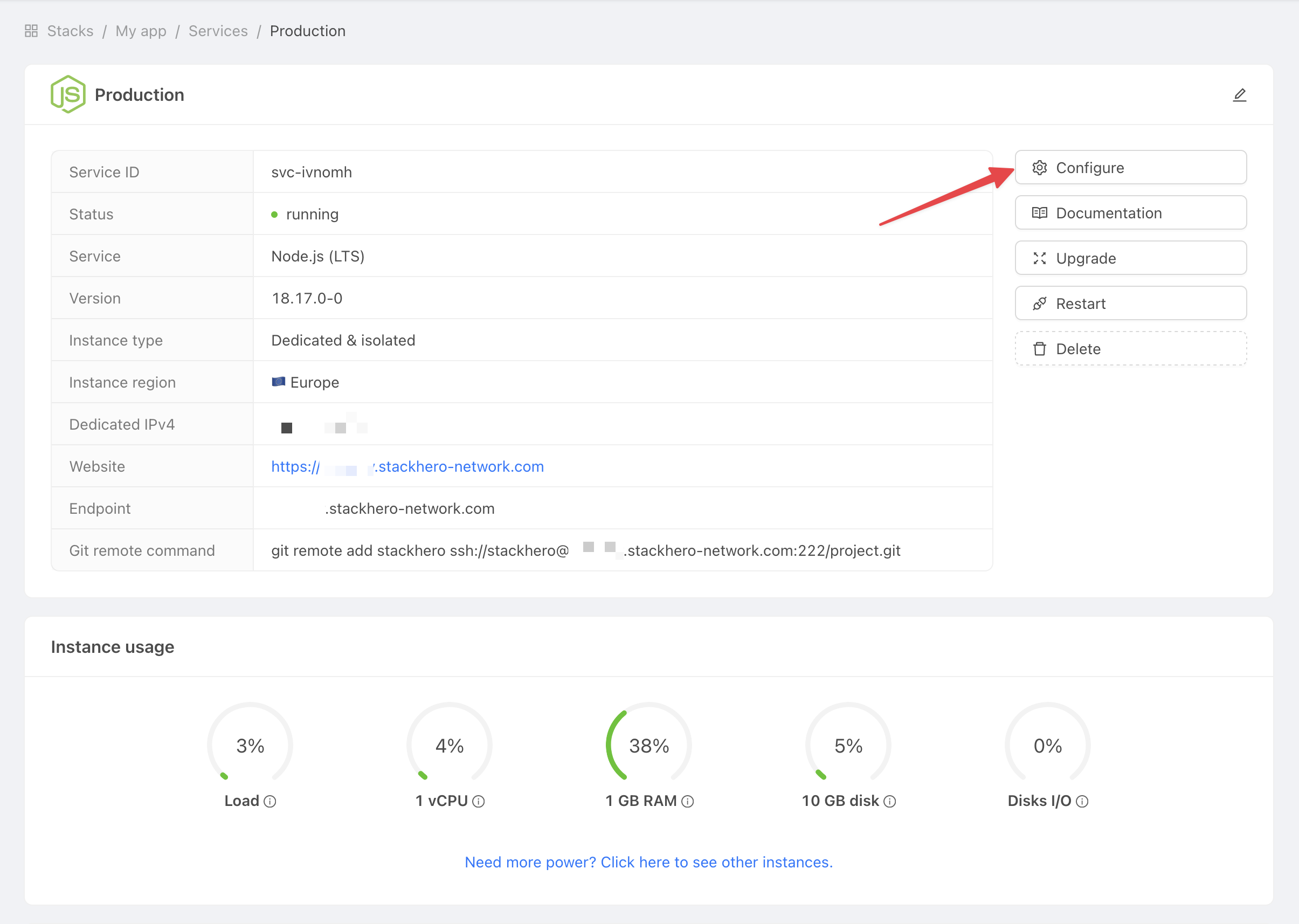 Get service settings
Follow these steps:
- Under
SSH public keys, click onAdd a public key. - For
Description, enterGitHub Action. - For
Key, paste the public key you just copied.
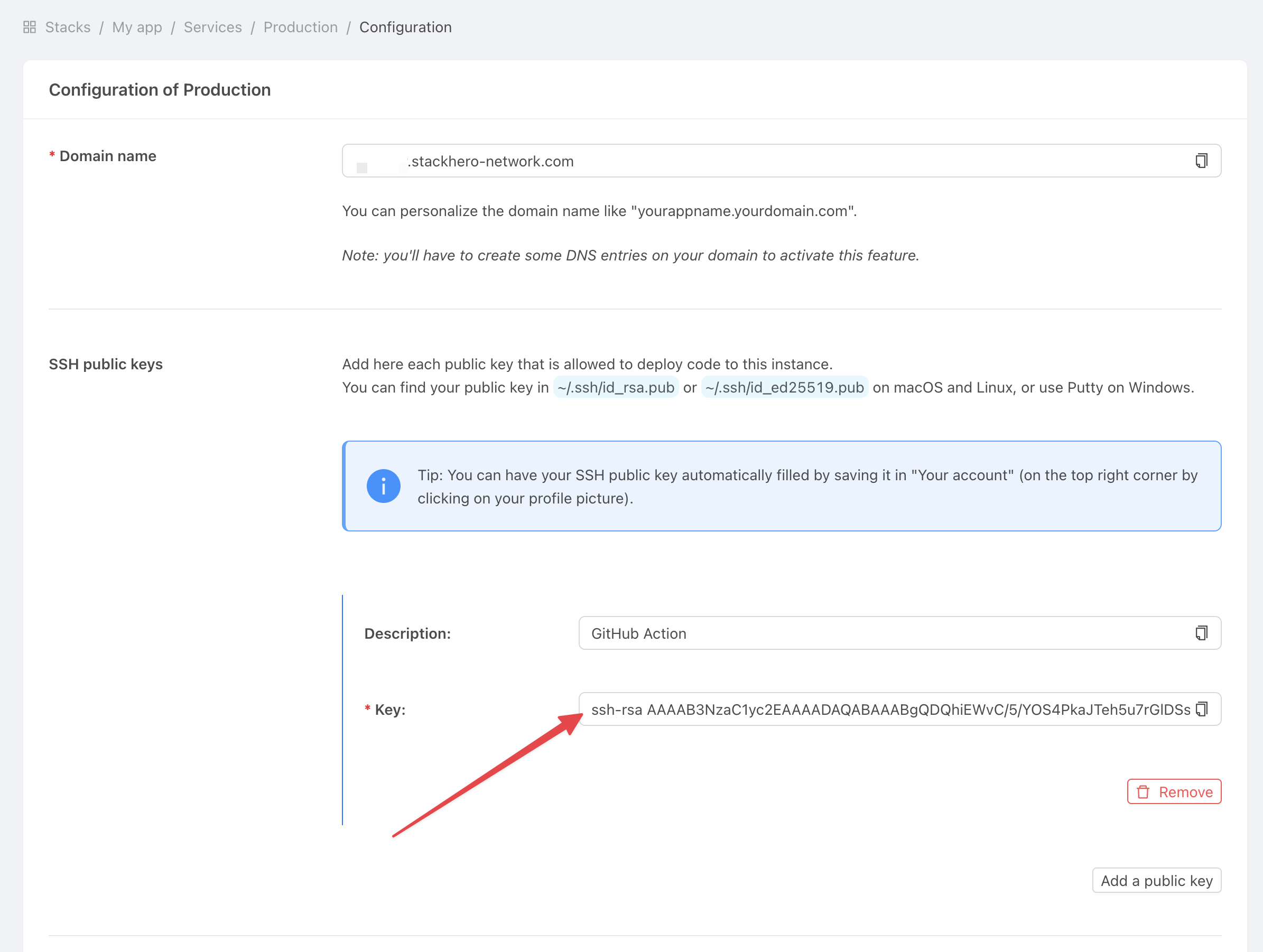 Add public key
Set the private key
Go to your GitHub project page, click on Settings, then Environments. Choose New environment.
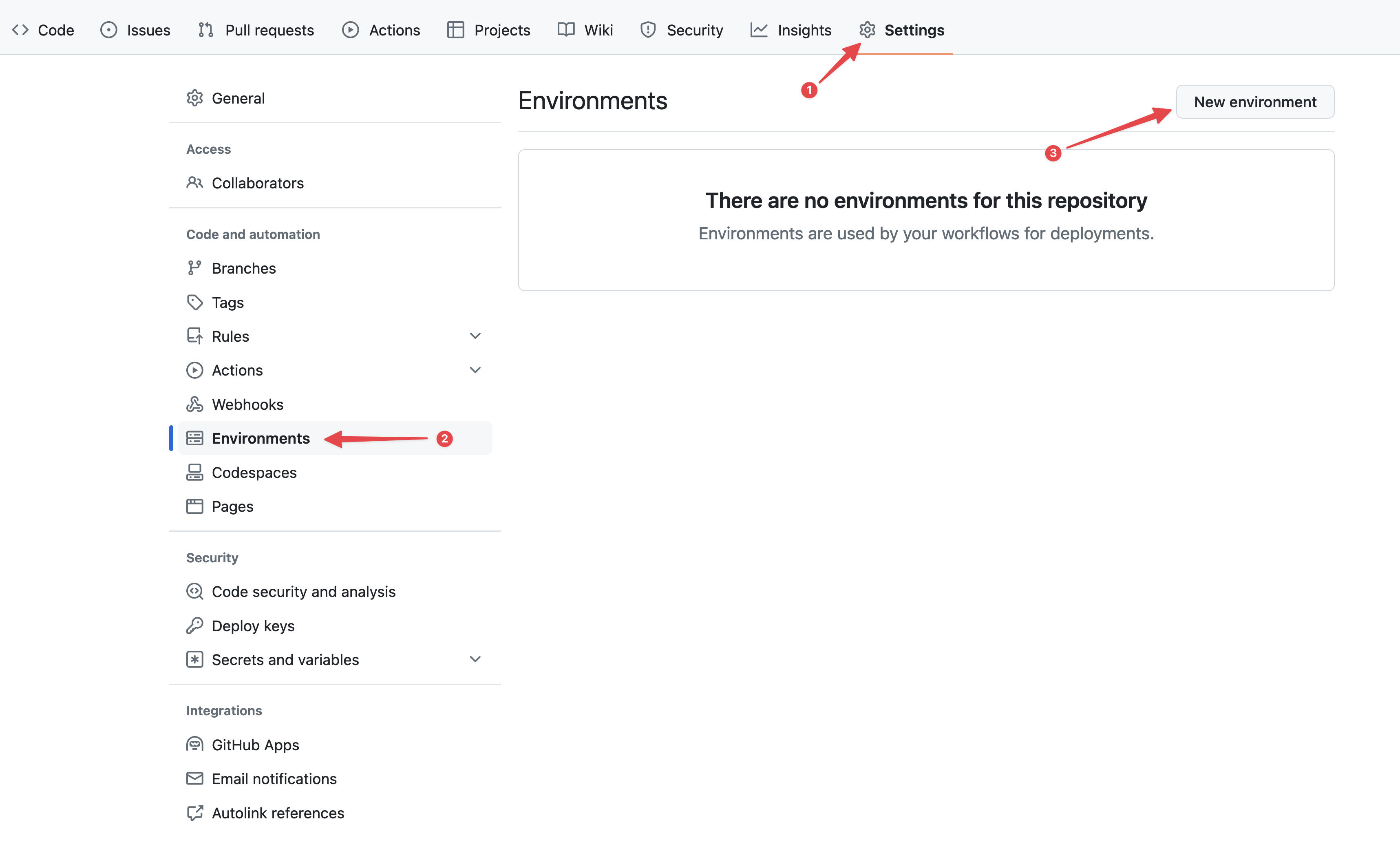 Configuring GitHub environments
In the Name field, type "production" and confirm.
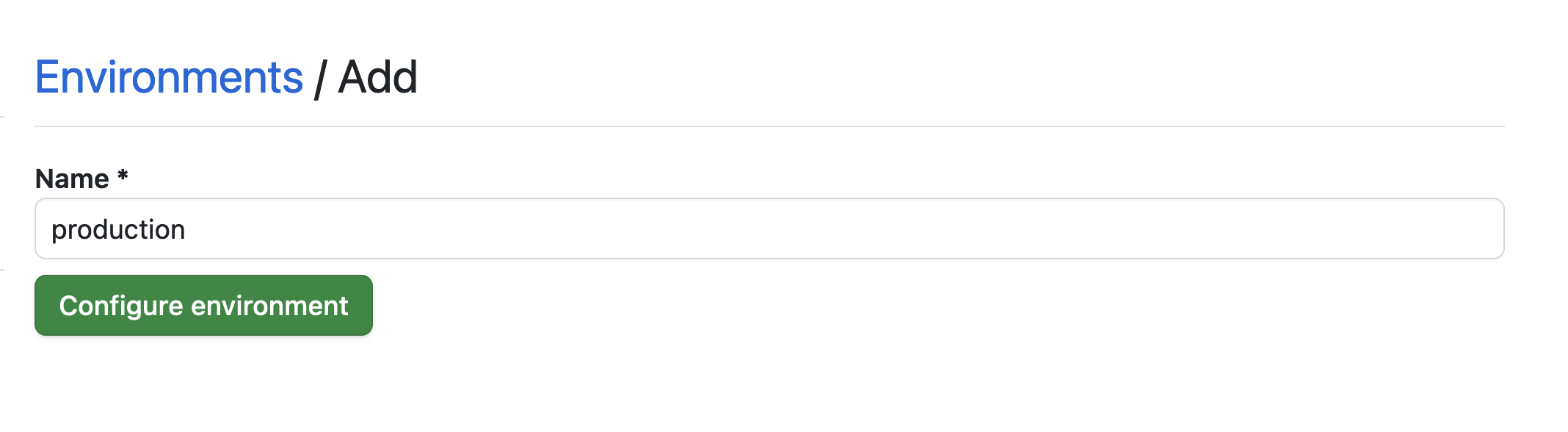 Setting the environment
Click on the No restriction button and select Selected branches and tags.
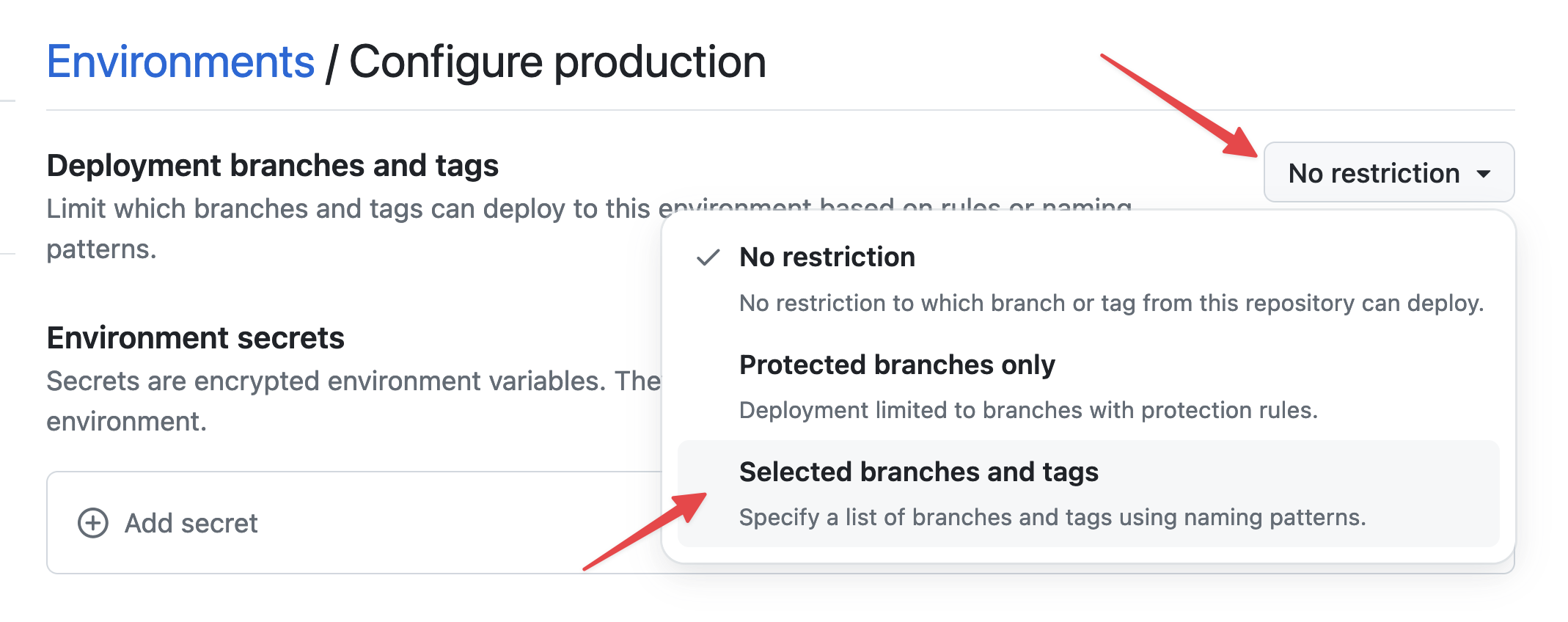 Setting environment restrictions
Then, click on Add deployment branch or tag rule, enter "production" in the Name pattern field, and click Add rule.
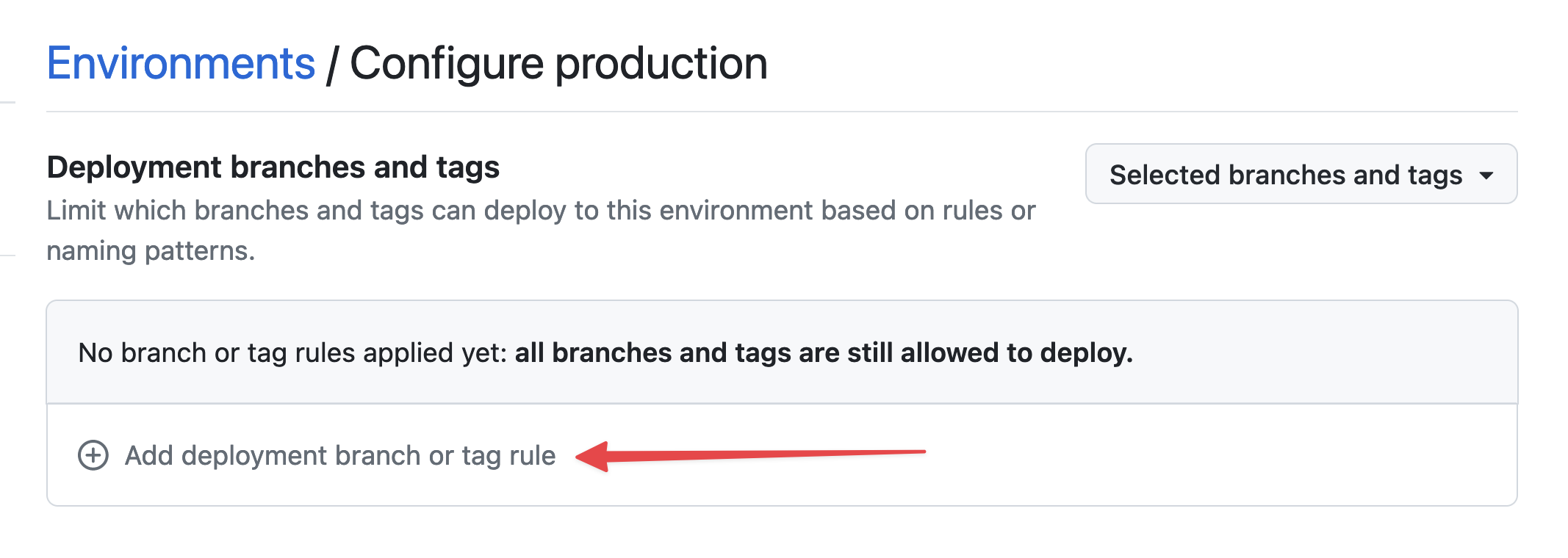 Setting environment branch
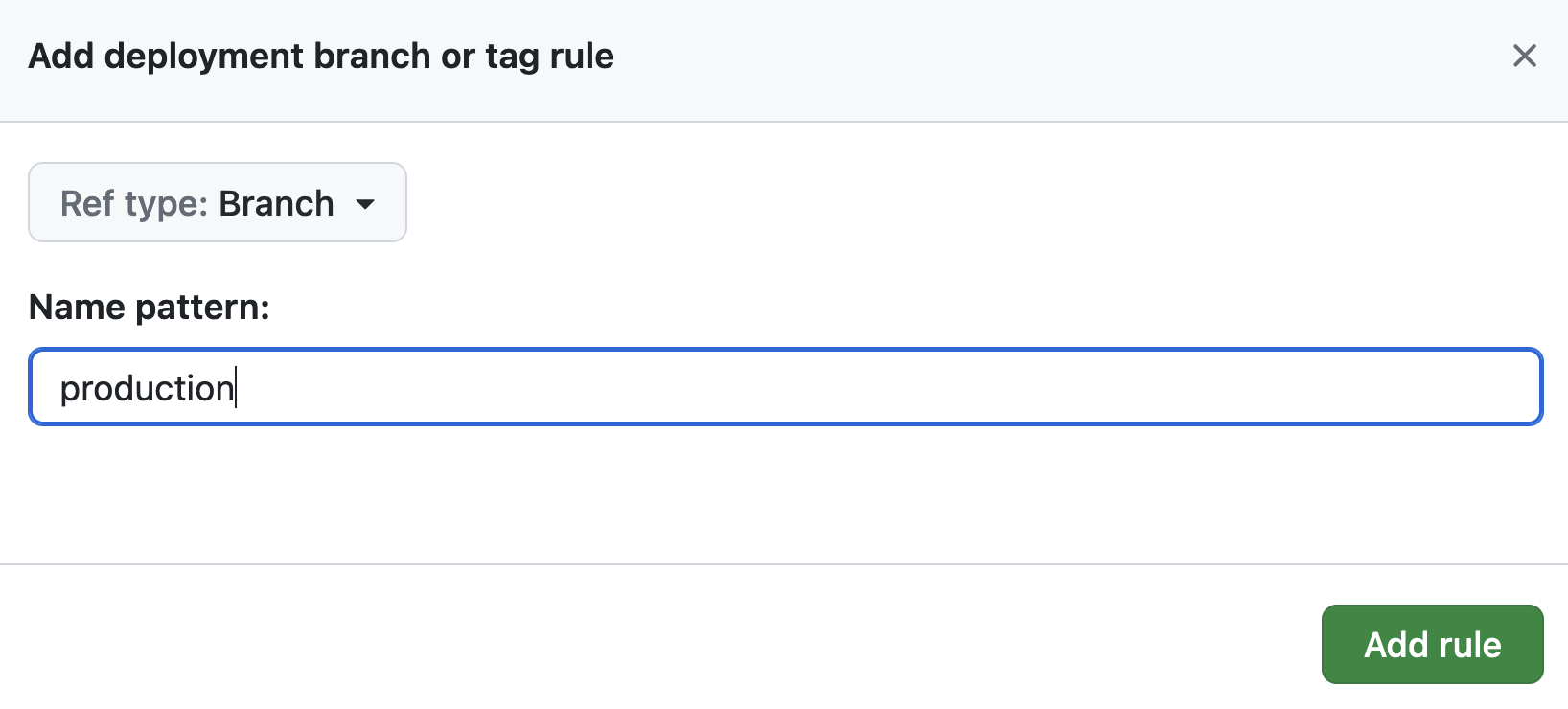 Setting environment branch
In the Environment secrets section, click Add secret.
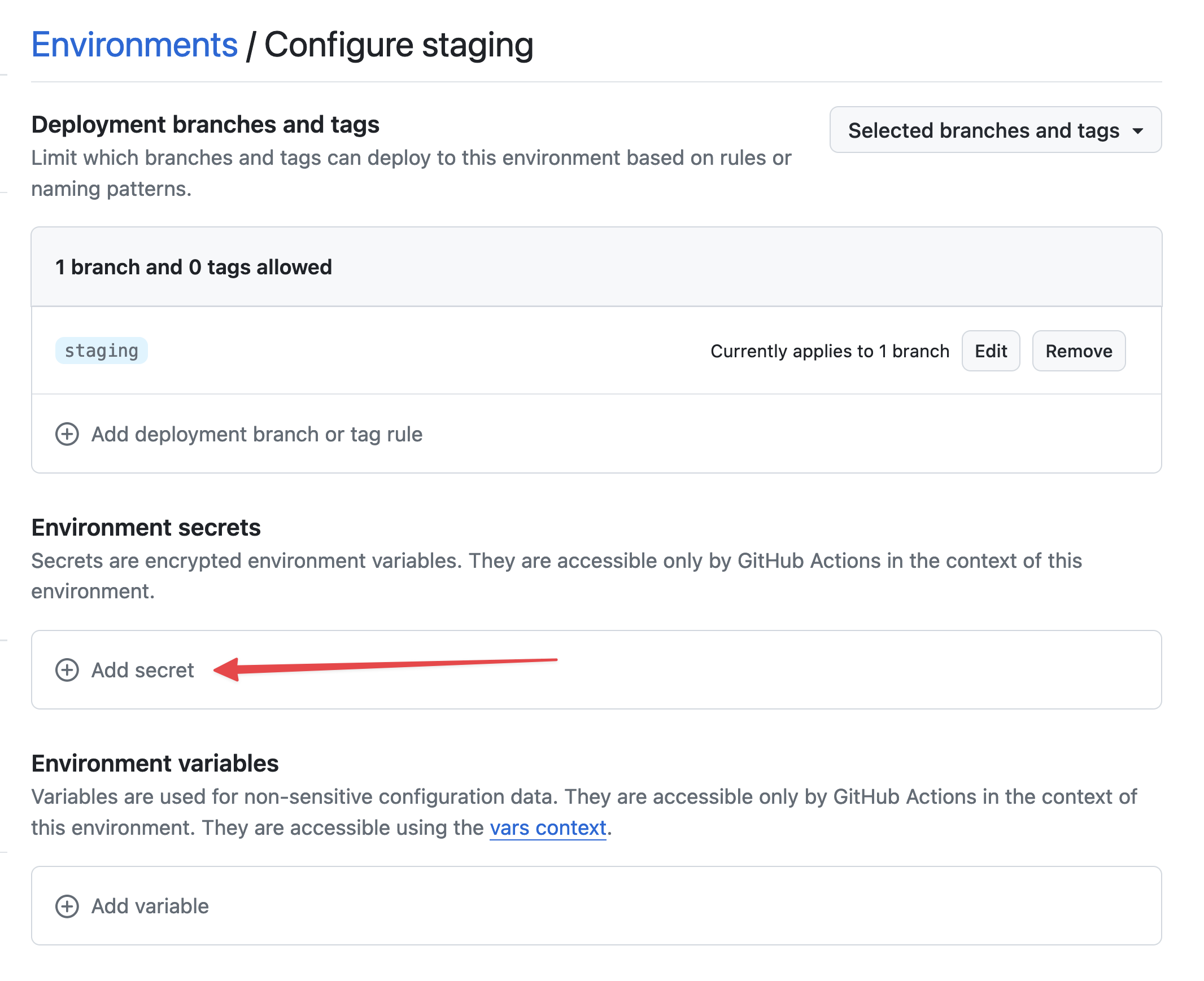 Add secret
Now, display the private key you generated earlier:
cat /tmp/ssh_key
In the secret setup, use STACKHERO_SSH_PRIVATE_KEY as the Name and paste the private key as the Value.
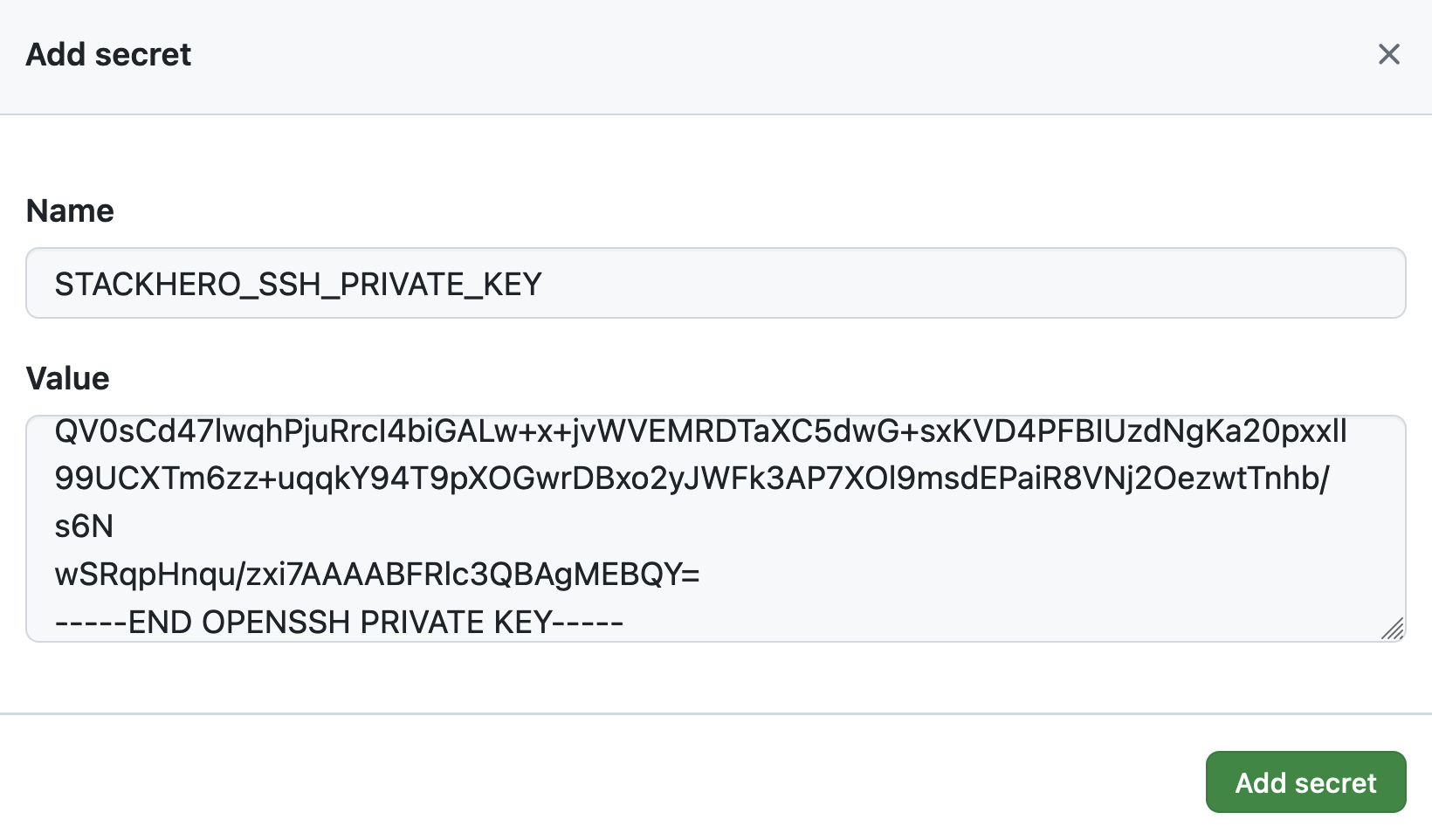 Setting the SSH private key secret
Next, in the Environment variables section, click on Add variable.
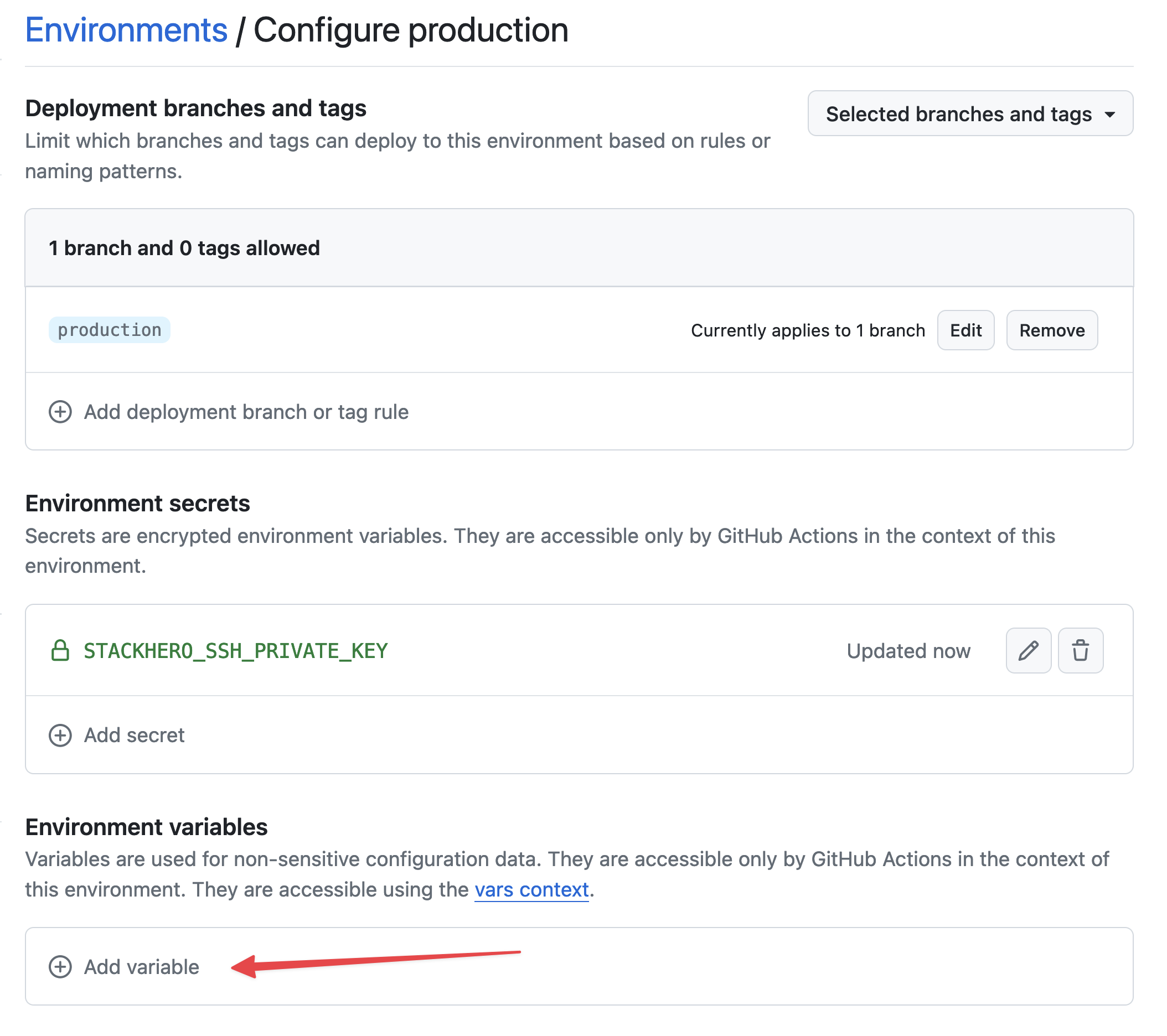 Setting variables
Enter STACKHERO_ENDPOINT as the Name and paste your Python service endpoint as the Value. You will find this endpoint in your Stackhero dashboard.
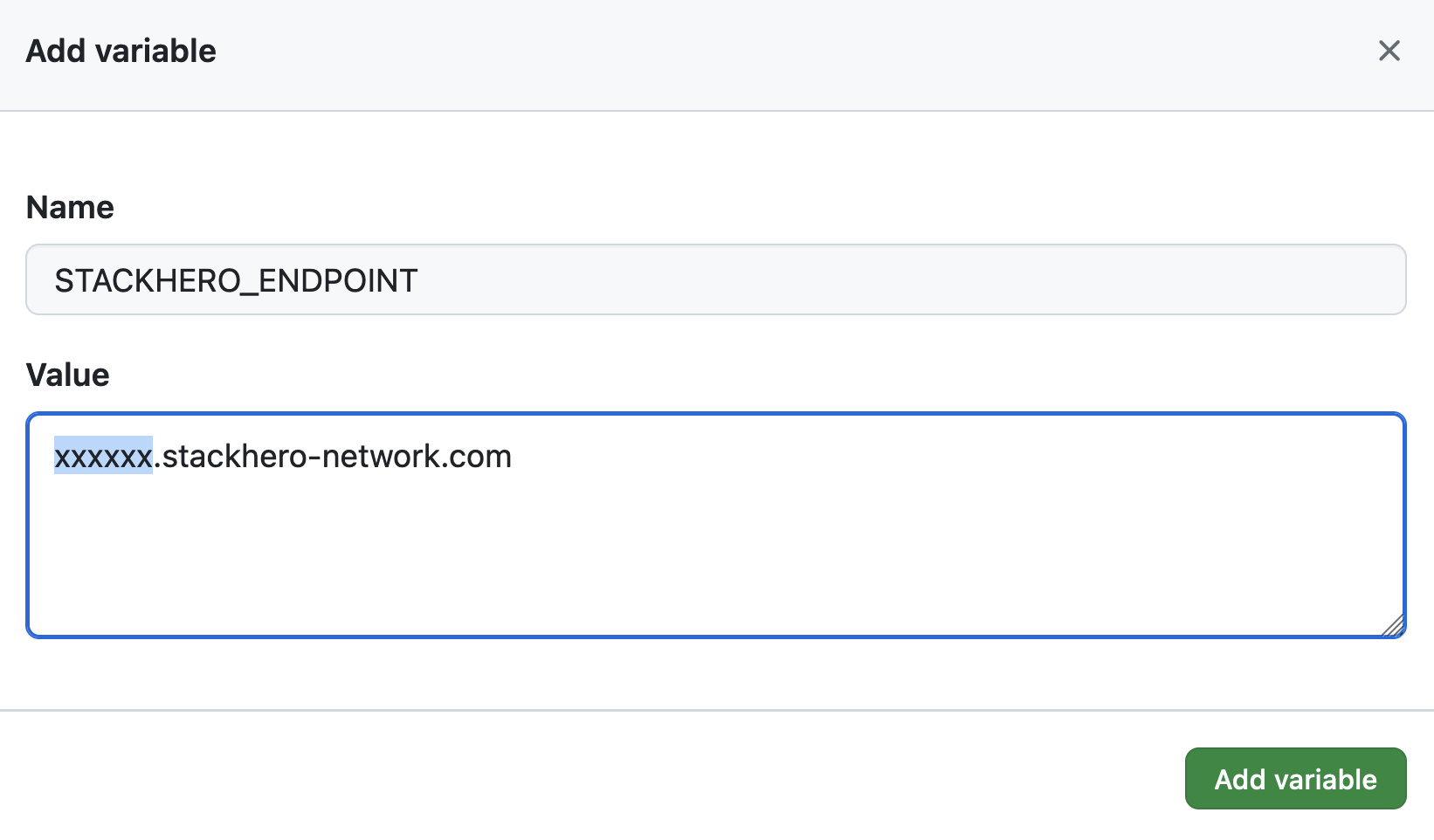 Setting the endpoint variable
If you have customized your service's domain name, use the customized version instead of <XXXXXX>.stackhero-network.com.
Delete the generated keys
For security reasons, it is recommended to delete the SSH keys from your computer now, since you will no longer need them:
rm /tmp/ssh_key /tmp/ssh_key.pub