 Grafana: How to configure Prometheus as a data source in Grafana
This documentation is part of the Using Prometheus guide. You can view the complete guide here: How to configure Grafana to use Prometheus as a data source.
👋 Welcome to the Stackhero documentation!
Stackhero provides you with a ready-to-use Grafana cloud environment, designed for fast setup and reliable performance:
- Unlimited users, dashboards, and alerts: scale your monitoring as needed, with no artificial restrictions.
- A dedicated SMTP email server is included, so you can send as many notifications as you want, with no quotas to monitor.
- One-click plugin installation makes it easy to add new features to Grafana.
- Built-in SSO support for
GitLab,GitHub,OAuth2provider. User management remains simple and secure.- One-click updates keep your Grafana instance up to date, with no downtime or maintenance headaches.
- Use your own custom domain with automated HTTPS provisioning for secure, branded access (for example, https://grafana.your-company.com).
- High performance and enhanced security are included by default, running on your own private, dedicated infrastructure.
Get started faster and save time on setup: a secure Grafana cloud hosting instance is ready in about 5 minutes.
Integrating Prometheus with Grafana enhances your ability to visualize metrics effectively. Follow this guide for a straightforward setup process.
Accessing the data source configuration
- Open the Grafana web user interface (UI).
- Navigate to
Configuration>Data Sources. - Click on
Add Data Source. - From the list of available sources, select
Prometheus.
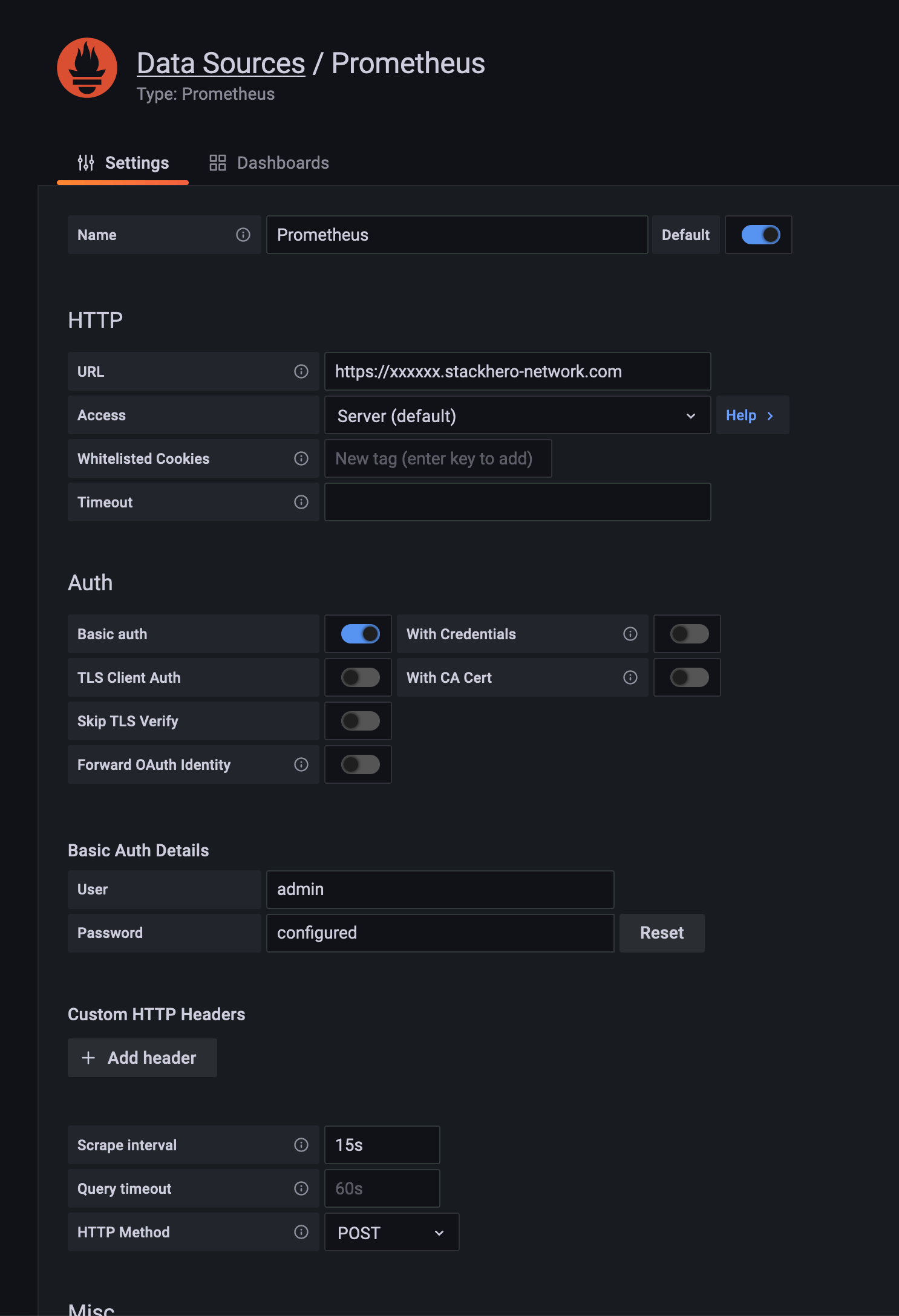 Example of Prometheus configuration as data source
Configuring the Prometheus data source
Follow these steps to properly set up Prometheus as a data source:
- URL: Provide the Prometheus service URL, such as
https://<XXXXXX>.stackhero-network.comor your custom domain. - Authentication: Enable
Basic Auth, setadminas the username, and provide your Prometheus password. You can find this password in the Stackhero dashboard under the Prometheus service settings. - Scrape Interval: Ensure the
Scrape Intervalaligns with your Prometheus server configuration. The default is15sunless it has been adjusted.
After entering these details, click Save & Test to verify the connection is functional.