Send logs to Graylog
Learn how to configure your Stackhero instances to forward system logs to Graylog for centralized log management.
Introduction
Graylog offers a robust and intuitive platform for managing system logs. It streamlines the collection, organization, and analysis of logs, while providing features such as Slack and email notifications, customizable dashboards, and a powerful query interface. This makes it an ideal tool for improving system monitoring, enhancing security, and simplifying incident troubleshooting.
By configuring your Stackhero instances to forward logs to a Graylog server, you centralize log management, which optimizes the efficiency and relevance of your system monitoring.
Configuring Graylog to receive logs
Follow these steps to set up Graylog to receive logs:
- Log in to the Graylog web interface.
- Go to System > Inputs.
- In the Select input dropdown, choose GELF HTTP.
- Enable the Global option.
- Give the input a descriptive name, such as "GELF HTTPS".
- Enable the Enable Bulk Receiving option.
- Save the configuration.
The "Enable Bulk Receiving" option is required. Your Stackhero instance sends multiple log lines with each request. Without this option, Graylog will only receive the first line of each request and silently ignore the others.
If your GELF HTTP input already exists, go to System > Inputs, select Edit input from that input's menu, and enable Enable Bulk Receiving.
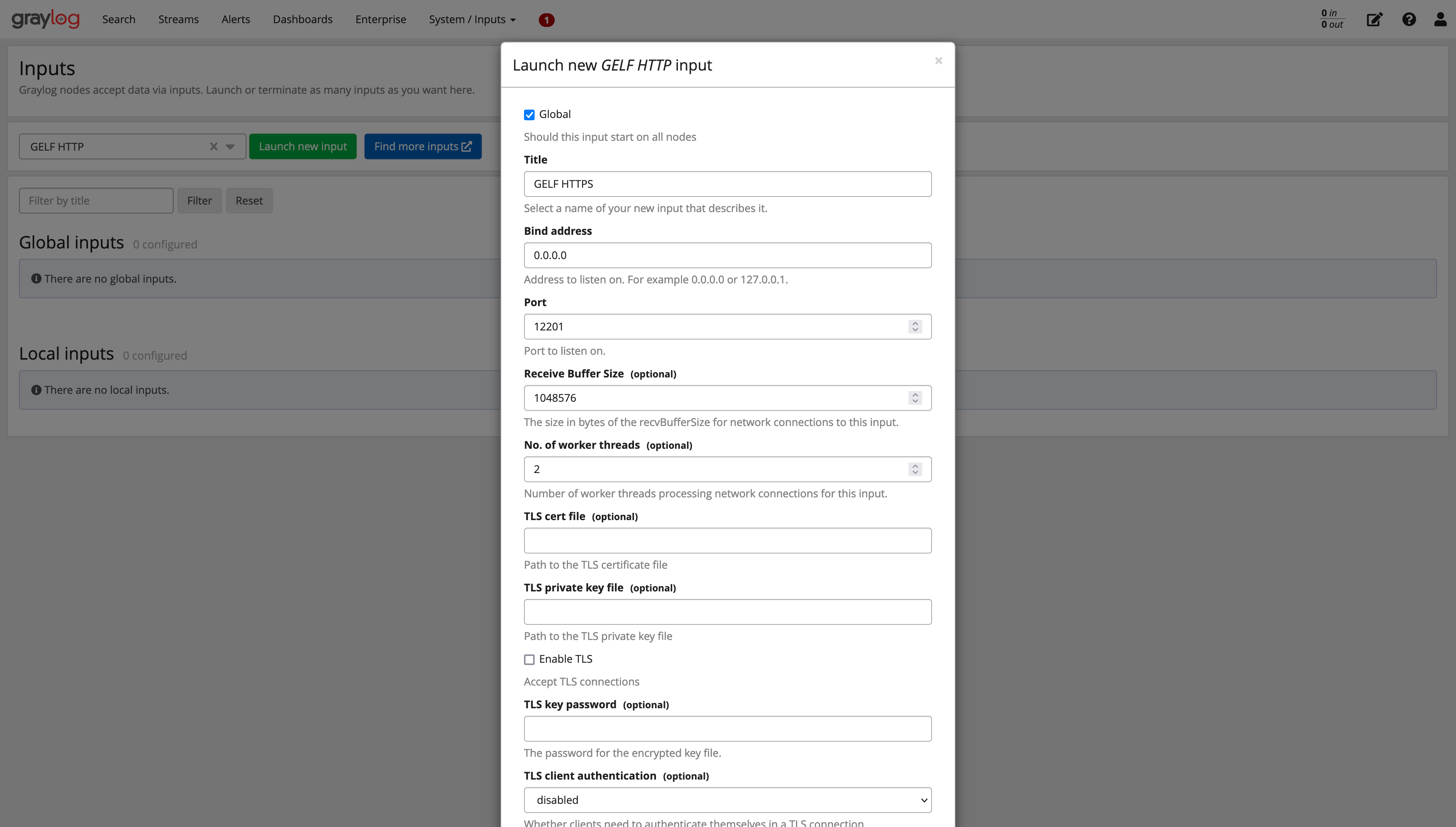 Graylog GELF HTTP Input Configuration
Next, check the input port settings in your Stackhero dashboard:
- Access your Stackhero dashboard.
- Go to the configuration page for your Graylog service.
- Click Configure.
- Make sure port 12201 is enabled for both TCP and TLS in the Input Ports section. Adjust the settings if necessary.
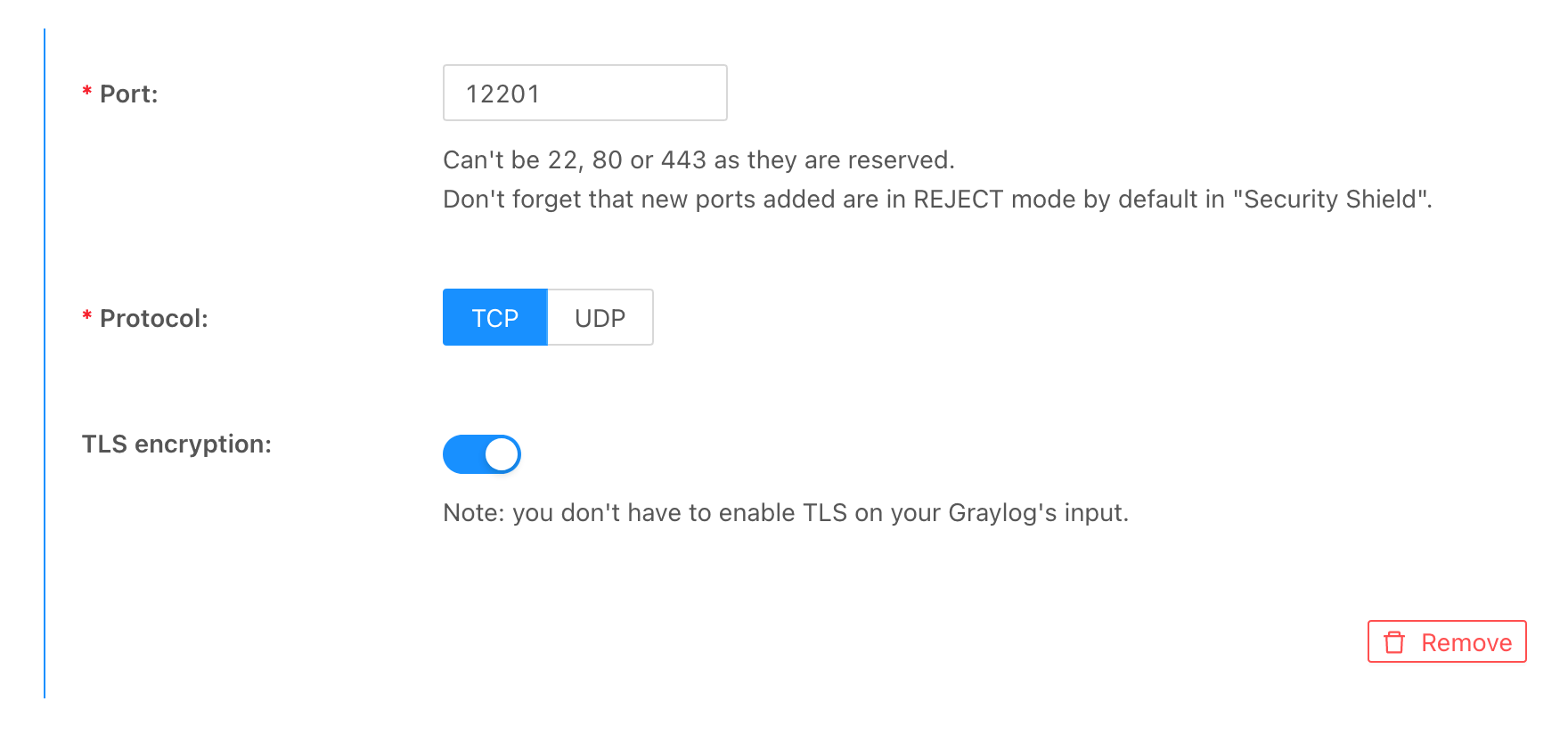 Activating TLS on Port 12201 in Graylog
Your Graylog instance is now ready to receive logs from Stackhero.
Configuring your Stackhero instance to send logs to Graylog
To set up a Stackhero instance to forward logs to Graylog:
- Log in to the Stackhero dashboard.
- Go to the service instance you want to configure.
- Select the Logs Forwarder tab.
- Enter your Graylog domain in the Graylog Domain field (for example,
<XXXXXX>.stackhero-network.comor your custom domain). - Set the Graylog Port to
12201. - Save the configuration.
Once these settings are saved, your Stackhero instance will start forwarding logs to your Graylog server.
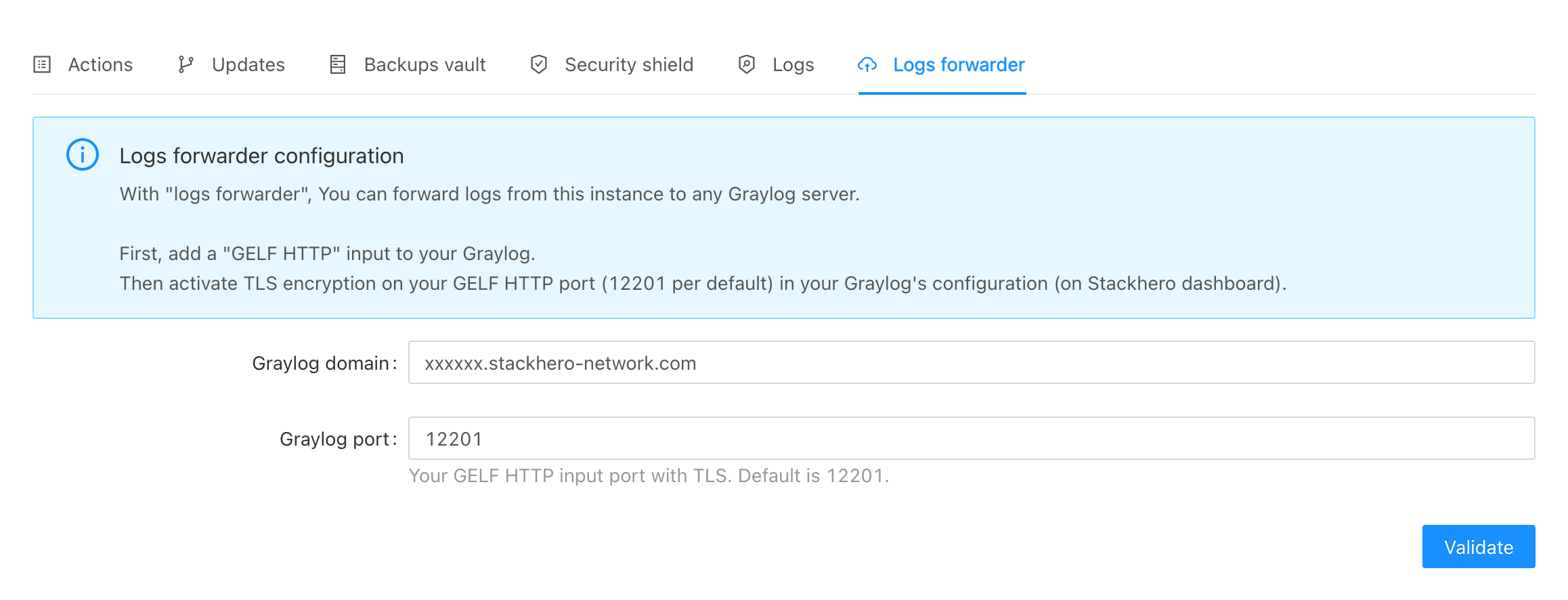 Stackhero Logs Forwarder Configuration
Verifying log forwarding
To check that logs are being forwarded correctly:
- Open the Graylog web interface.
- Go to the Search section.
- Enter a query, such as "logs from".
- Look for log entries from your instance (for example, "Logs from svc-xxxxxx") sent to
<XXXXXX>.stackhero-network.com:12201.
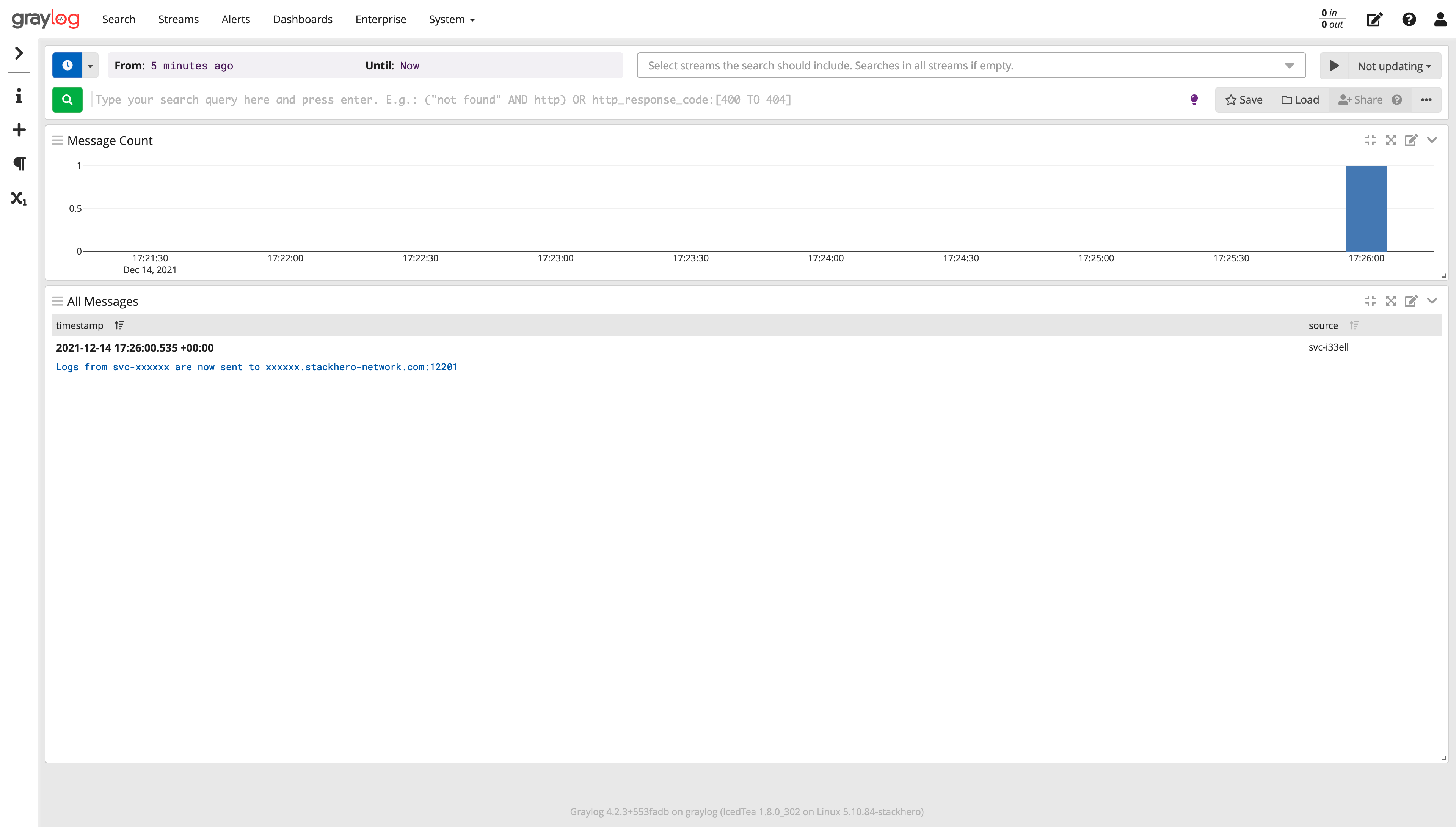 Graylog Receiving Logs Example
Congratulations! Your Stackhero instances are now forwarding logs to your Graylog server. This setup allows you to centralize and analyze your logs in a scalable way.