Configuring Graylog to receive logs
This documentation is part of the Send logs to Graylog guide. You can view the complete guide here: Learn how to configure your Stackhero instances to forward system logs to Graylog for centralized log management..
Follow these steps to set up Graylog to receive logs:
- Log in to the Graylog web interface.
- Go to System > Inputs.
- In the Select input dropdown, choose GELF HTTP.
- Enable the Global option.
- Give the input a descriptive name, such as "GELF HTTPS".
- Enable the Enable Bulk Receiving option.
- Save the configuration.
The "Enable Bulk Receiving" option is required. Your Stackhero instance sends multiple log lines with each request. Without this option, Graylog will only receive the first line of each request and silently ignore the others.
If your GELF HTTP input already exists, go to System > Inputs, select Edit input from that input's menu, and enable Enable Bulk Receiving.
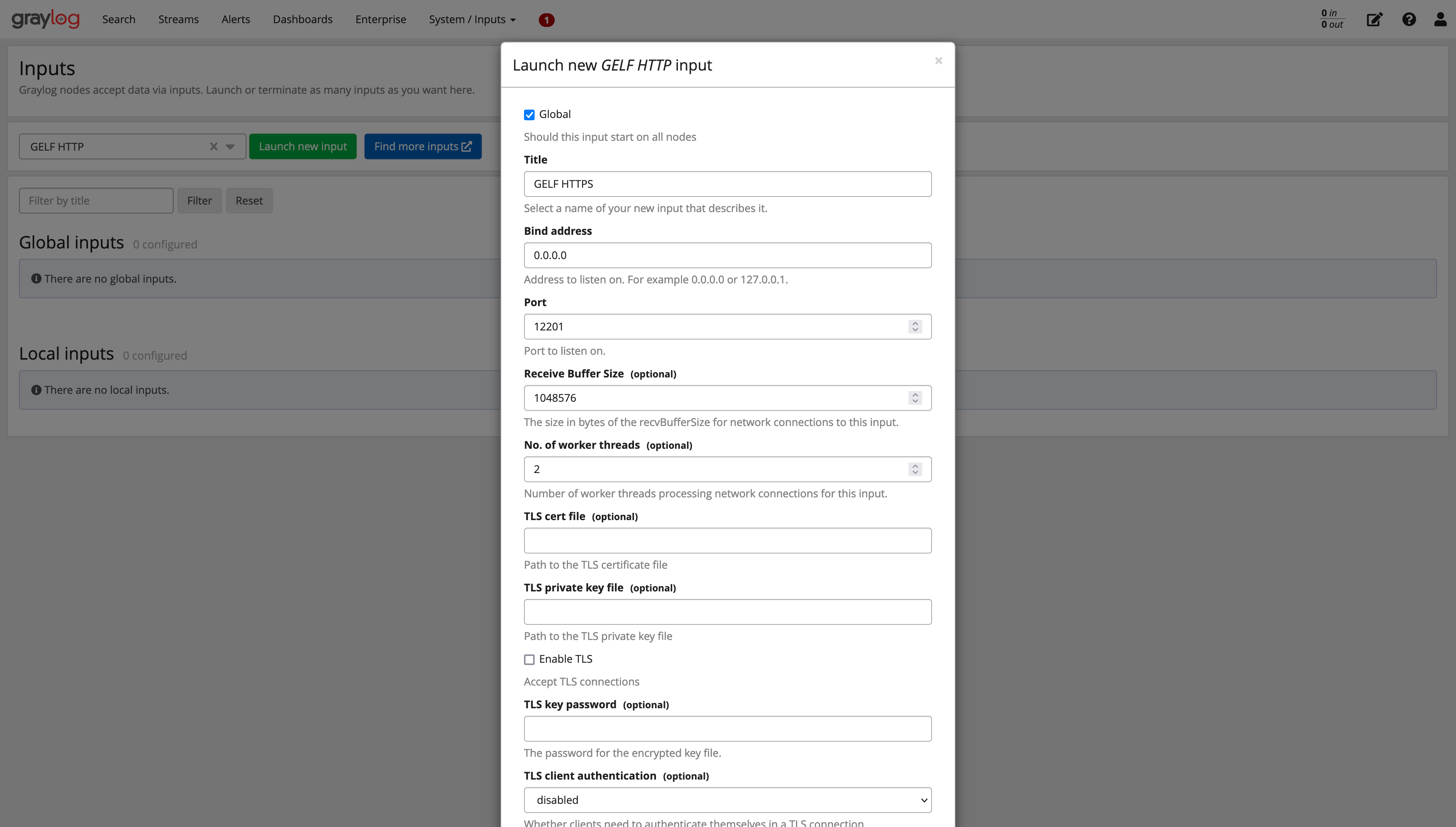 Graylog GELF HTTP Input Configuration
Next, check the input port settings in your Stackhero dashboard:
- Access your Stackhero dashboard.
- Go to the configuration page for your Graylog service.
- Click Configure.
- Make sure port 12201 is enabled for both TCP and TLS in the Input Ports section. Adjust the settings if necessary.
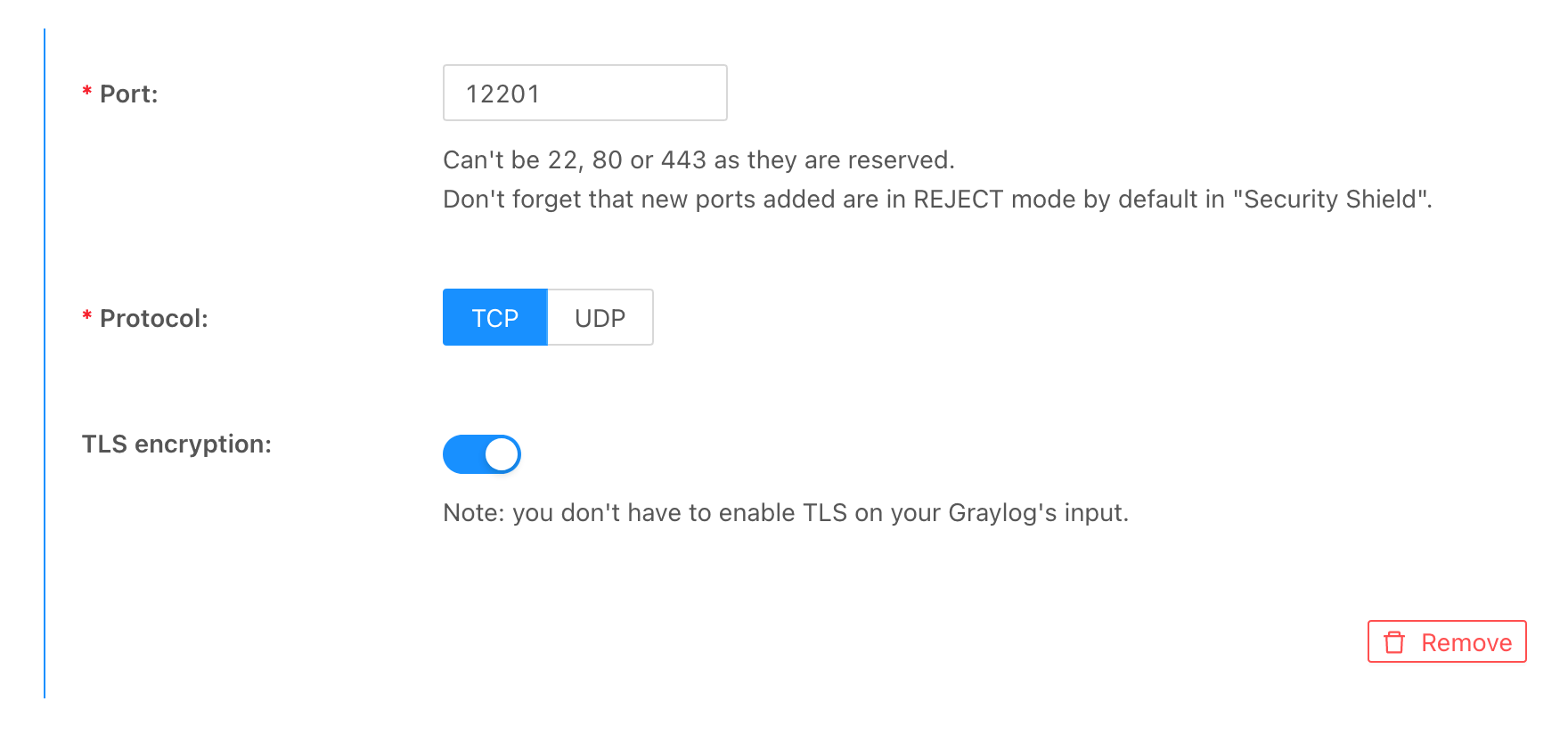 Activating TLS on Port 12201 in Graylog
Your Graylog instance is now ready to receive logs from Stackhero.