Setting up Graylog to receive logs
This documentation is part of the Forward logs to Graylog guide. View the full guide here: Learn how to configure your Stackhero instances to forward system logs to Graylog for centralized log management..
Follow these steps to configure Graylog for receiving logs:
- Log in to your Graylog web interface.
- Navigate to System > Inputs.
- From the Select input dropdown, choose GELF HTTP.
- Enable the Global option.
- Assign a descriptive name to the input, such as "GELF HTTPS".
- Save the configuration settings.
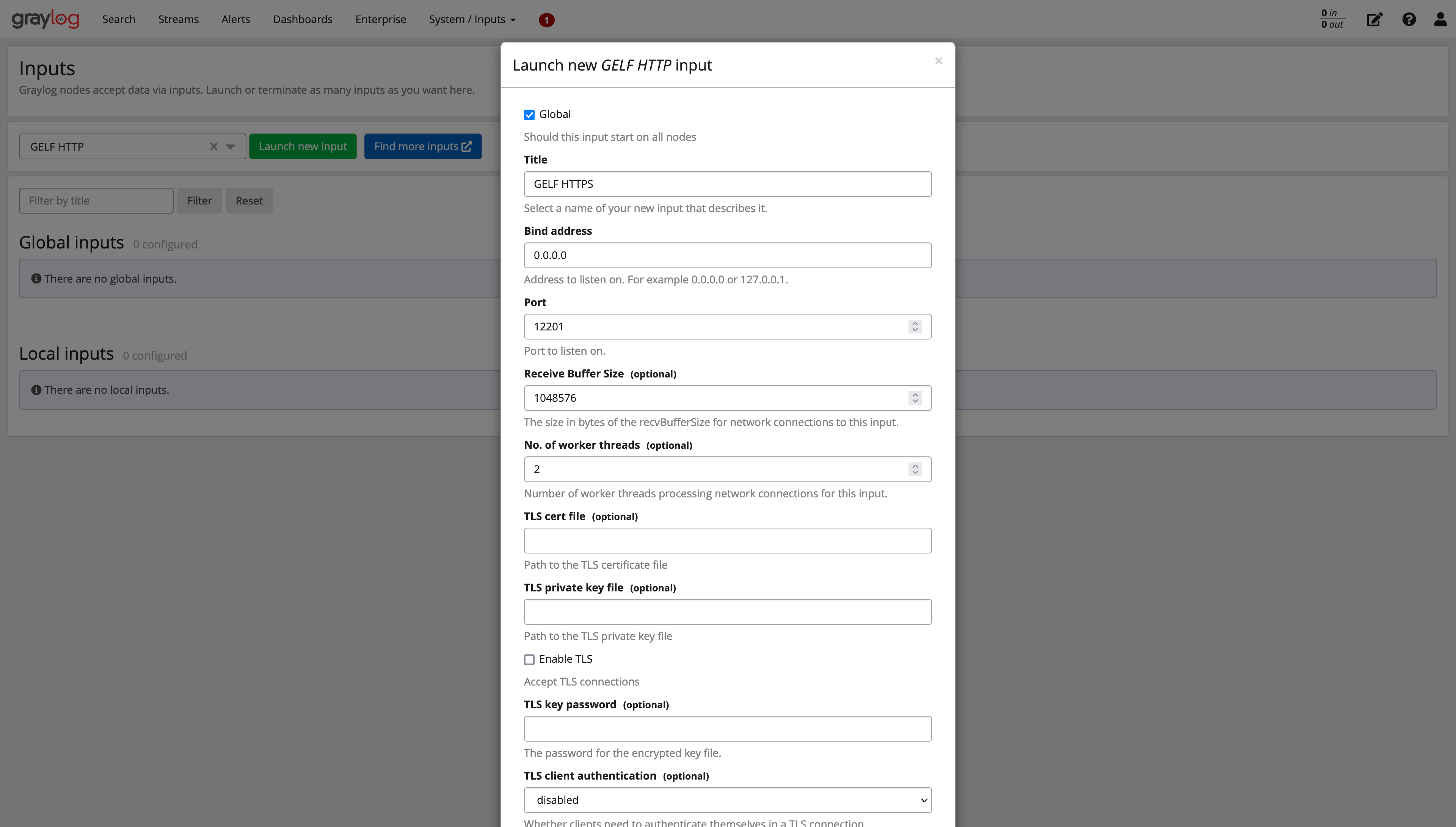 Graylog GELF HTTP Input Configuration
Next, verify the input port settings in your Stackhero dashboard:
- Access your Stackhero dashboard.
- Navigate to the configuration page for your Graylog service.
- Select Configure.
- Confirm that port 12201 is enabled for both TCP and TLS under the Input Ports section. Adjust settings if needed.
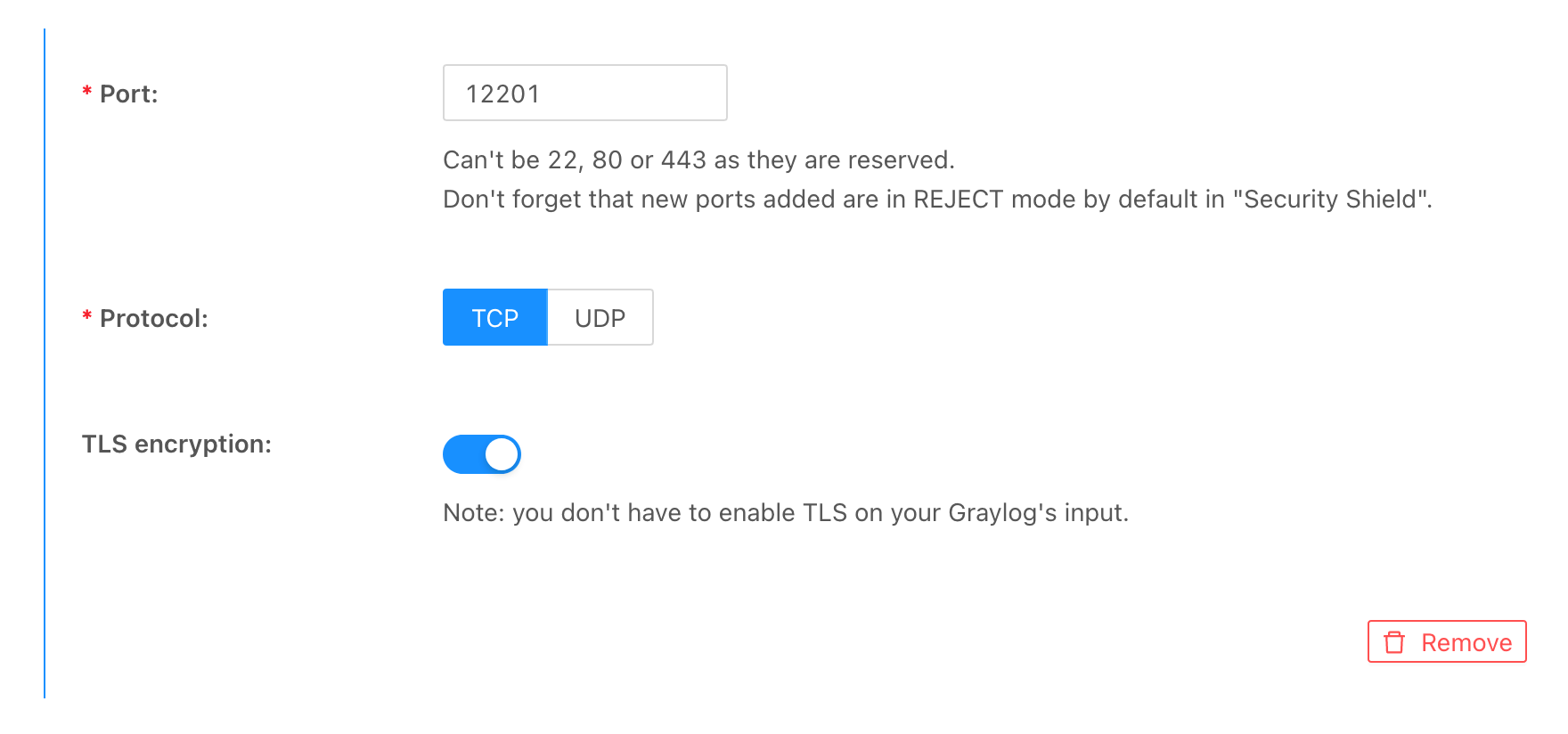 Activating TLS on Port 12201 in Graylog
Your Graylog instance is now ready to receive logs from Stackhero.