 Docker: Deploy with GitHub Actions
Learn how to deploy your Docker containers using GitHub Actions
Welcome to the Stackhero documentation
Stackhero provides a ready-to-use Docker cloud CaaS (Containers as a Service) platform, designed for fast and reliable container deployments:
- Deploy to production with a single
docker-compose up. There is no extra setup: just start your containers.- Pick your own domain name, secured automatically with HTTPS (for example: https://api.your-company.com, https://www.your-company.com, or https://backoffice.your-company.com).
- Benefit from strong performance and robust security on private, dedicated infrastructure.
- Apply updates with one click for simple, low-effort maintenance.
You can have your containers live in production in about five minutes. Stackhero manages the infrastructure, updates, and security for you, so you can focus on delivering your applications. Read more about Docker CaaS cloud hosting.
GitHub Actions makes it easy to automate tasks like deploying your Docker containers to production servers. In this guide, you will discover how to set up GitHub Actions securely and reliably to deploy your Docker containers to both staging and production environments.
For this setup, you will maintain two branches: staging and production. Whenever you push code to either branch, it will automatically deploy to the appropriate Stackhero instance.
Having a staging instance is not mandatory. You can follow this guide using only a production instance. However, to reduce risks and build confidence when deploying to production, it is strongly recommended to have both a staging and production instance. This is an industry standard and best practice that can help you avoid many potential issues.
Before getting started, make sure you have a GitHub account and a repository that hosts your code.
Creating the Docker services
Begin by logging into your Stackhero dashboard and creating two Stackhero services, one for staging and one for production. To help stay organized and minimize errors, you might want to rename these services to "Staging" and "Production".
Do you not have a Stackhero account yet? You can create one for free in just two minutes and then set up your Docker cloud services with only a few clicks.
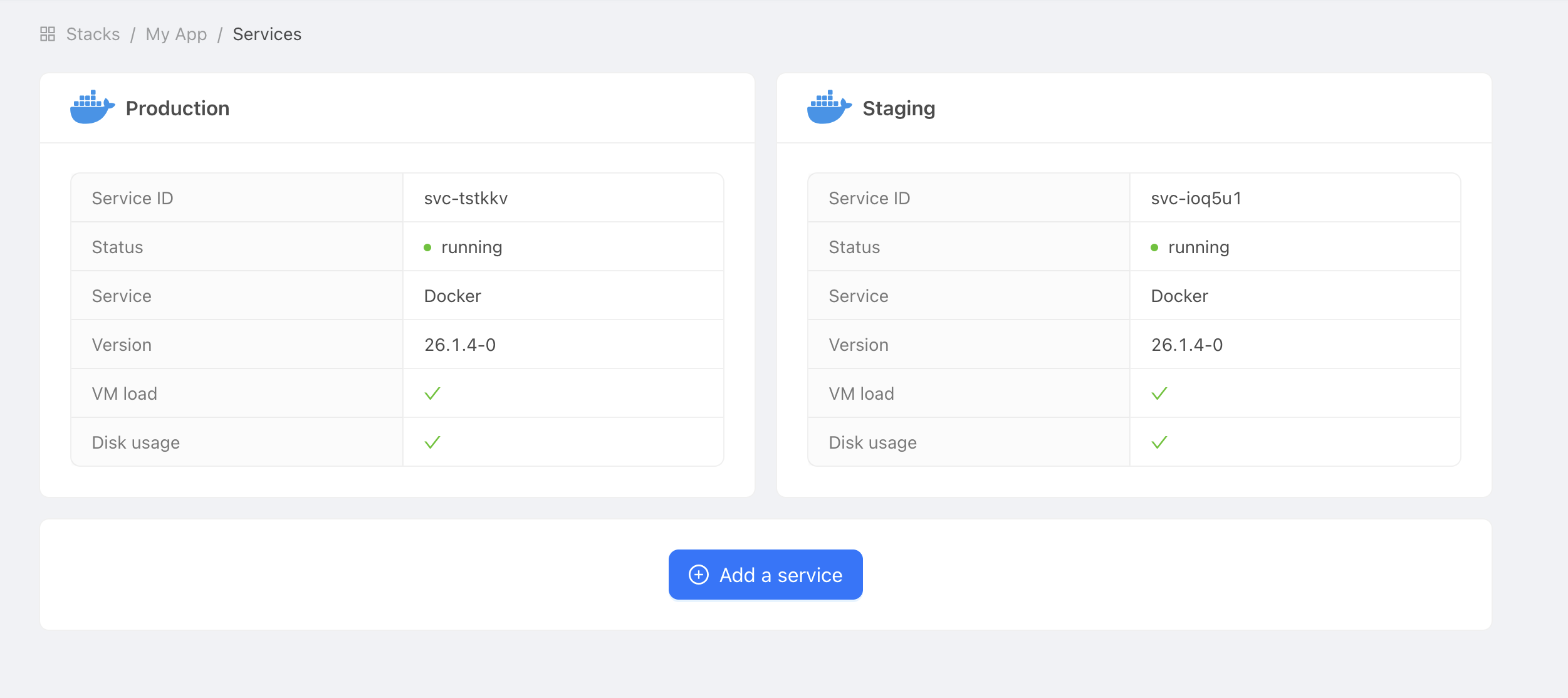 Example of Docker services
Configure the environment variables and secrets
Get the domain name and certificates password
To let GitHub Actions connect to your Stackhero Docker service, you will need two pieces of information: the domain name of your service and the certificates password.
-
In the Stackhero dashboard, select your "production" Docker service and click the "Configure" button.
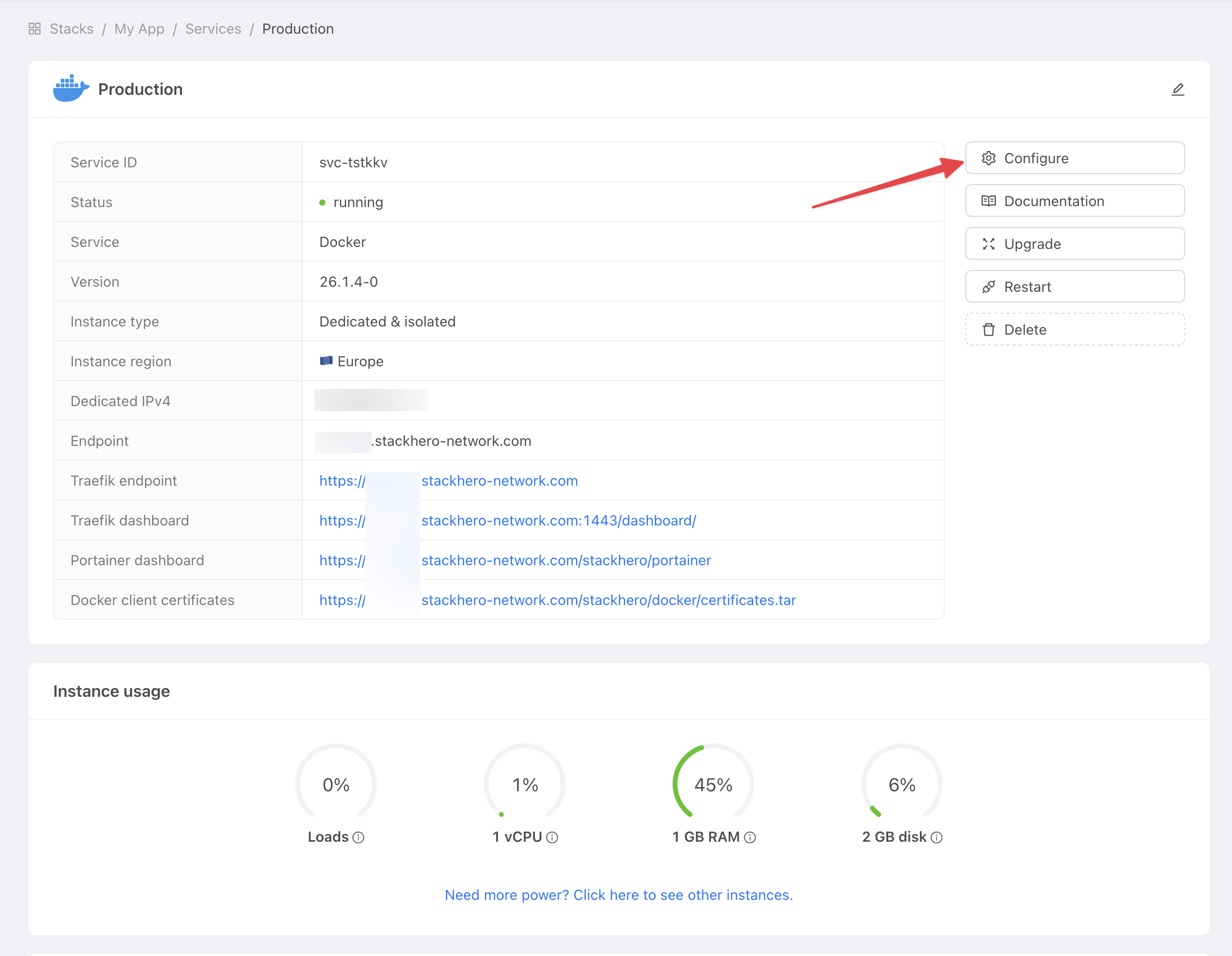 Get service settings
 -
Copy both the "Domain name" and the "Docker certificates password" for use in the next steps.
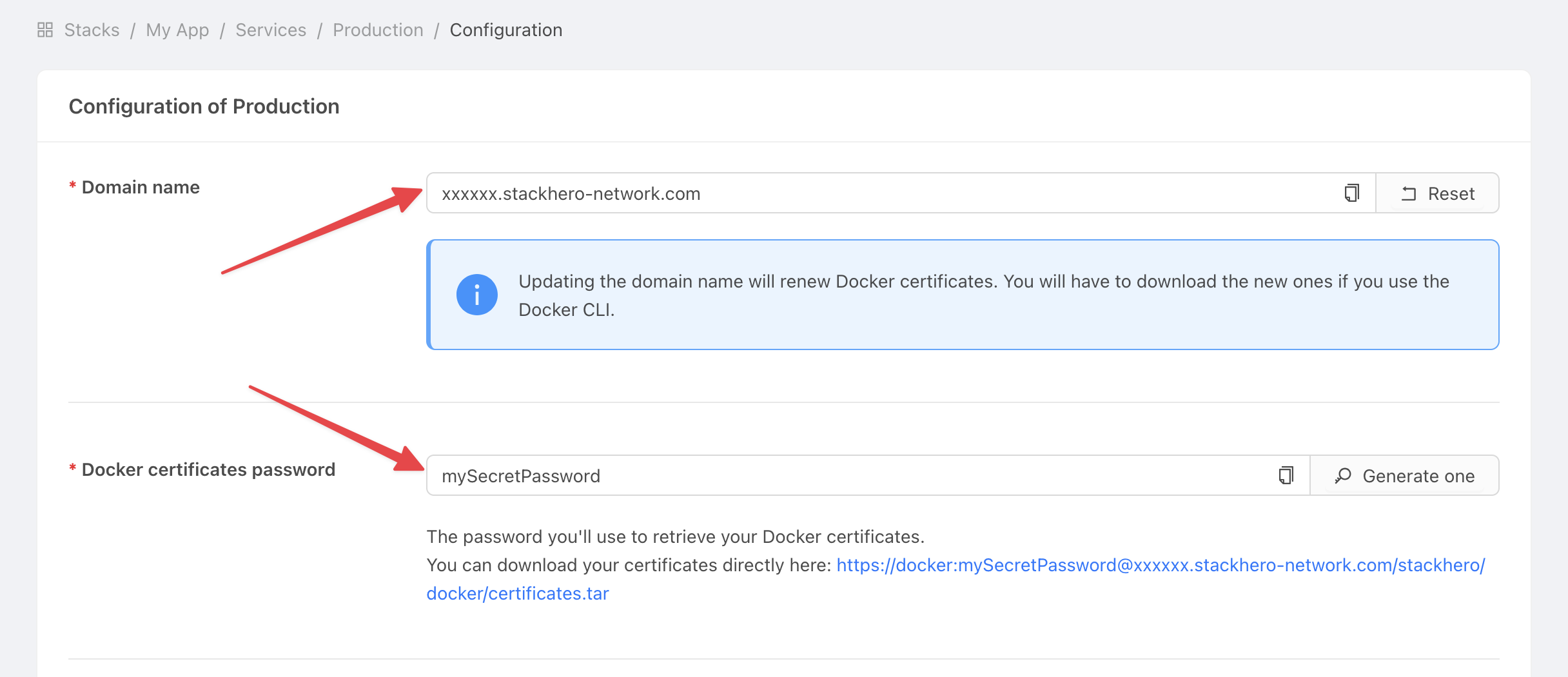 Get service settings
Set the domain name and certificates password in GitHub
-
In GitHub, open your project.
-
Go to Settings > Environments, then click New environment.
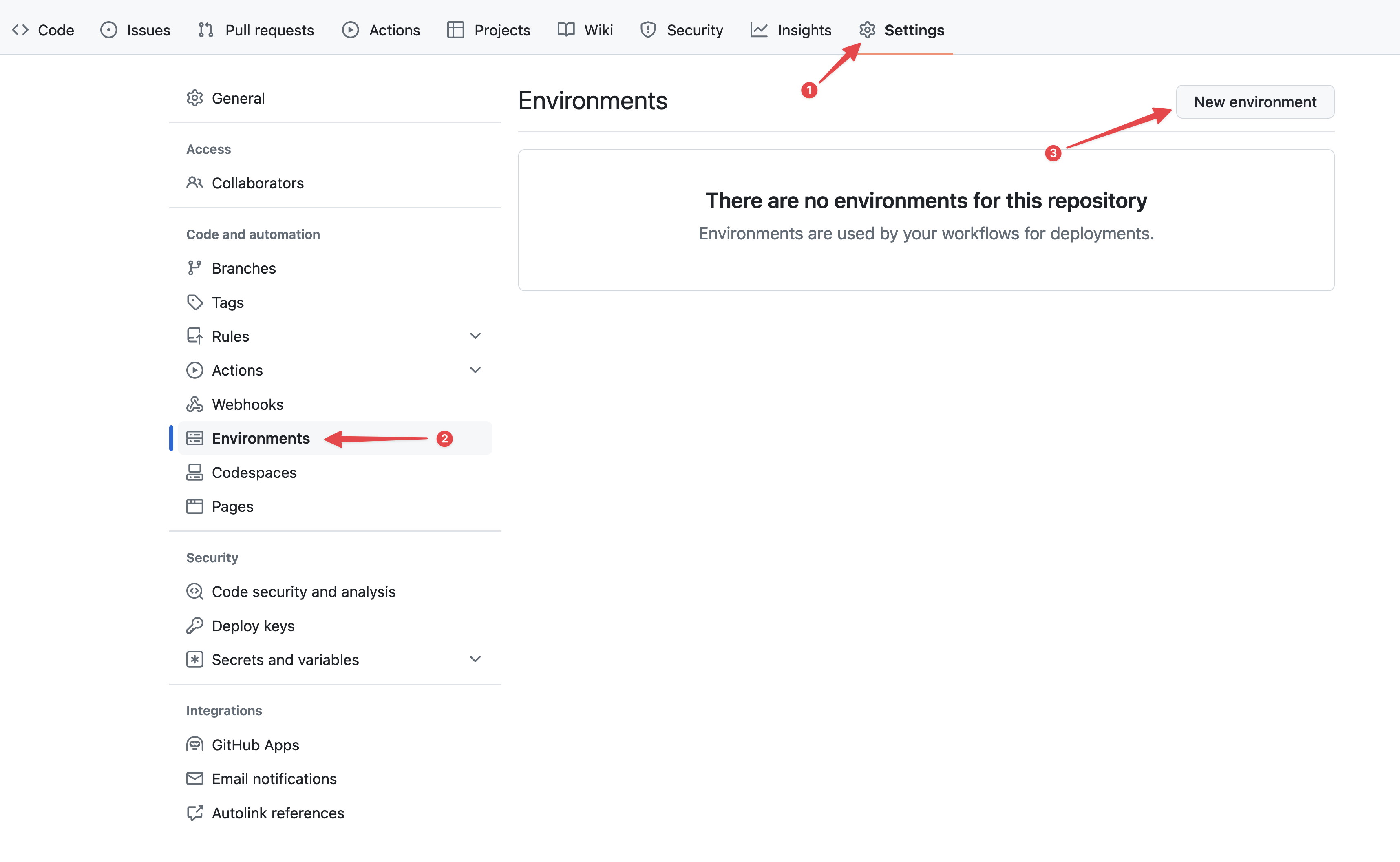 Configuring GitHub environments
 -
In the Name field, type "production" and confirm.
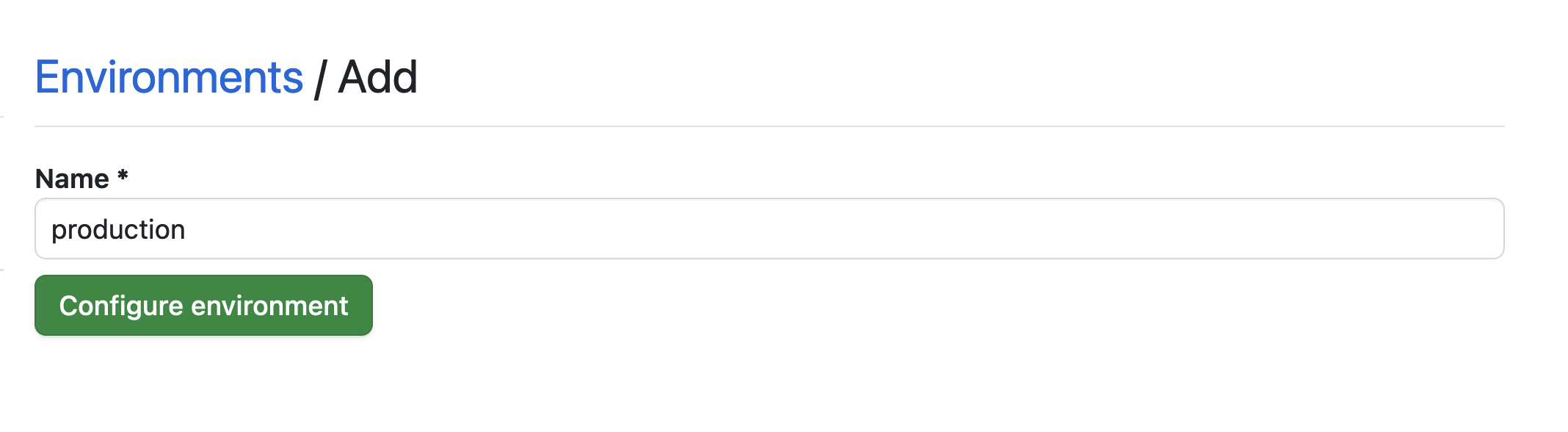 Setting the environment
 -
Click the No restriction button and choose Selected branches and tags.
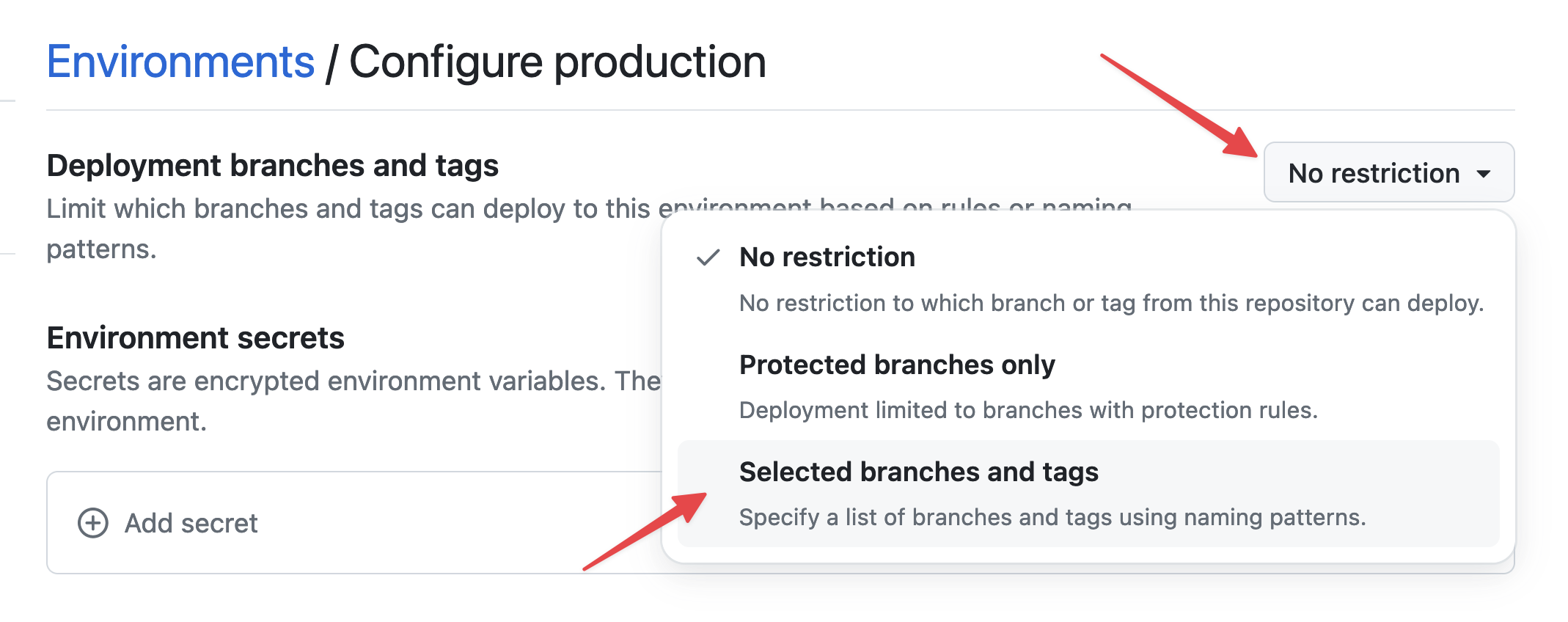 Setting environment restrictions
 -
Click Add deployment branch or tag rule, enter "production" in the Name pattern field, and then click Add rule.
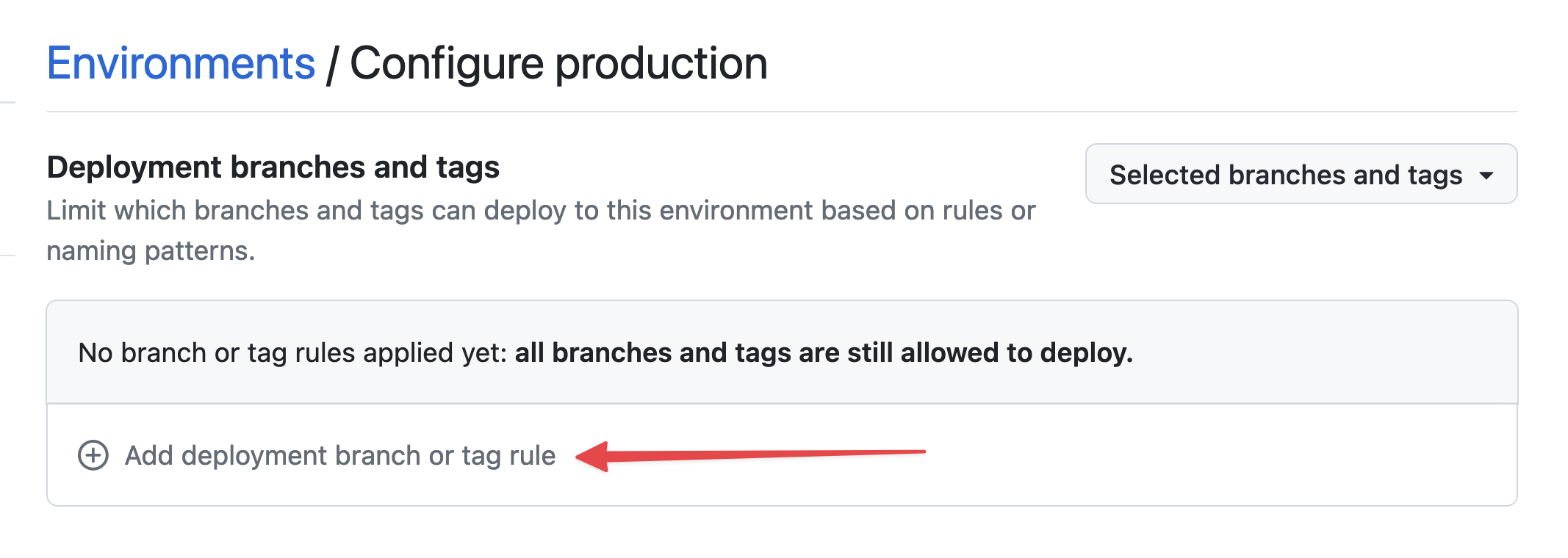 Setting environment branch
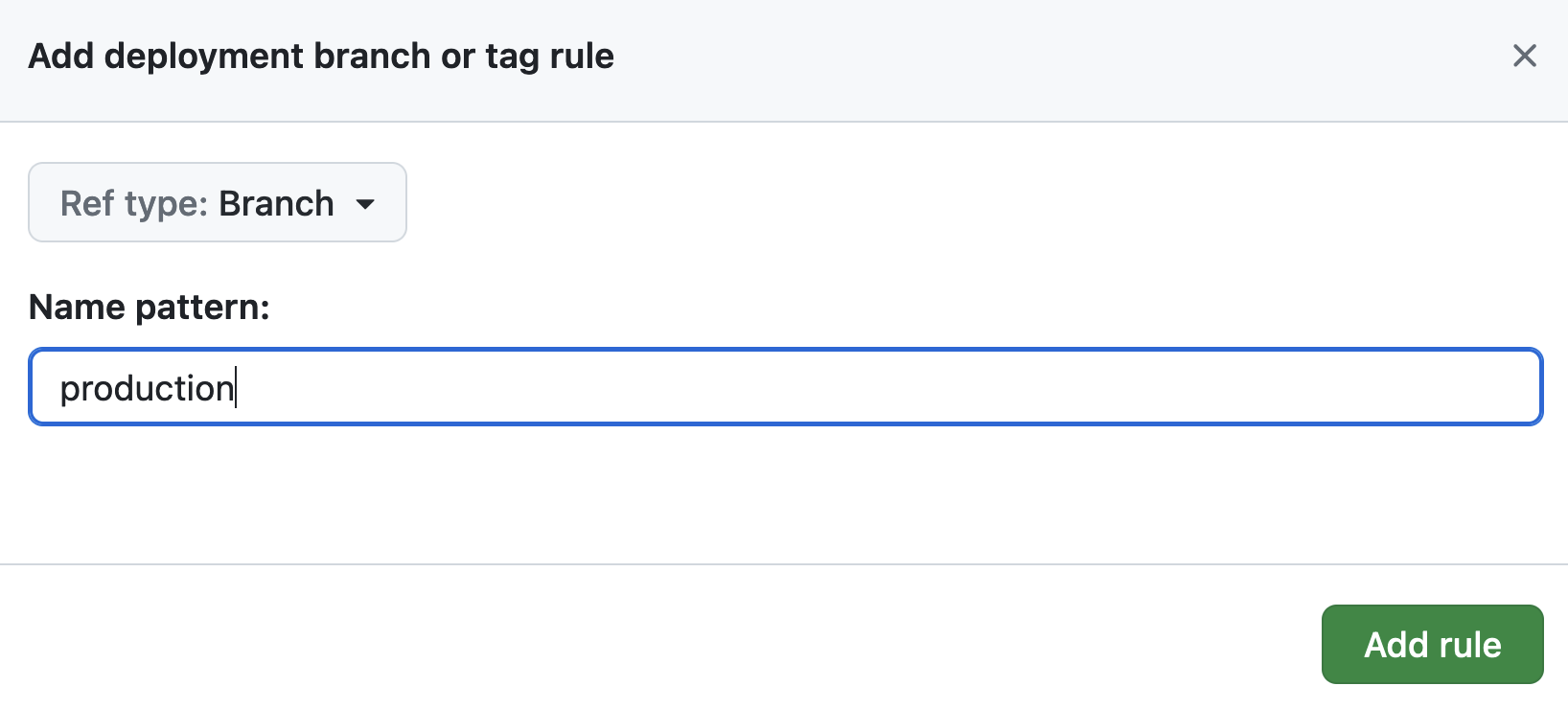 Setting environment branch
 -
Under Environment secrets, click Add secret.
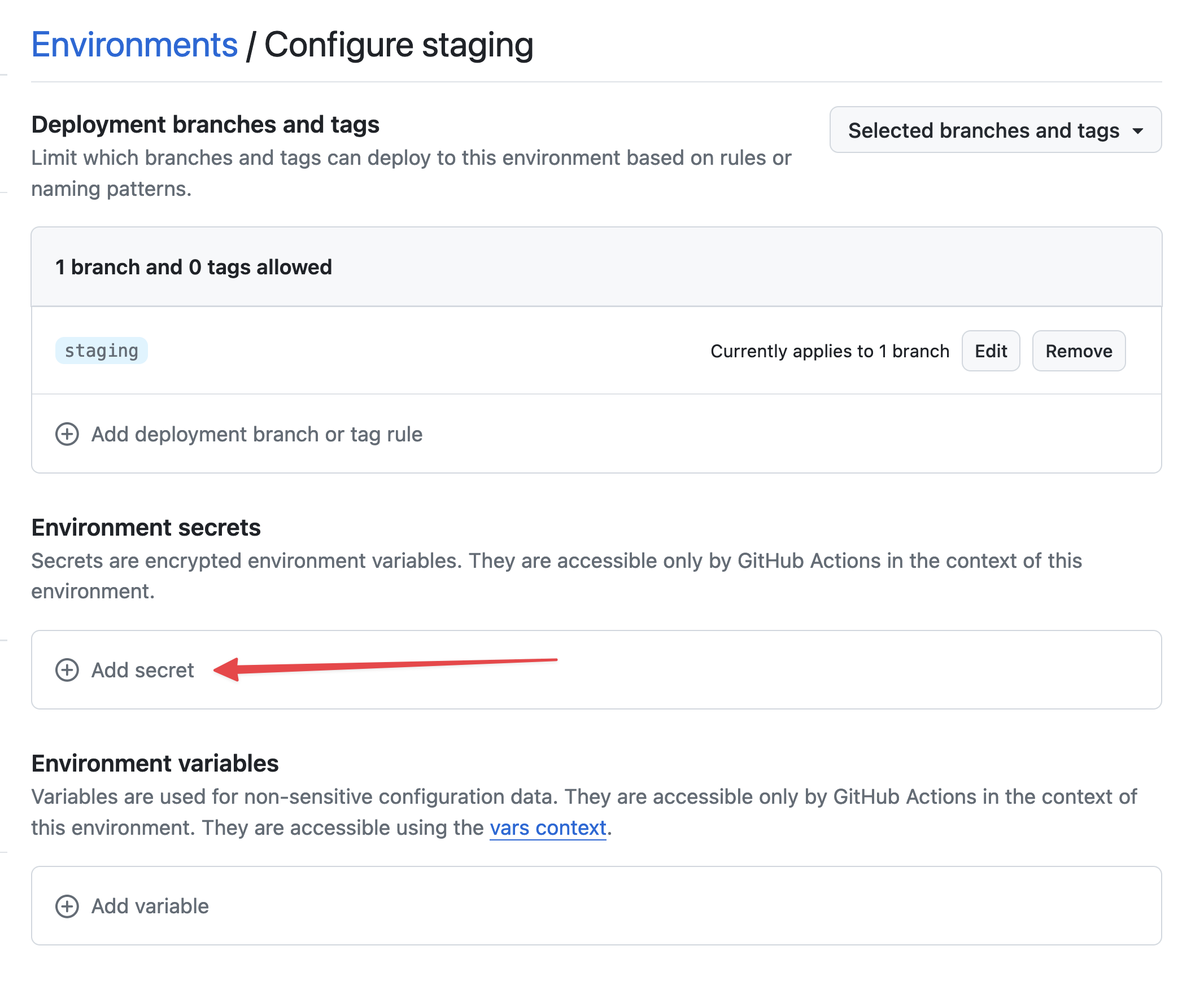 Add secret
 -
For the secret, use
STACKHERO_CERTIFICATES_PASSWORDas the name and paste your certificates password into the Value field.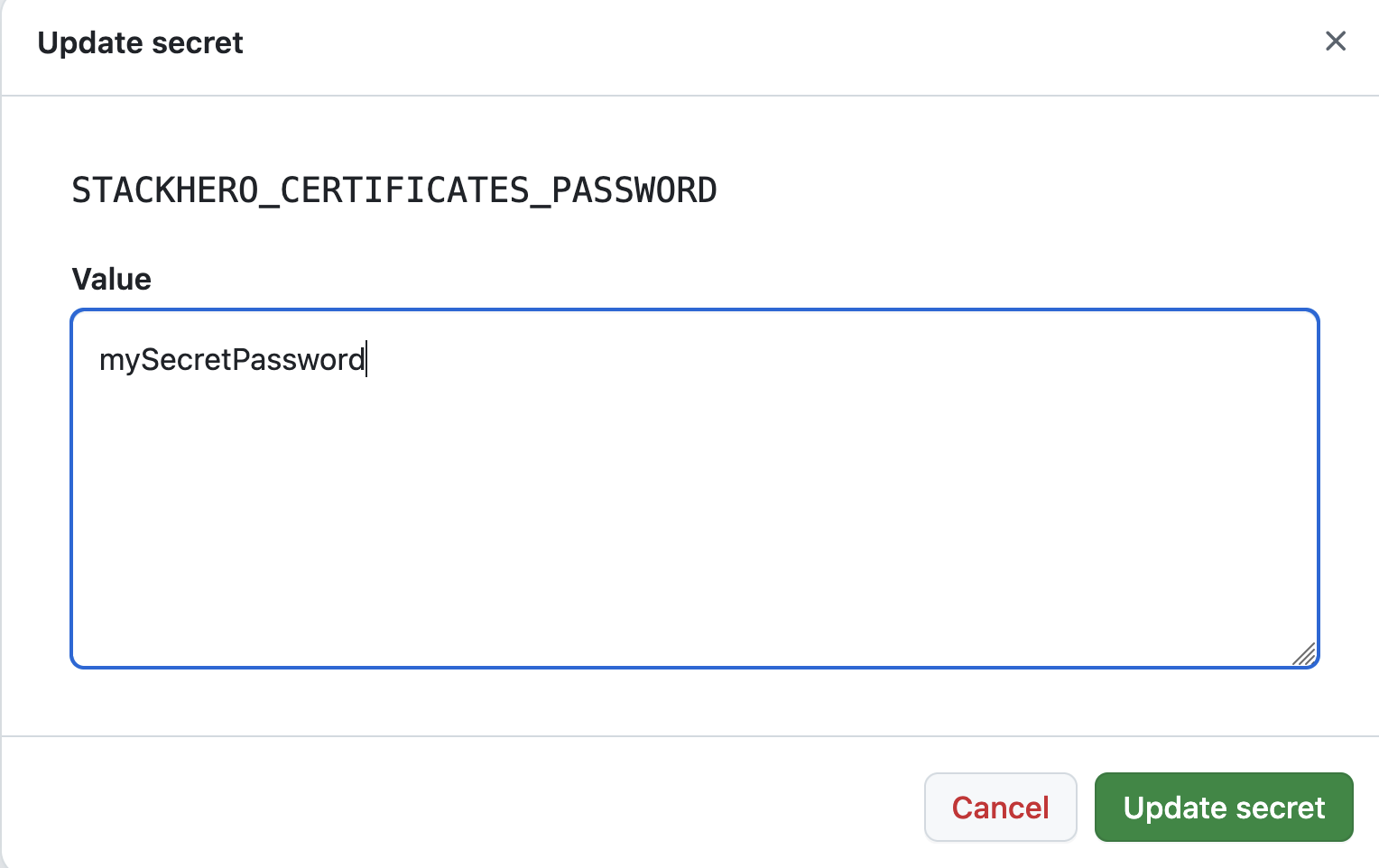 Setting the certificates password secret
 -
Under Environment variables, click Add variable.
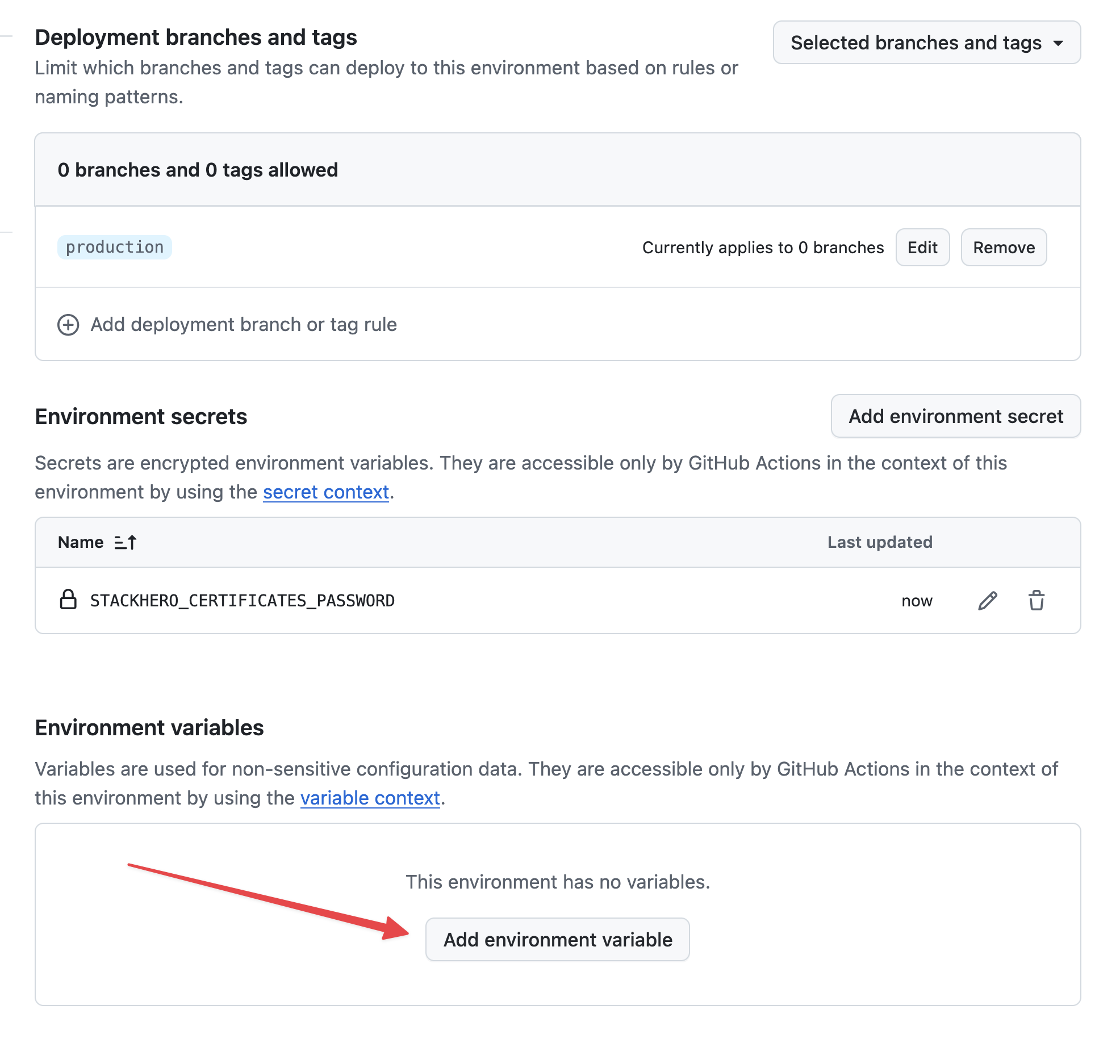 Setting variables
 -
Use
STACKHERO_ENDPOINTas the name and paste your Docker service endpoint into the Value field. You can find this endpoint in your Stackhero dashboard.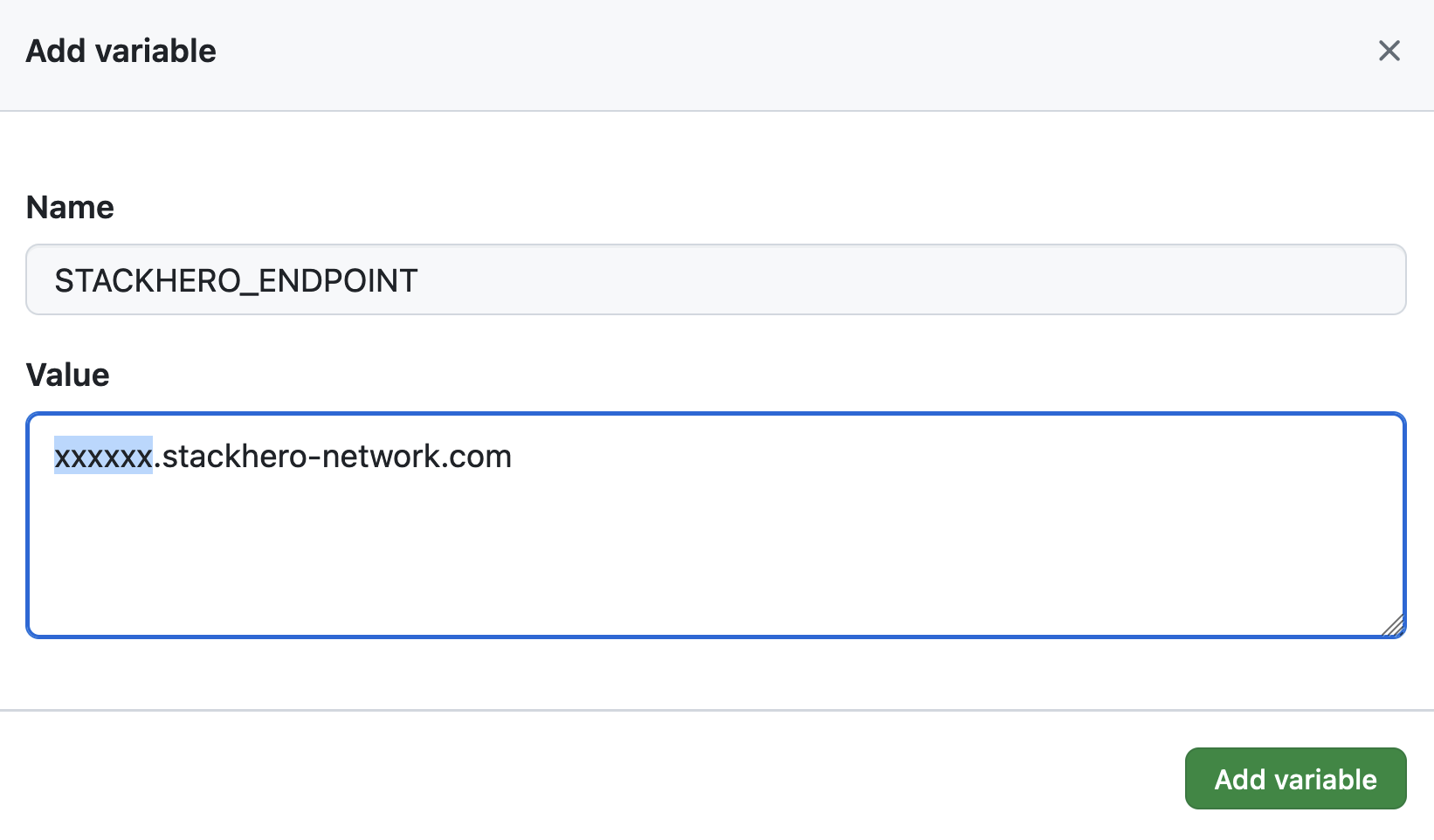 Setting the endpoint variable
If you have customized your service's domain name, remember to use your custom domain instead of <XXXXXX>.stackhero-network.com.
Customize the Docker Compose configuration file
If the
docker-compose.ymlfile is already at the root of your project and you do not need customizations, you can skip this section.
By default, GitHub Actions will look for the docker-compose.yml file in your project's root directory. If you need to use a different file or setup, you can adjust the deployment command. For example, if you are using our Getting started with Node.js and Docker boilerplate, you can create a new environment variable called STACKHERO_DEPLOY_COMMAND and set it to:
docker compose --env-file env.list --file docker/docker-compose.yml --file docker/docker-compose.production.yml up --build --remove-orphans -d
Configure the GitHub Actions workflow
On your local machine, navigate to your Git repository and create a directory called .github/workflows. Inside this directory, create a file named deploy-to-stackhero.yml with the following content:
# File: .github/workflows/deploy-to-stackhero.yml

name: Deploy to Stackhero
description: Deploy branch "${{ github.ref_name }}" to Stackhero

on:
  push:
    # These branches trigger the deploy action on push.
    # Be sure to create an environment matching the branch name in GitHub (under Settings > Environments).
    # Then add the secret STACKHERO_CERTIFICATES_PASSWORD and variable STACKHERO_ENDPOINT in that environment.
    branches: [ "production", "staging" ]

jobs:
  Deploy:
    environment: ${{ github.ref_name }}
    runs-on: ubuntu-latest
    steps:
    - uses: stackhero-io/github-actions-deploy-docker-containers-to-stackhero@v1
      with:
        # The secret STACKHERO_CERTIFICATES_PASSWORD and the variable STACKHERO_ENDPOINT should be defined in the corresponding branch environment on GitHub.
        certificates_password: ${{ secrets.STACKHERO_CERTIFICATES_PASSWORD }}
        endpoint: ${{ vars.STACKHERO_ENDPOINT }}
        # deployment_command is optional. You can use it if you need to customize the Docker Compose command.
        deployment_command: ${{ vars.STACKHERO_DEPLOY_COMMAND }}
You can commit your changes with:
git add -A .
git commit -m "Add GitHub Actions to deploy to Stackhero"
To create a production branch, you can run:
git checkout -b production
And then push your production branch to GitHub:
git push --set-upstream origin production
Once your code is pushed, GitHub Actions will automatically deploy it to your production Stackhero instance. You can monitor the deployment progress by checking the Actions tab in your GitHub project.
 GitHub Actions that deployed to production
That is it. You are now set up to deploy your code to production automatically using GitHub Actions.
Creating the staging environment
Setting up the staging environment follows the same steps as the production setup. Just repeat the process, but use staging instead of production.
Then, create a staging branch by running:
git checkout -b staging
And push your staging branch to GitHub:
git push --set-upstream origin staging
After this, GitHub Actions will automatically deploy your staging branch to the designated Docker instance for staging.
Using environment variables in docker-compose.yml
You can define environment variables in your GitHub project that will be accessible inside your docker-compose.yml file. This is very helpful if you want to deploy to different domains (for example, staging.my-company.com for staging and my-company.com for production).
- In GitHub, go to Settings > Environments and create an environment variable named
WEBSITE_DOMAIN. - For the staging environment, set
WEBSITE_DOMAINto "staging.my-company.com". - For the production environment, set
WEBSITE_DOMAINto "my-company.com".
Next, update your .github/workflows/deploy-to-stackhero.yml file to pass the WEBSITE_DOMAIN variable to the Stackhero GitHub Action:
name: Deploy to Stackhero
description: Deploy branch "${{ github.ref_name }}" to Stackhero

on:
  push:
    branches: [ "production", "staging" ]

jobs:
  Deploy:
    environment: ${{ github.ref_name }}
    runs-on: ubuntu-latest
    steps:
    - uses: stackhero-io/github-actions-deploy-docker-containers-to-stackhero@v1
      with:
        certificates_password: ${{ secrets.STACKHERO_CERTIFICATES_PASSWORD }}
        endpoint: ${{ vars.STACKHERO_ENDPOINT }}
        deployment_command: ${{ vars.STACKHERO_DEPLOY_COMMAND }}
      env:
        WEBSITE_DOMAIN: ${{ vars.WEBSITE_DOMAIN }}
Now, update your docker-compose.yml file to use the WEBSITE_DOMAIN variable instead of a hard-coded domain name:
services:
  test:
    image: nginx
    labels:
      - "traefik.enable=true"
      - "traefik.http.routers.test.rule=Host(`${WEBSITE_DOMAIN}`)" # Uses the WEBSITE_DOMAIN environment variable as the domain name.
      - "traefik.http.routers.test.tls.certresolver=letsencrypt"
Going further
It is a good idea to protect the production and staging branches to avoid direct pushes. With branch protection enabled, changes are introduced via pull requests, which must be reviewed and merged by someone with the right permissions. This means features are first validated on the staging platform, then promoted to production only after approval.
By following this workflow, you help ensure both security (so only authorized team members can deploy to staging and production) and reliability (by testing new features on a staging platform before deploying to production).