 Docker: Handle custom domains with Traefik
This documentation is part of the HTTPS Routing guide. You can view the complete guide here: How to manage HTTP routing and TLS encryption (HTTPS) in your Docker containers.
Welcome to the Stackhero documentation
Stackhero offers a ready-to-use Docker cloud CaaS (Containers as a Service) platform, designed for fast and reliable container deployments:
- Deploy to production with a single
docker-compose upcommand. No additional configuration is required: simply start your containers.- Choose your own domain name, automatically secured with HTTPS (for example: https://api.your-company.com, https://www.your-company.com, or https://backoffice.your-company.com).
- Benefit from high performance and enhanced security on private, dedicated infrastructure.
- Apply updates with a single click for straightforward, effortless maintenance.
Your containers can be live in production in around five minutes. Stackhero manages the infrastructure, updates, and security for you, so you can focus on developing your applications. Find out more about Docker CaaS cloud hosting.
In the previous example, we used the default <XXXXXX>.stackhero-network.com domain. In practice, you will likely use your own company or project domains, such as www.my-company.com or api.my-project.io. The section below explains how to configure custom domains.
Configure your first domain with Traefik
In this example, you will configure the domain api.my-project.io. Replace my-project.io with a domain that you own and api with your desired subdomain.
First, update your domain DNS settings so that api.my-project.io points to your <XXXXXX>.stackhero-network.com domain.
- Log in to your domain provider and access your DNS configuration.
- Create a new entry named
api(or another subdomain of your choice), set its type toCNAMEand set its destination to<XXXXXX>.stackhero-network.com.
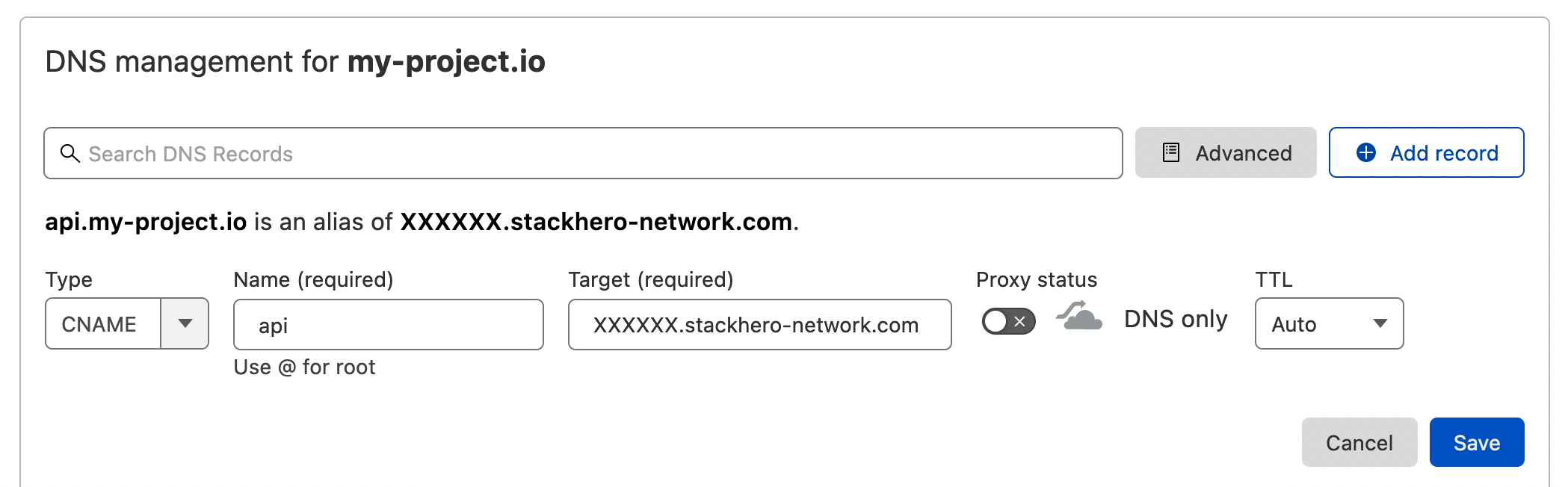 Example of DNS configuration on Cloudflare DNS interface
Once the DNS is configured, you can validate it by running:
host api.my-project.io
You should see a response similar to:
api.my-project.io is an alias for <XXXXXX>.stackhero-network.com
DNS propagation can take up to 24 hours depending on your provider. If the
hostcommand does not return the expected reply, please wait and try again later.
Next, update your docker-compose.yml file with the following configuration:
services:
  api:
    image: traefik/whoami
    hostname: api
    labels:
      - "traefik.enable=true"
      - "traefik.http.routers.api.rule=Host(`api.my-project.io`)" # Add your domain here
      - "traefik.http.services.api.loadbalancer.server.port=<PORT>" # Replace "<PORT>" with the port your API is listening on
      - "traefik.http.routers.api.tls.certresolver=letsencrypt"
Do not forget to replace
api.my-project.iowith your actual domain in the Traefik labelHost.
Deploy your container with:
docker-compose up -d
Then visit https://api.my-project.io. You should see a text page displaying your container hostname api.
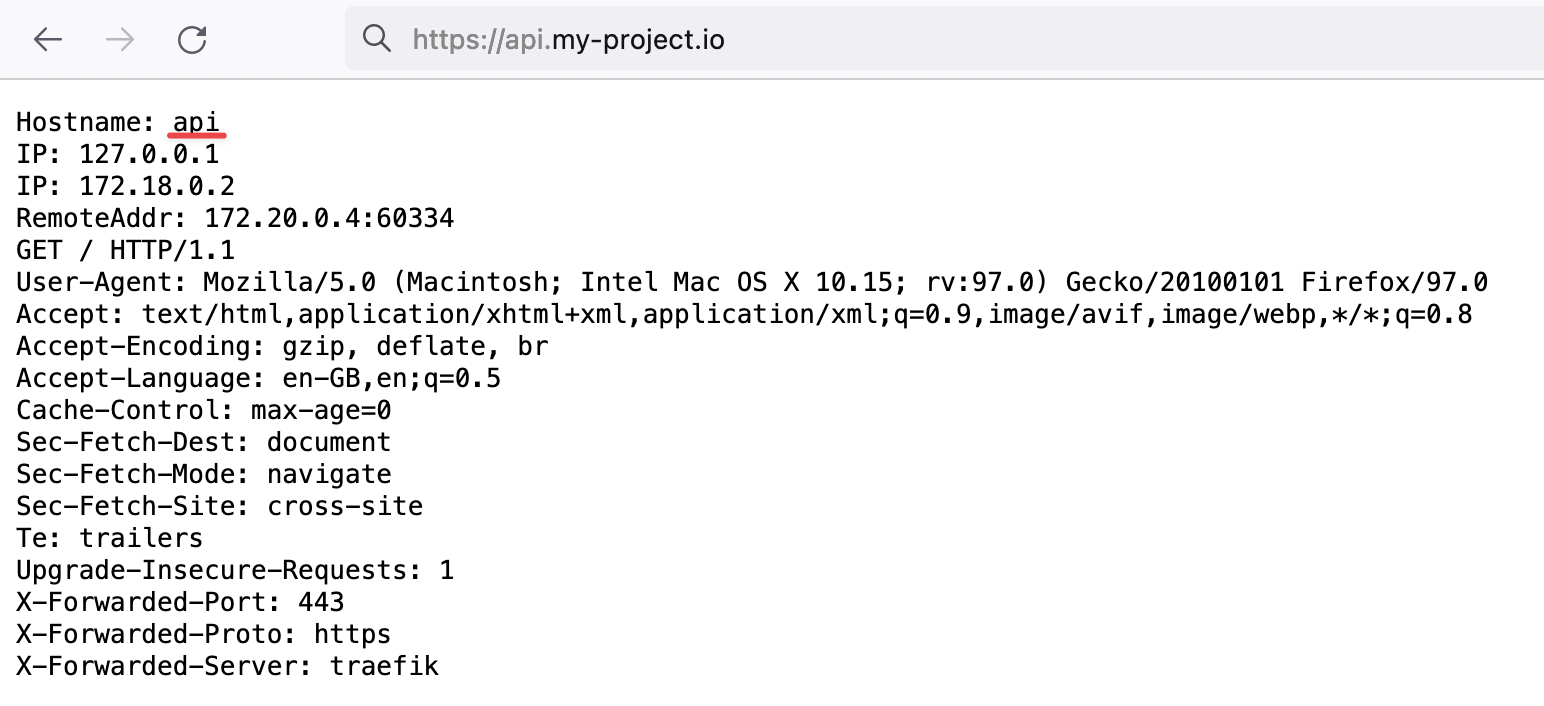 Proof that Traefik is handling our HTTP traffic with TLS encryption for our new domain
On the first container creation, TLS certificates may take a few seconds to generate. If you encounter a TLS error, wait a few seconds and refresh the page to allow time for the certificates to be generated.
Congratulations, you have now configured your first custom domain!
How to redirect a "www" subdomain to your root domain using Traefik
When defining a website URL such as my-company.com, it is a good idea to set up a "www" subdomain as well. This ensures that users who connect via www.my-company.com are redirected to your main site and helps avoid duplicate content issues.
In the example below, both my-company.com and www.my-company.com are handled. Users accessing www.my-company.com are redirected to my-company.com:
services:
  frontend:
    image: traefik/whoami
    hostname: frontend
    labels:
      - "traefik.enable=true"
      - "traefik.http.routers.frontend.rule=Host(`my-company.com`) || Host(`www.my-company.com`)" # Add both domains here
      - "traefik.http.services.frontend.loadbalancer.server.port=<PORT>" # Replace "<PORT>" with the port your frontend is listening on
      - "traefik.http.routers.frontend.tls.certresolver=letsencrypt"

      # Redirect 'www.my-company.com' to 'my-company.com':
      - 'traefik.http.routers.frontend.middlewares=redirect-www'
      - "traefik.http.middlewares.redirect-www.redirectregex.regex=^https://www.my-company.com/(.*)"
      - "traefik.http.middlewares.redirect-www.redirectregex.replacement=https://my-company.com/$${1}"
      - "traefik.http.middlewares.redirect-www.redirectregex.permanent=true"
Route a path to a specific container with Traefik
Suppose you have a container dedicated to your documentation site. You might want to route https://my-company.com/docs to this container while sending other requests, such as https://my-company.com/, to your frontend container. The example below shows how this is accomplished:
services:
  documentations:
    image: traefik/whoami
    hostname: documentations
    labels:
      - "traefik.enable=true"
      - "traefik.http.routers.documentations.rule=Host(`my-company.com`) && PathPrefix(`/docs`)" # Define the path prefix here
      - "traefik.http.services.documentations.loadbalancer.server.port=<PORT>" # Replace "<PORT>" with the port your documentation container is listening on
      - "traefik.http.routers.documentations.tls.certresolver=letsencrypt"

  frontend:
    image: traefik/whoami
    hostname: frontend
    labels:
      - "traefik.enable=true"
      - "traefik.http.routers.frontend.rule=Host(`my-company.com`) || Host(`www.my-company.com`)"
      - "traefik.http.services.frontend.loadbalancer.server.port=<PORT>" # Replace "<PORT>" with the port your frontend is listening on
      - "traefik.http.routers.frontend.tls.certresolver=letsencrypt"

      # Redirect 'www.my-company.com' to 'my-company.com':
      - 'traefik.http.routers.frontend.middlewares=redirect-www'
      - "traefik.http.middlewares.redirect-www.redirectregex.regex=^https://www.my-company.com/(.*)"
      - "traefik.http.middlewares.redirect-www.redirectregex.replacement=https://my-company.com/$${1}"
      - "traefik.http.middlewares.redirect-www.redirectregex.permanent=true"
Now, visiting https://my-company.com/docs (or any subpath such as https://my-company.com/docs/something) will display content from the documentations container. Other paths, for example https://my-company.com/help, will be served by the frontend container.
Define a custom container port in Traefik
By default, Traefik connects to the first exposed port of the container. In some cases, you might need to specify a particular port. The example below demonstrates how to define a custom port:
services:
  frontend:
    image: traefik/whoami
    hostname: frontend
    labels:
      - "traefik.enable=true"
      - "traefik.http.routers.frontend.rule=Host(`my-company.com`)"
      - "traefik.http.routers.frontend.tls.certresolver=letsencrypt"

      # Route traffic from 'https://my-company.com' to the 'frontend' container on port 80
      - "traefik.http.services.frontend.loadbalancer.server.port=80"