 Node.js: Configure SSH keys
This documentation is part of the Deploy with GitHub Actions guide. You can view the complete guide here: Learn how to deploy your Node.js code using GitHub Actions.
👋 Welcome to the Stackhero documentation!
Stackhero provides a ready-to-use Node.js cloud solution designed to help you move faster:
- Deploy your application to production in seconds with a simple
git push. No additional tools or manual configuration required.- Use your own domain and benefit from automatic HTTPS certificate setup, ensuring your application is secure without any extra steps.
- Enjoy automatic backups, one-click updates, and clear, predictable pricing so you can focus on developing features while Stackhero manages the infrastructure.
- Experience optimal performance and enhanced security thanks to a private, dedicated VM.
Save time and simplify your operations: it only takes a few minutes to try out Stackhero's Node.js cloud hosting solution!
SSH keys allow GitHub Actions to securely connect to your Node.js service when deploying your code. This step is essential for protecting your Stackhero services.
On your computer, you can generate new SSH keys with:
ssh-keygen -C "" -f /tmp/ssh_key -N ""
Add the public key
To display the public key you have just created, run:
cat /tmp/ssh_key.pub
Next, in your Stackhero dashboard, select your production Node.js service and click the Configure button.
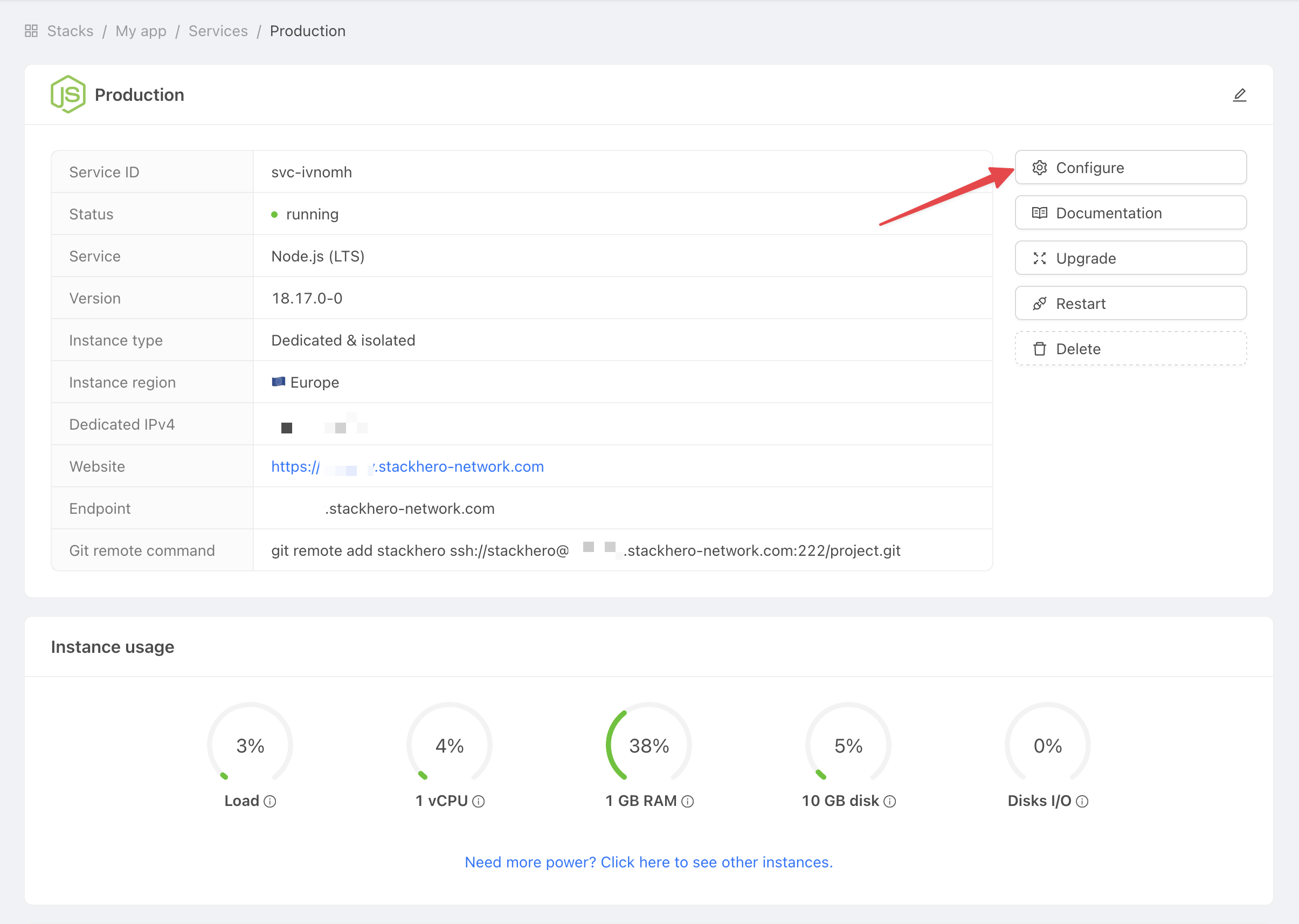 Get service settings
Continue with these steps:
- In SSH public keys, click on Add a public key.
- For Description, enter
GitHub Action. - For Key, paste the public key you copied earlier.
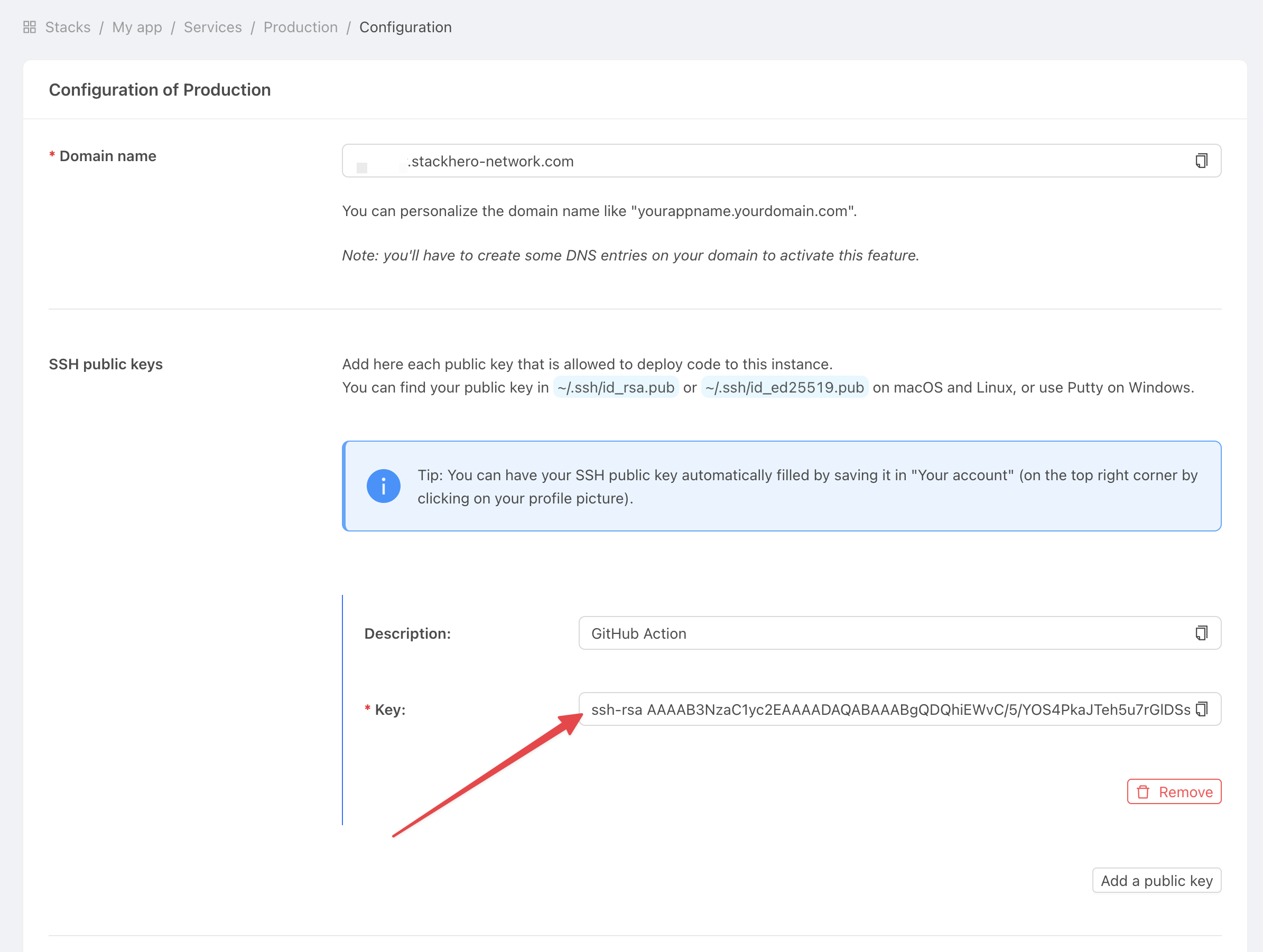 Get service settings
Add the private key
Now, switch to GitHub and open your project repository. Click on Settings, then select Environments. Choose New environment.
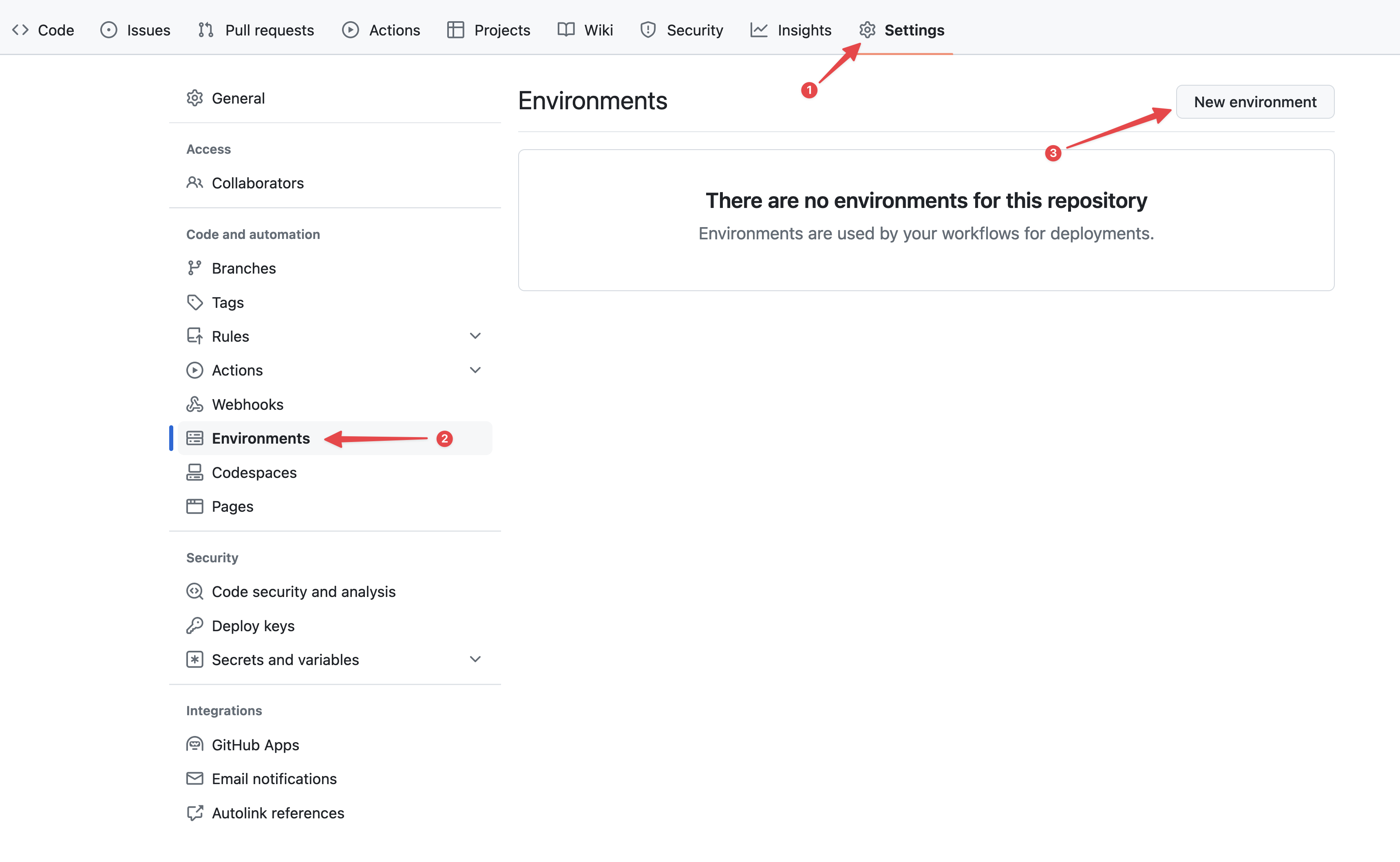 Configuring GitHub environments
Enter "production" for the Name and confirm.
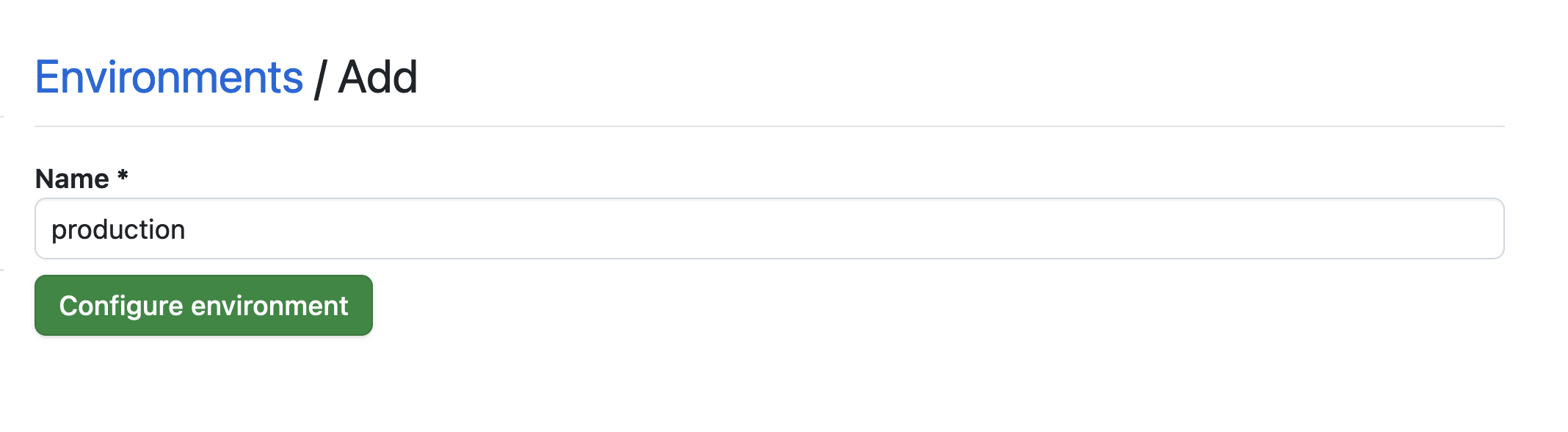 Setting the environment
Click the No restriction button, then choose Selected branches and tags.
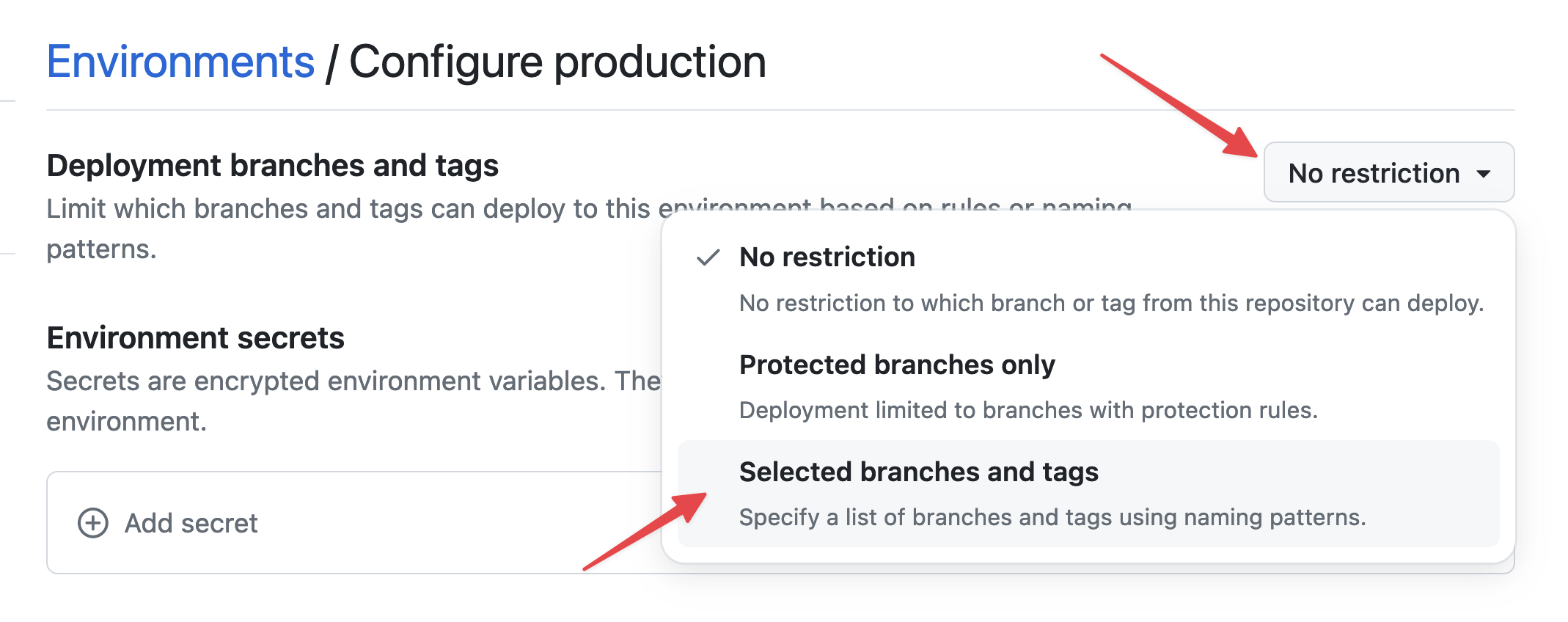 Setting environment restrictions
Now click on Add deployment branch or tag rule, enter "production" in the Name pattern field, and click Add rule.
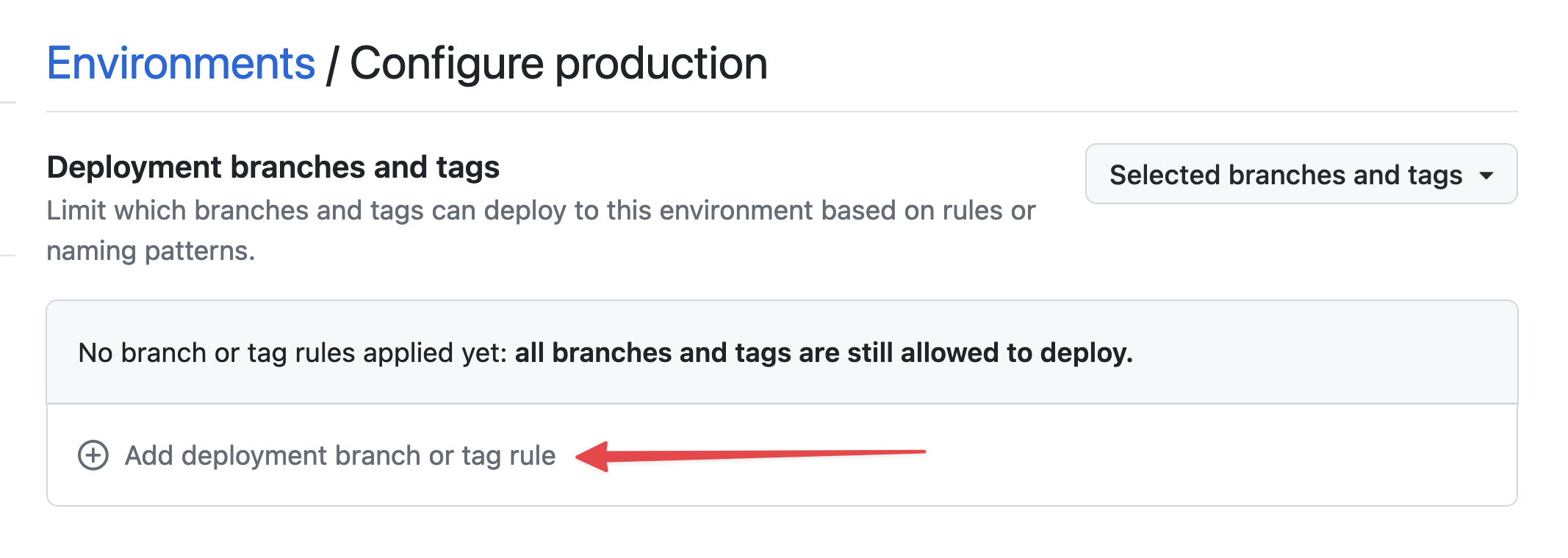 Setting environment branch
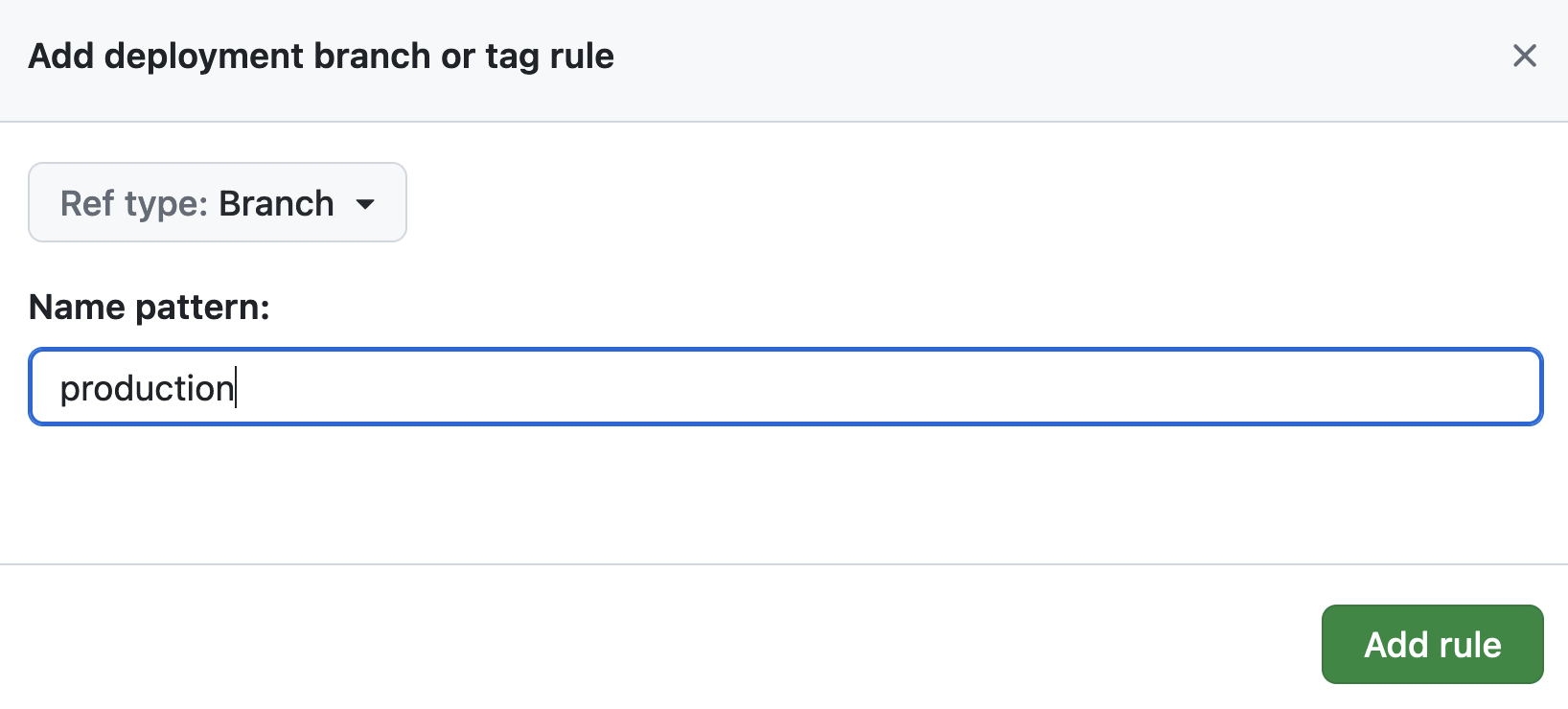 Setting environment branch
In Environment secrets, click on Add secret.
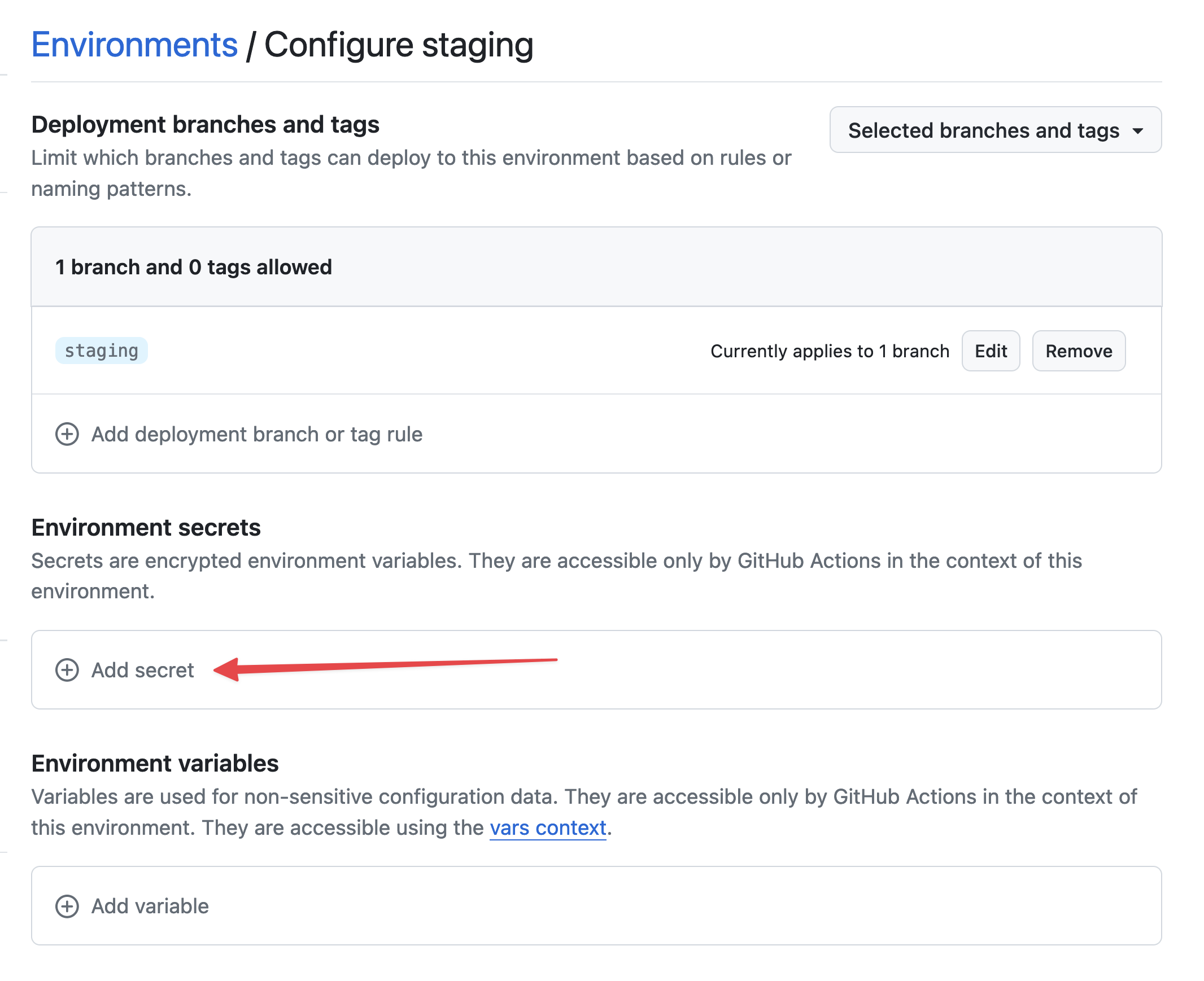 Add secret
To retrieve the private key you generated, run:
cat /tmp/ssh_key
In GitHub, use STACKHERO_SSH_PRIVATE_KEY as the Name and paste your private key into the Value field.
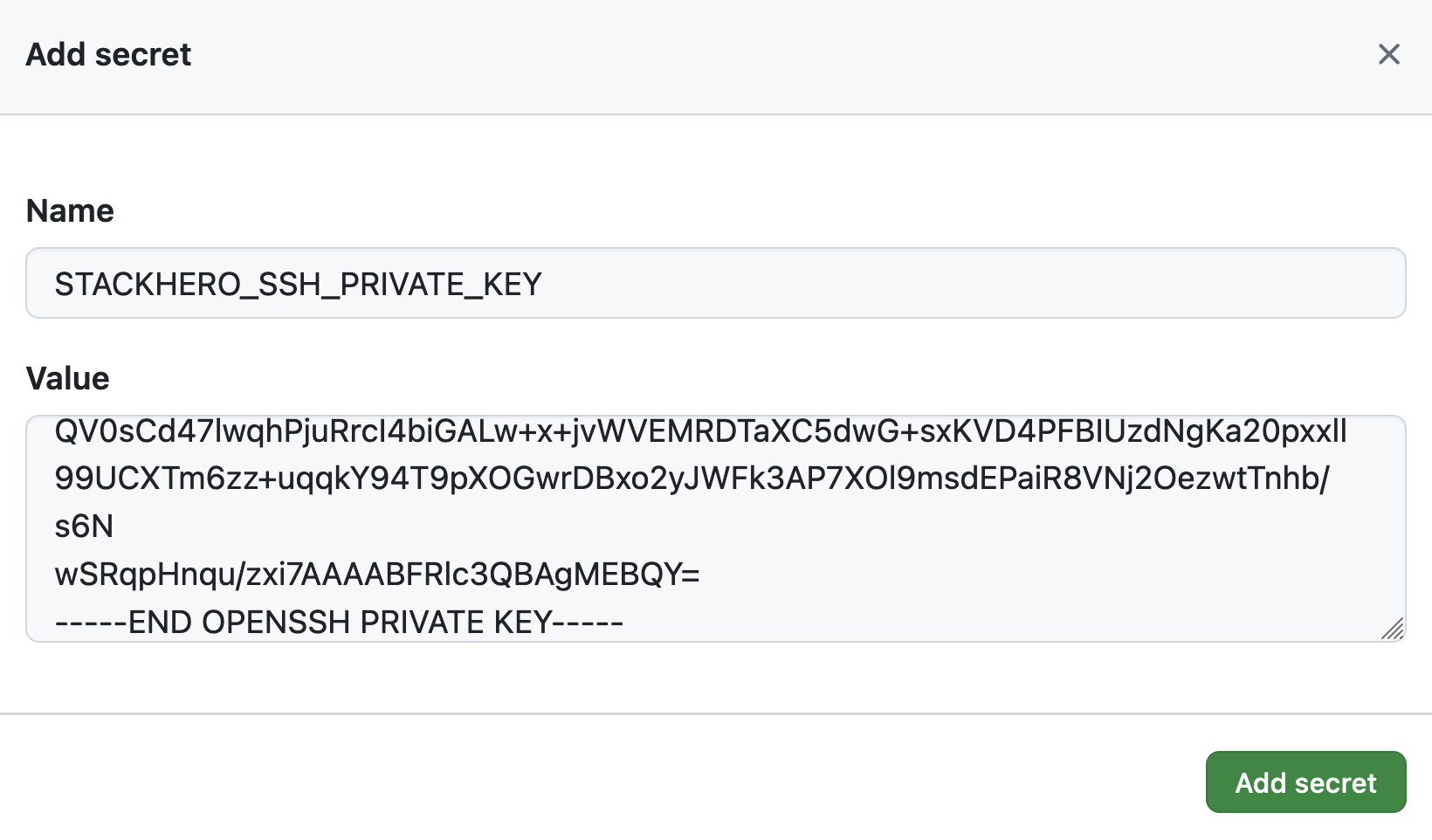 Setting the SSH private key secret
Then, in Environment variables, click on Add variable.
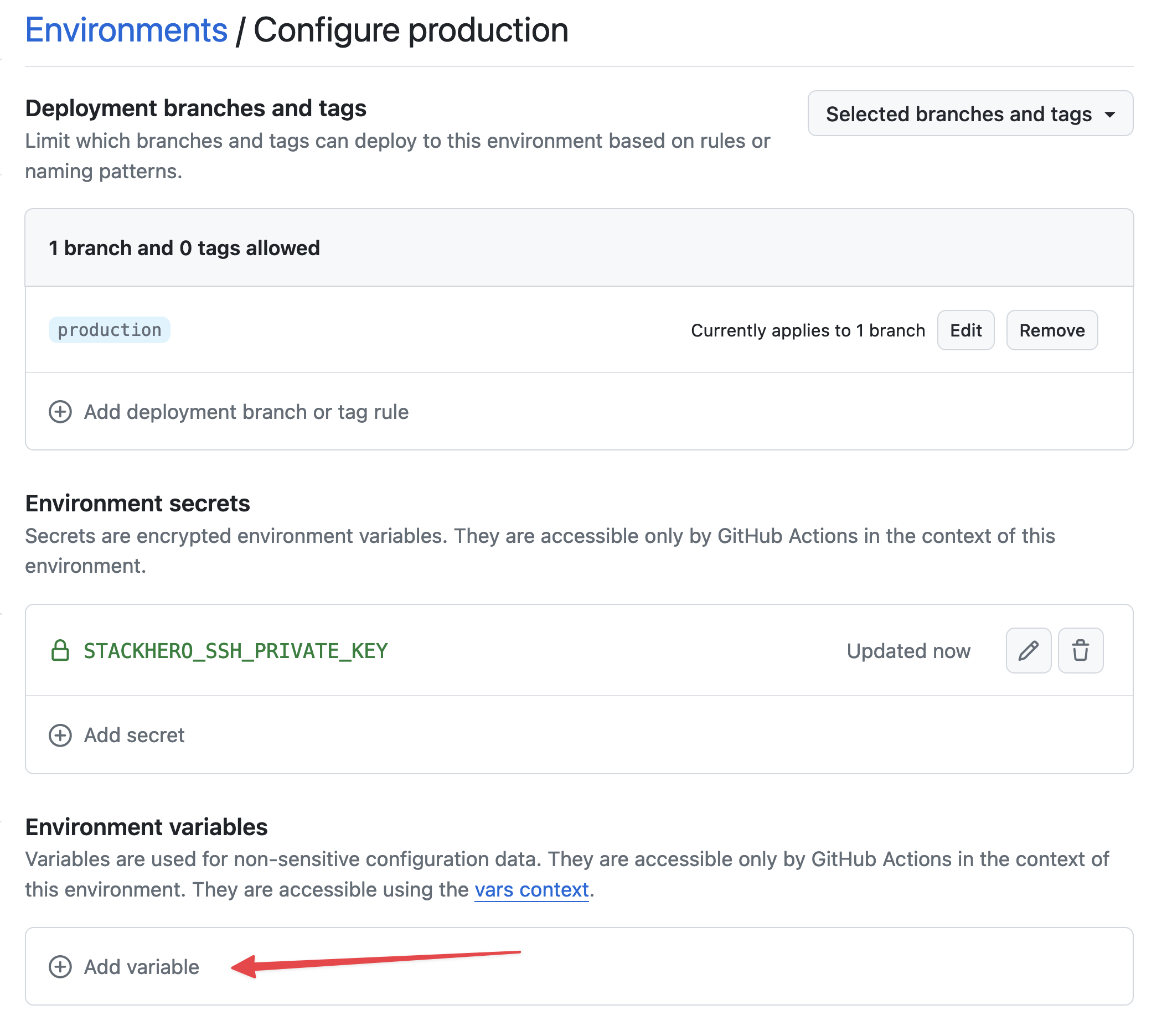 Setting variables
Enter STACKHERO_ENDPOINT as the Name and paste your Node.js service endpoint into the Value field. You will find this endpoint in your Stackhero dashboard.
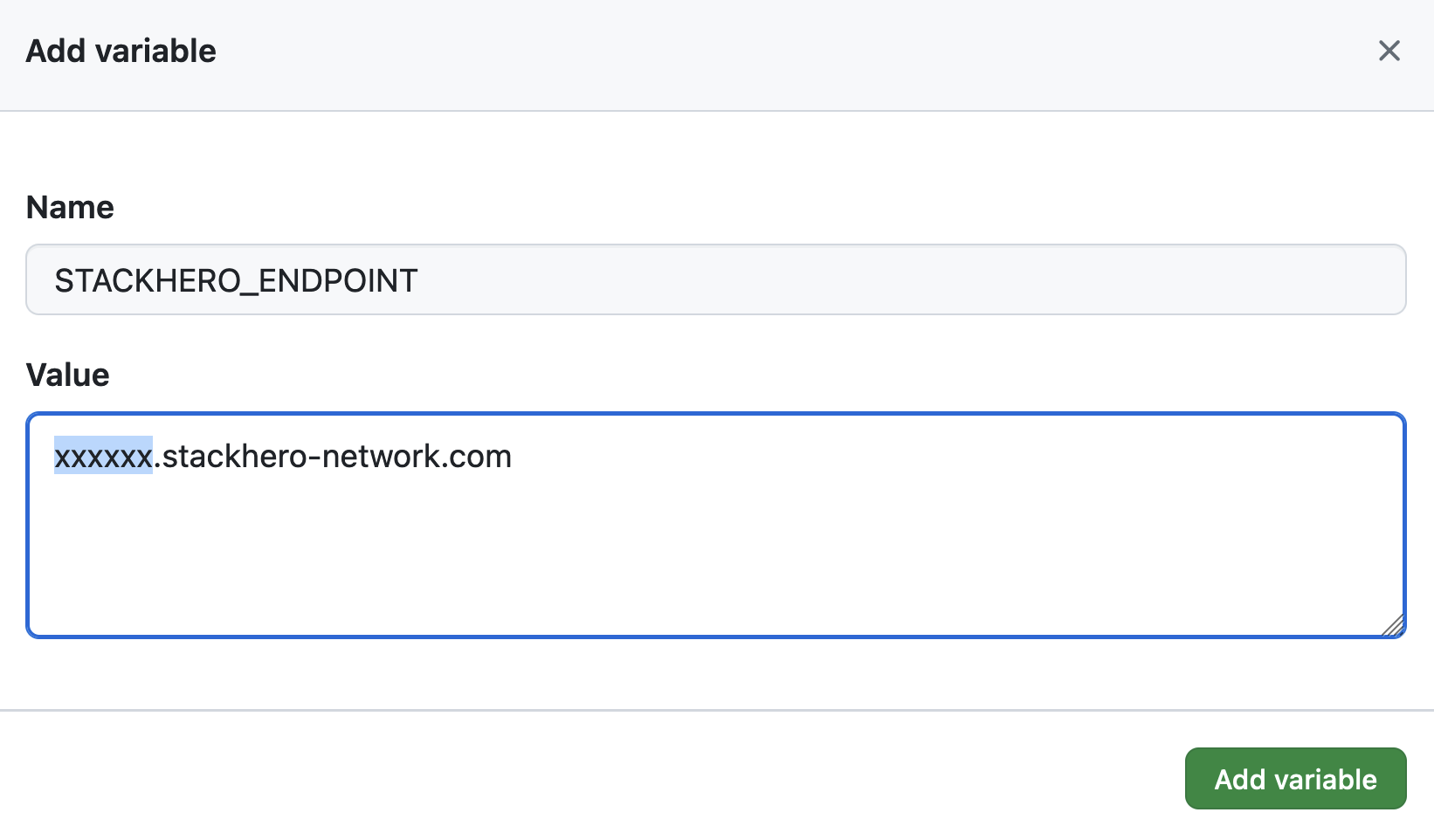 Setting the endpoint variable
If you have set a custom domain name for your service, use your custom domain instead of <XXXXXX>.stackhero-network.com.
Delete the generated keys
For security, it is recommended to delete the SSH keys from your computer once you have added them to Stackhero and GitHub:
rm /tmp/ssh_key /tmp/ssh_key.pub