 Graylog: Alerting
How to send Graylog alerts by email, Slack, or Mattermost
👋 Welcome to Stackhero documentation
Stackhero offers a fully managed Graylog cloud solution designed for speed and simplicity. You can:
- Rely on an unlimited, dedicated SMTP email server included with your service.
- Apply updates effortlessly with a single click, with no manual intervention required.
- Use a custom domain name secured by HTTPS (for example, https://logs.your-company.com), providing your team with secure, direct access.
- Benefit from strong performance and security on a private, dedicated infrastructure, with no shared resources or noisy neighbours.
Focus on your data, not your tools: you can get started with Stackhero's Graylog cloud hosting solution in just a few minutes.
Graylog enables you to respond proactively to specific conditions by sending alerts through notifications. These notifications can be delivered via email, Slack, Mattermost, or an HTTP webhook.
For further information about alerts, you can consult the official documentation.
Configuring email notifications
Every Graylog instance provided by Stackhero comes with an integrated email server, allowing you to send unlimited emails directly from your instance at no extra cost.
To configure an email notification, you may wish to follow these steps:
-
Access your Graylog service, go to
Alerts>Notifications, and click theGet started!button or selectCreate notification. -
Enter a title for your notification and select
Email NotificationunderNotification type. -
In the
Senderfield, enternoreply@<yourGraylogDomain>. Be sure to replace<yourGraylogDomain>with your actual Graylog domain name, which is typically in the format<XXXXXX>.stackhero-network.com.Important: Make sure you use your Graylog domain to avoid errors when sending emails.
-
Specify the email address where you wish to receive alerts in the
Email recipientfield.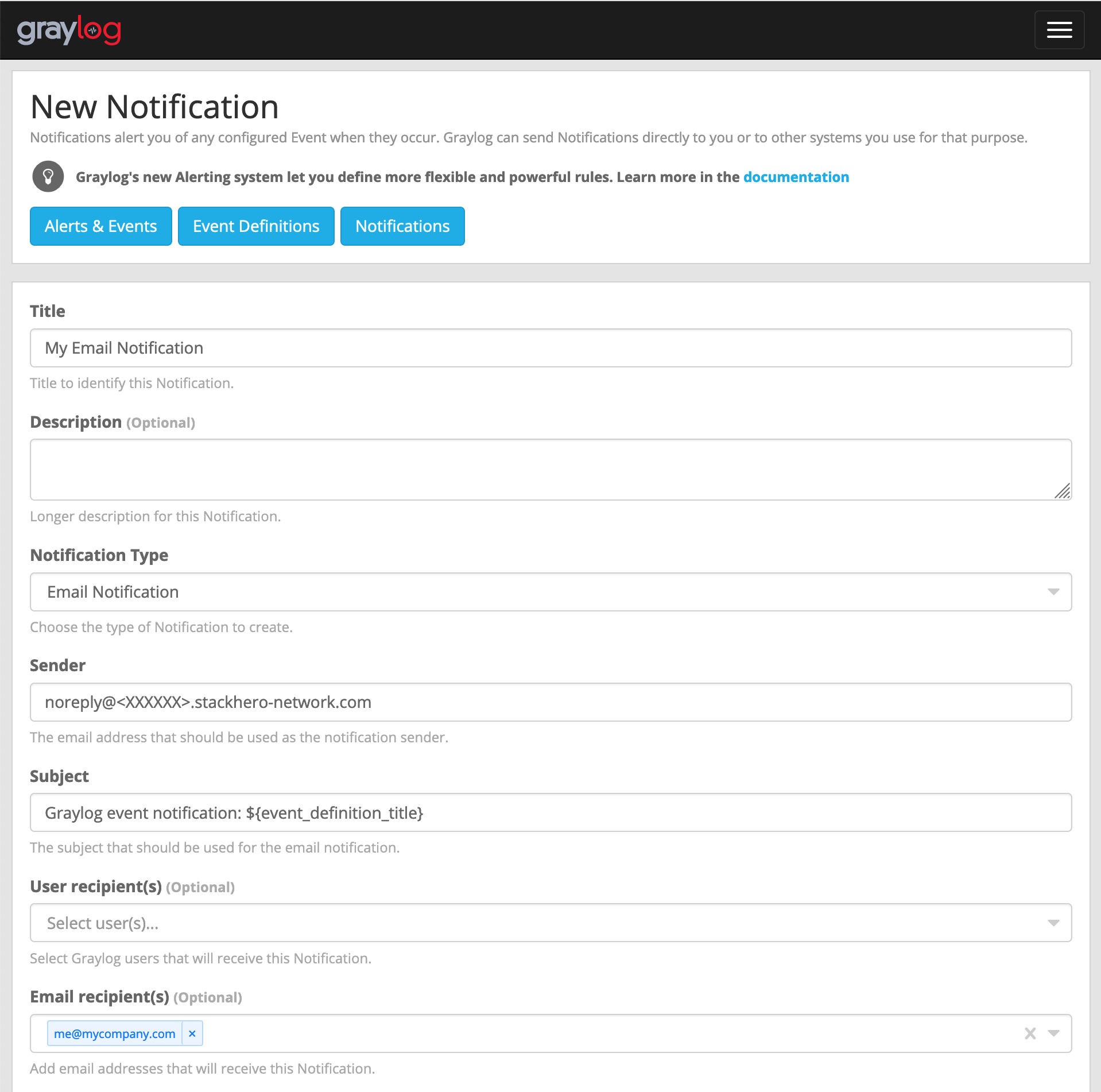 Example of email configuration
 -
Click the
Execute test notificationbutton to check that everything is working correctly. Once confirmed, complete the setup by clickingCreate.
Congratulations! Your email notification is now configured and operational!
Handling the error: "Sending the email to the following server failed: postfix:25"
If you encounter the error Error: Notification has email recipients and is triggered, but sending emails failed. Sending the email to the following server failed: postfix:25, it is most likely because the sender field is not correctly formatted. It should follow the pattern <something>@<yourGraylogDomain>. "Something" can be any value (such as "noreply"), but "yourGraylogDomain" must match your Graylog service domain, usually presented as <XXXXXX>.stackhero-network.com.
Configuring Slack and Mattermost notifications
To set up a Slack or Mattermost Cloud notification, you will first need to obtain an "incoming webhook" from Slack or Mattermost Cloud.
Obtaining an incoming webhook URL from Slack
For Slack users, go to https://api.slack.com/apps and click Create New App. Complete the form, validate it, then select Incoming Webhooks and enable them. Click Add New Webhook to Workspace and copy the Webhook URL for use in the next steps.
Obtaining an incoming webhook URL from Mattermost
If you prefer Mattermost Cloud, the open-source alternative to Slack, access your Mattermost interface. From the main menu, select Integrations, then Incoming Webhooks, click Add Incoming Webhook, and complete the form. You will be provided with a URL in the format https://<domain>/hooks/<token>, which you should copy for later use.
Configuring the notification
Before configuring Slack and Mattermost Cloud notifications, ensure that the Integrations plugin is enabled in the Stackhero dashboard. To do this, select your Graylog service, click Configure, activate the Integrations plugin, and confirm the configuration.
Once this is done, go to your Graylog instance under Alerts, Notifications, and click Get started! or Create notification.
Give your notification a title and select Slack Notification in Notification type. Paste the incoming webhook URL you obtained from Slack or Mattermost into the Webhook URL field.
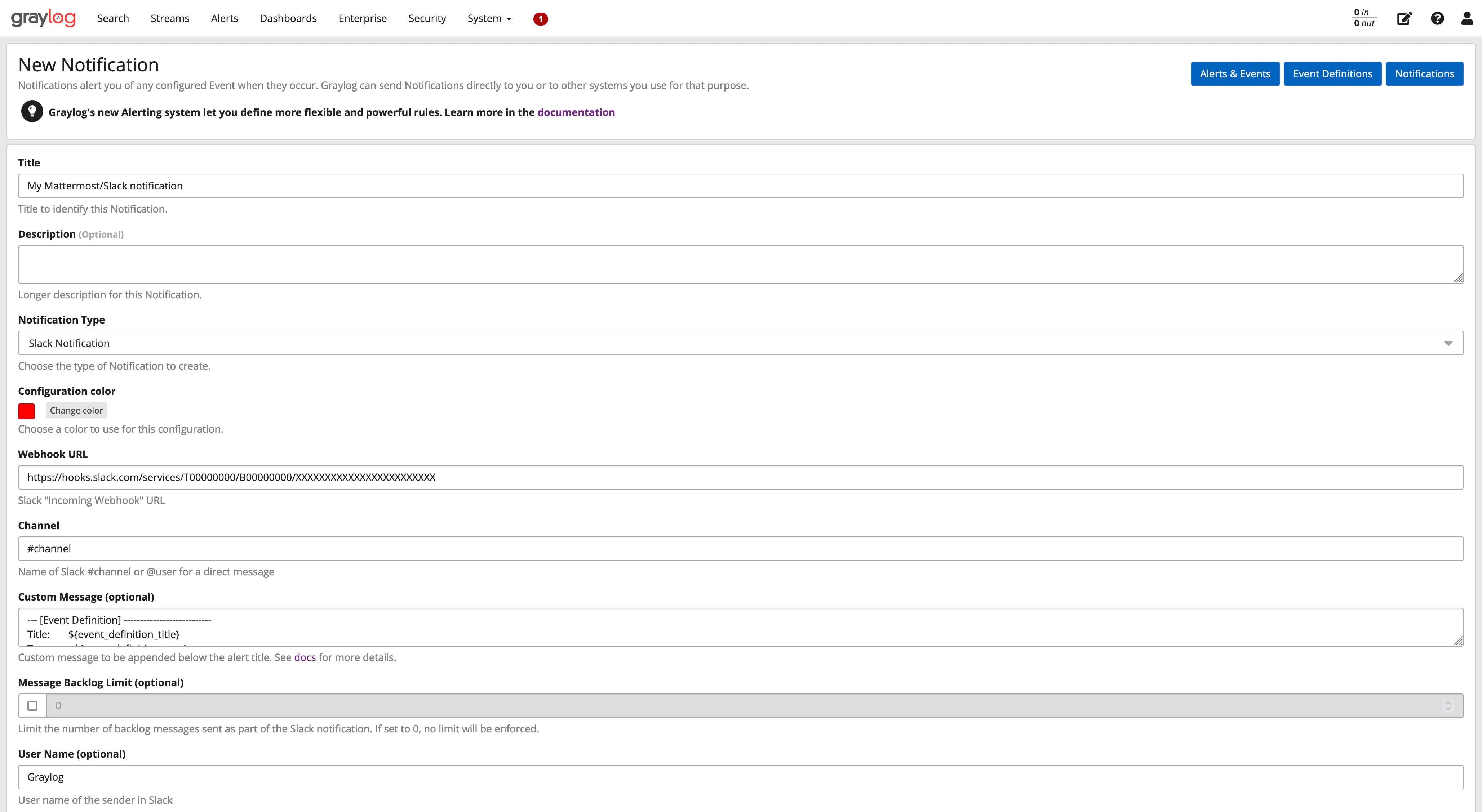 Example of a Slack/Mattermost configuration
Click the Execute Test Notification button to ensure everything is working, then finalise by clicking Create.
Congratulations, your Slack/Mattermost notification is now set up and ready to use!