 PostgreSQL: Creating a user and database in PostgreSQL
This documentation is part of the Getting started guide. You can view the complete guide here: How to get started with PostgreSQL.
👋 Welcome to the Stackhero documentation!
Stackhero offers a fully managed PostgreSQL cloud solution, designed for reliability and performance:
- Unlimited connections and data transfers for effortless scalability.
- PgAdmin web interface included for straightforward database management.
- A wide range of popular extensions included, such as
PostGIS,TimescaleDB, andPgVector.- Simple, one-click updates to keep your database secure and up to date.
- Optimal performance and enhanced security on private, dedicated infrastructure.
Save time and make your life easier: it takes just 5 minutes to try Stackhero's PostgreSQL cloud hosting solution!
By default, an admin user is created with administrative rights. It is a good practice to create a dedicated user and database for each project you plan to host.
Using PgAdmin web UI
To use the PgAdmin web UI, open your PostgreSQL domain with HTTPS (for example, https://<XXXXXX>.stackhero-network.com). Log in with admin as the username and the password that you set in your service configuration (visible in your Stackhero dashboard).
Creating a user
-
Go to
Servers/PostgreSQL, right-click onLogin/Group Roles, and selectCreate/Login/Group Role: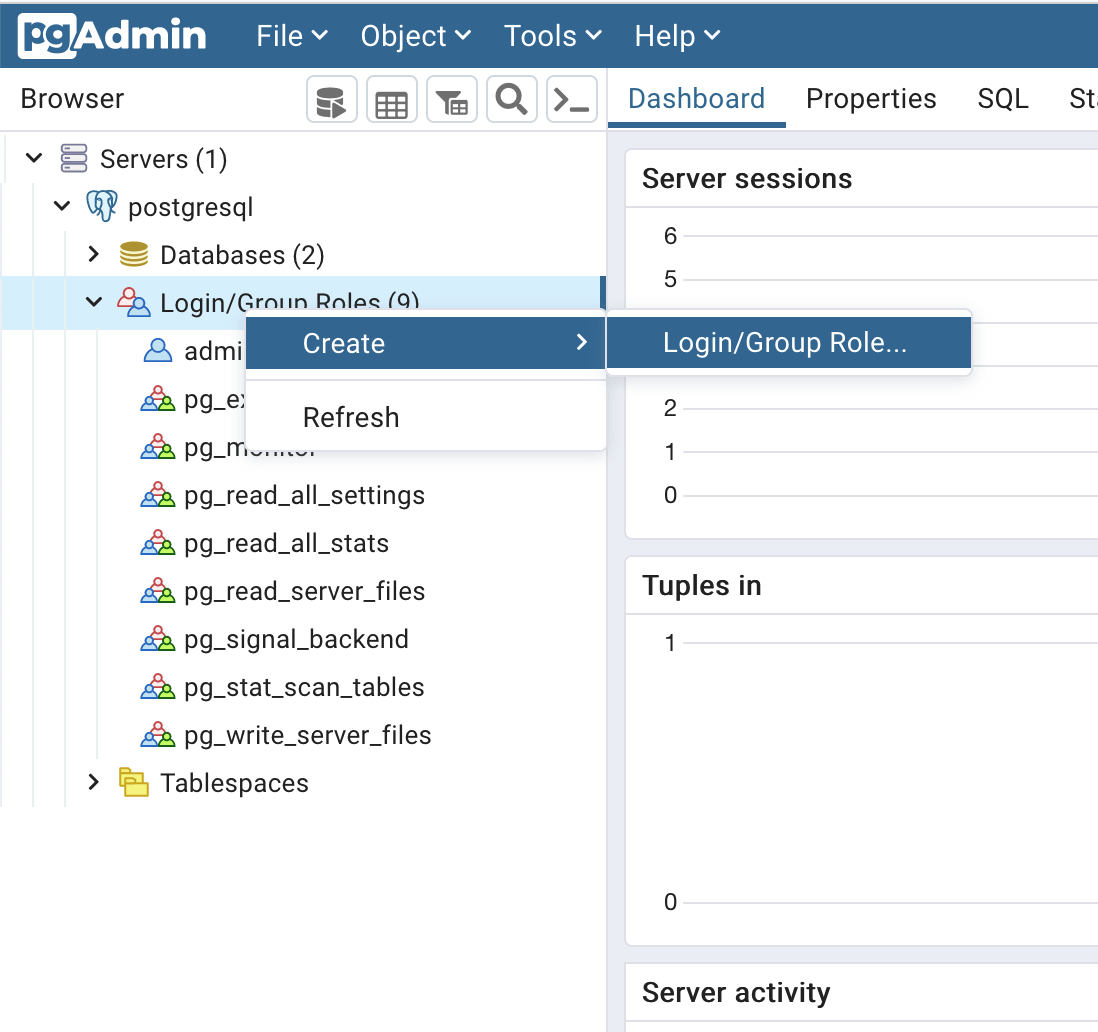 Create a user in PostgreSQL using PgAdmin
 -
Set the login name:
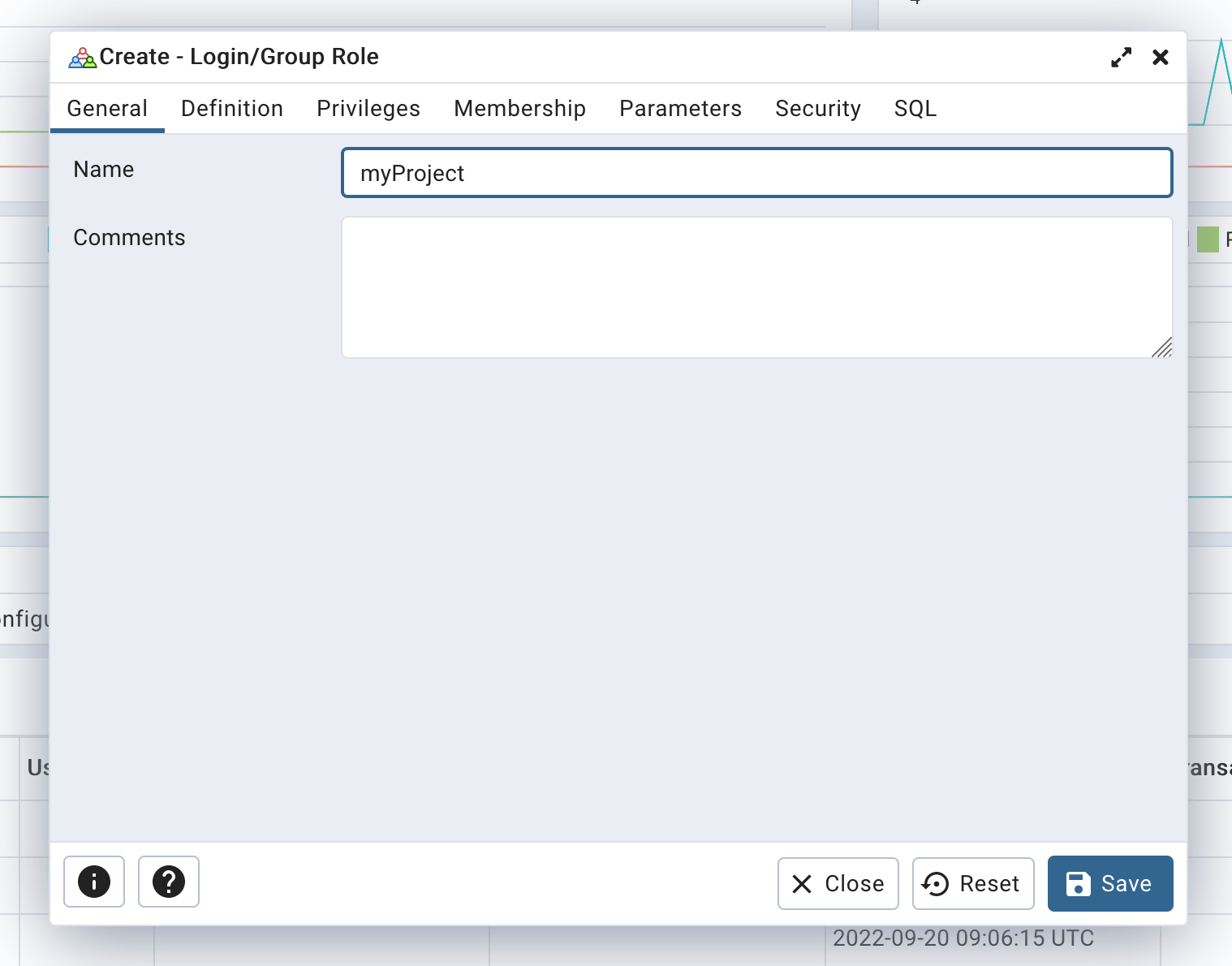 Define user login
 -
Set a secure password to avoid brute force attacks:
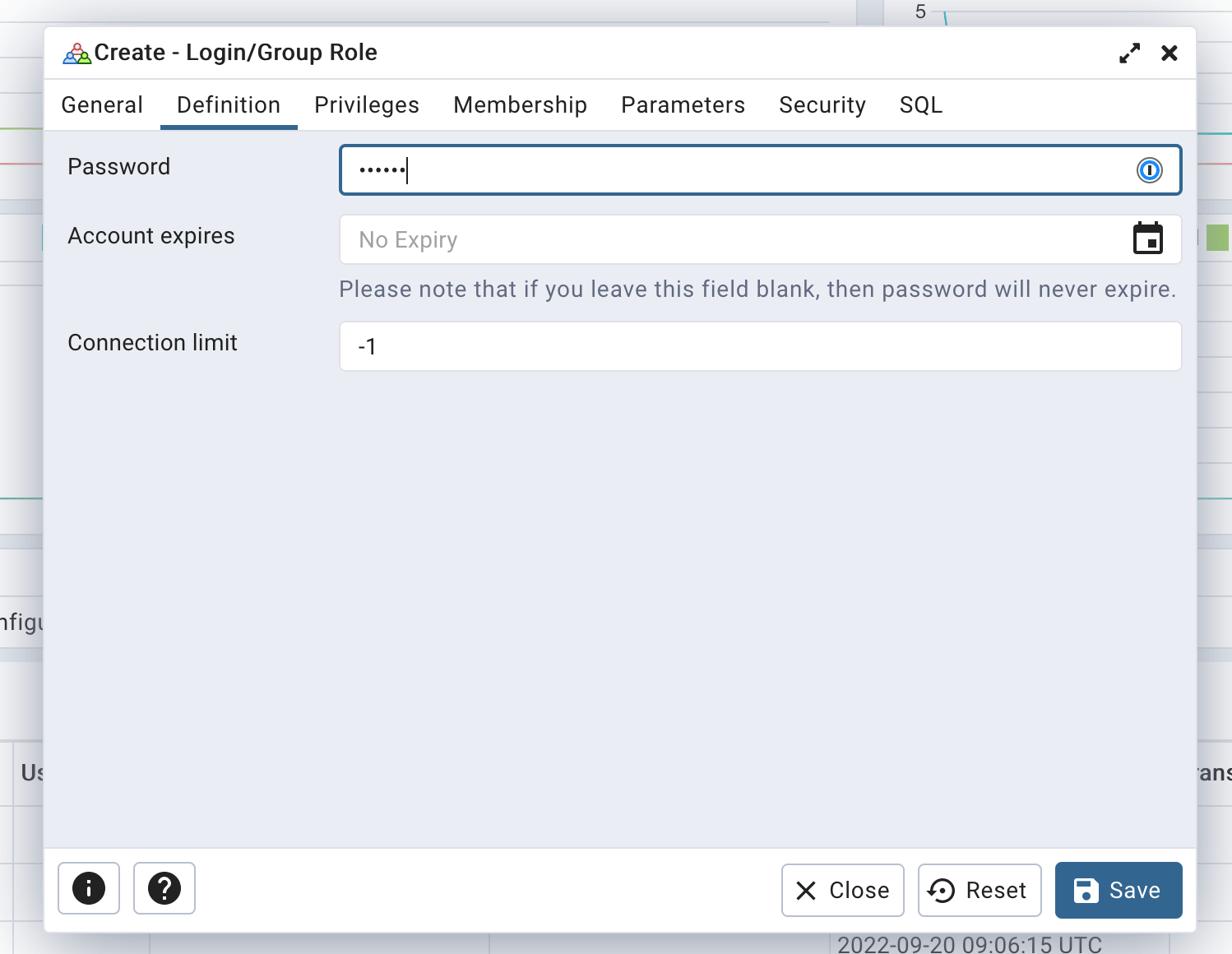 Define user password
 -
Finally, ensure that only the "Can login" privilege is selected:
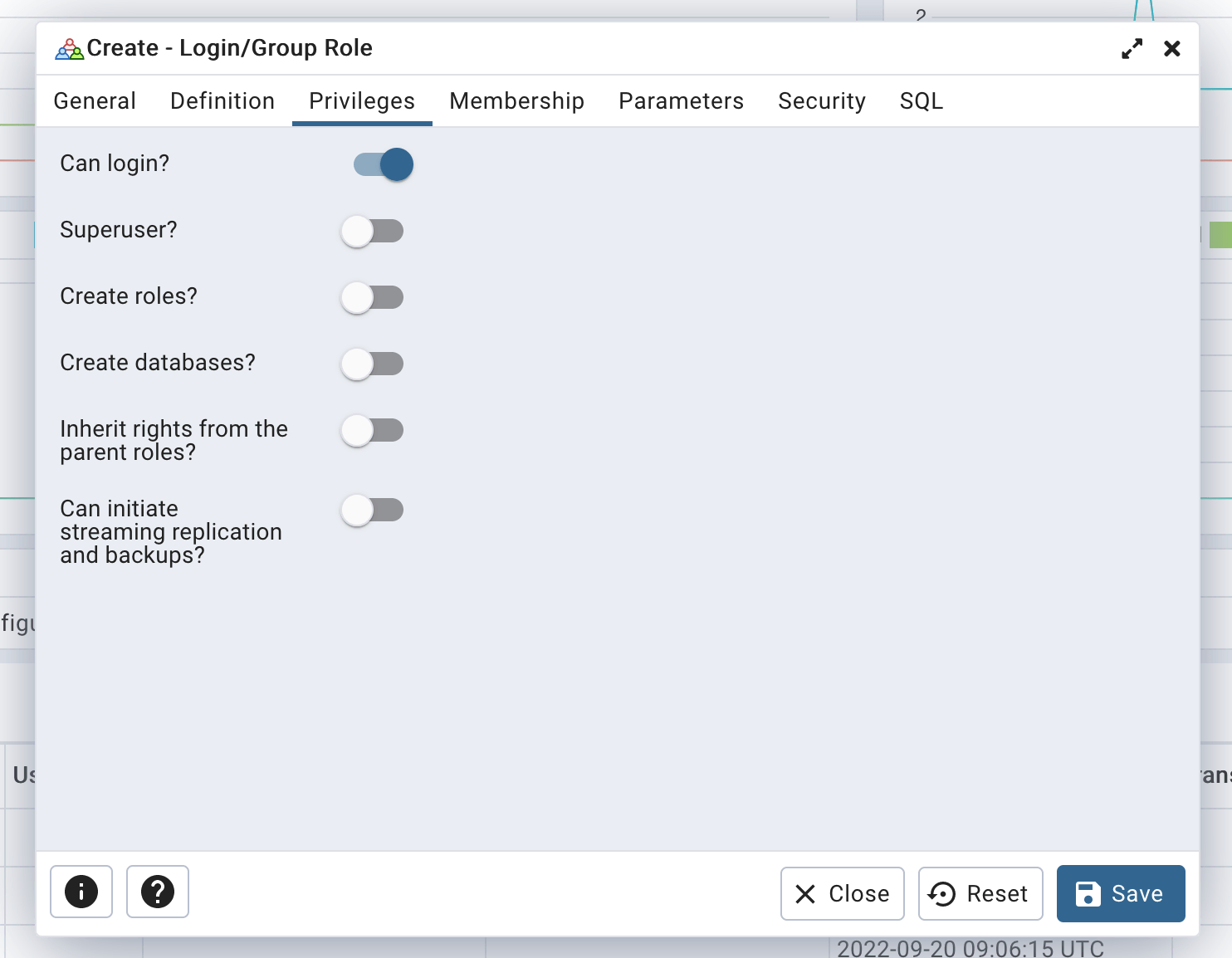 Define user rights
Click the "Save" button to create your user.
Creating a database
-
Go to
Servers/postgresql, right-click onDatabases, and selectCreate/Database...: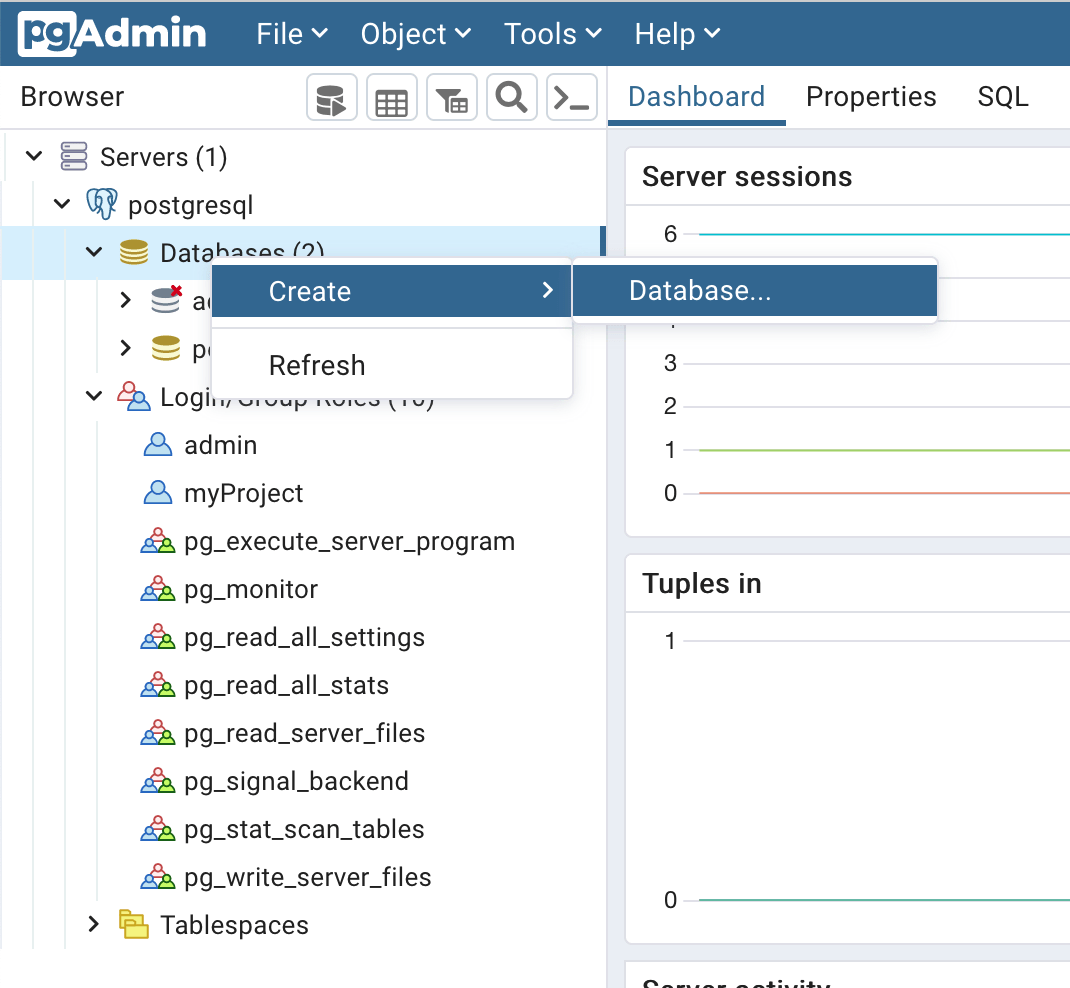 Create a database using PgAdmin
A good practice is to use the same name for both the database and the user. For example, if your project is named "superWebsite," consider creating a user named "superWebsite" and a database named "superWebsite".
-
Set the database name and choose the owner (the user you just created):
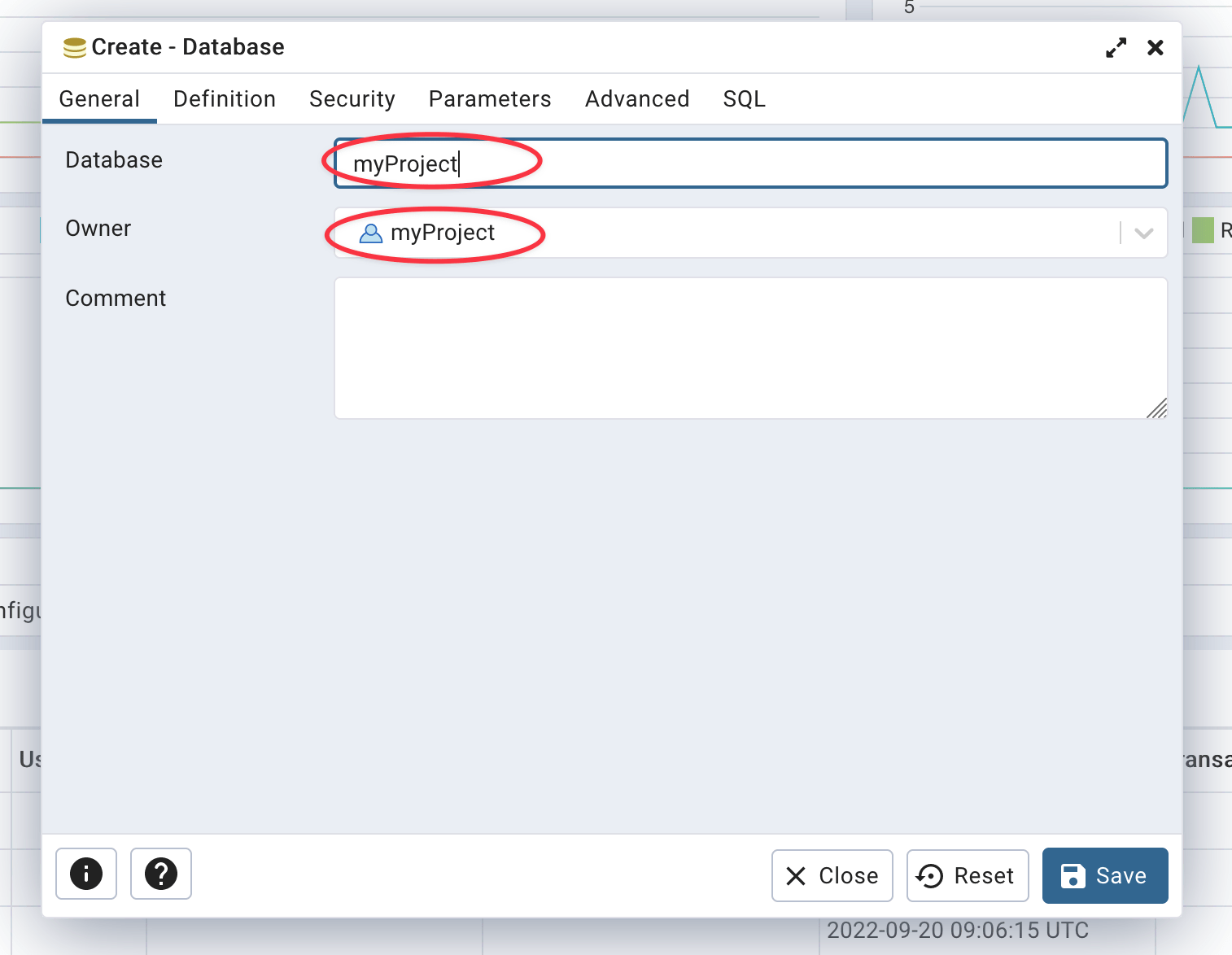 Defined database name and owner
Your database is now created.
Using the psql CLI
Creating a user
To create a user on PostgreSQL using the psql CLI, run the following SQL query:
CREATE ROLE "myProject" WITH
  LOGIN
  NOSUPERUSER
  NOCREATEDB
  NOCREATEROLE
  NOINHERIT
  NOREPLICATION
  CONNECTION LIMIT -1
  PASSWORD 'secretPassword';
Don't forget to replace
myProjectwith your project name andsecretPasswordwith a secure password. Also, it is a good practice to use your project name as both the login and database name. If your project name is "superWebsite," consider creating a user named "superWebsite" and a database named "superWebsite".You can generate a secure password with this command line:
openssl rand -base64 24 | tr -d '\n' | cut -c1-32
Creating a database
To create a database on PostgreSQL using the psql CLI, run the following SQL query:
CREATE DATABASE "myProject"
  WITH
  OWNER = "myProject"
  ENCODING = 'UTF8'
  CONNECTION LIMIT = -1
  IS_TEMPLATE = false;
A good practice is to use the same name for both the database and the user. For example, if your project name is "superWebsite," consider creating a user named "superWebsite" and a database named "superWebsite".