 Node-RED: Connecting to MQTT via WebSockets
This documentation is part of the Integrating Node-RED with the MQTT server guide. You can view the complete guide here: How to connect Node-RED to the Mosquitto MQTT server.
Welcome to the Stackhero documentation
Stackhero offers a fully managed Node-RED cloud environment designed to help you build workflows quickly:
- Integrated MQTT server (Mosquitto) for seamless IoT integration.
- Full access to the Node-RED admin interface for managing your flows and settings.
- Node-RED Dashboard included for real-time visualisation.
- Dedicated SMTP email server included, with no sending limits.
- Effortless one-click updates to keep your instance up to date.
- Custom domain names with automatic HTTPS: for example, https://node-red.your-company.com.
- High performance and enhanced security thanks to private, dedicated infrastructure.
You can have a secure, production-ready Node-RED cloud hosting instance running in around 5 minutes. Stackhero takes care of installation, updates, and infrastructure, so you can focus on building your automations.
You can connect to the Mosquitto MQTT server using either the MQTT protocol or WebSockets.
While the MQTT protocol is lightweight and ideal for IoT devices, it is not natively supported by web browsers. If you wish to interact with your MQTT server from a browser, it is recommended to use WebSockets. This method encapsulates MQTT traffic within the WebSocket protocol and works seamlessly with Stackhero's services.
To enable WebSocket connectivity, simply activate the "WebSocket Support" option in your Stackhero dashboard. Once enabled, configure your client to use the WebSocket URL: wss://<XXXXXX>.stackhero-network.com:443/mqtt. Be sure to replace the default mqtts://<XXXXXX>.stackhero-network.com with this WebSocket URL for browser-based connections.
Selecting an MQTT library
For development, the "MQTT.js" library is particularly recommended. It is a robust JavaScript library compatible with both Node.js and browser environments. You can find more information in its official repository.
Example: connecting from a browser to MQTT via WebSockets
For a practical example of connecting from a browser to the MQTT server using WebSockets, you can refer to this repository: https://github.com/stackhero-io/mqttWebSocketGettingStarted. Feel free to edit the src/index.html file with your service's url, username, and password to match your configuration.
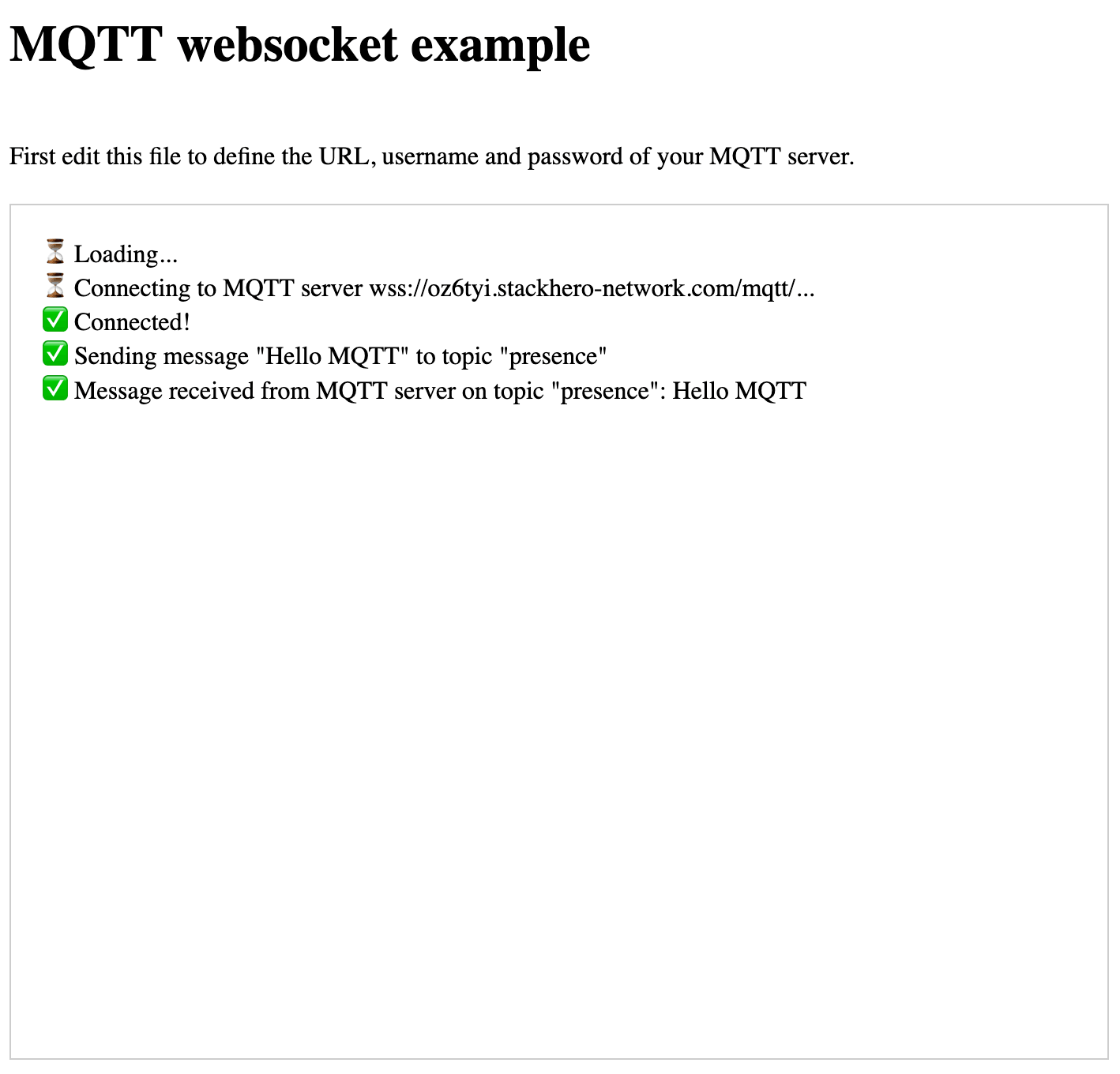 MQTT WebSocket example
Before testing this setup, ensure that WebSocket support is enabled in your Stackhero dashboard. This will guarantee smooth operation for browser-based connections.