 Node-RED: Connecting to MQTT via WebSockets
This documentation is part of the MQTT server guide. View the full guide here: How to connect Node-RED to Mosquitto MQTT server.
Welcome to the Stackhero documentation
Stackhero provides a fully managed Node-RED cloud environment designed to get you building workflows quickly:
- Built-in MQTT server (Mosquitto) for seamless IoT integration.
- Full access to the Node-RED admin UI for managing flows and settings.
- Node-RED Dashboard included for real-time visualization.
- Dedicated SMTP email server included, with no limits on sending.
- Effortless one-click updates to keep your instance current.
- Custom domain names with automatic HTTPS: for example, https://node-red.your-company.com.
- High performance and strong security with private, dedicated infrastructure.
You can have a secure, production-ready Node-RED cloud hosting instance running in about 5 minutes. Stackhero handles setup, updates, and infrastructure so you can focus on building automations.
You have the flexibility to connect to the Mosquitto MQTT server using either the MQTT protocol or WebSockets.
While the MQTT protocol is lightweight, making it a great fit for IoT devices, it is not natively supported in web browsers. If you want to interact with your MQTT server from a browser, you will want to use WebSockets. This approach lets you encapsulate MQTT traffic within the WebSocket protocol, and it works seamlessly with Stackhero's services.
To enable WebSocket connectivity, simply activate the "WebSocket Support" option in your Stackhero dashboard. Once enabled, you can configure your client to use the WebSocket URL: wss://<XXXXXX>.stackhero-network.com:443/mqtt. Make sure to substitute the default mqtts://<XXXXXX>.stackhero-network.com with this WebSocket URL for browser-based connections.
Choosing an MQTT library
For development, you might find the "MQTT.js" library especially helpful. It is a robust JavaScript library compatible with both Node.js and browser environments. You can learn more by checking out its official repository.
Browser-to-MQTT connection example via WebSockets
If you are looking for a practical example of how to connect from your browser to the MQTT server using WebSockets, you can refer to this repository: https://github.com/stackhero-io/mqttWebSocketGettingStarted. Feel free to modify the src/index.html file with your server's url, username, and password to fit your setup.
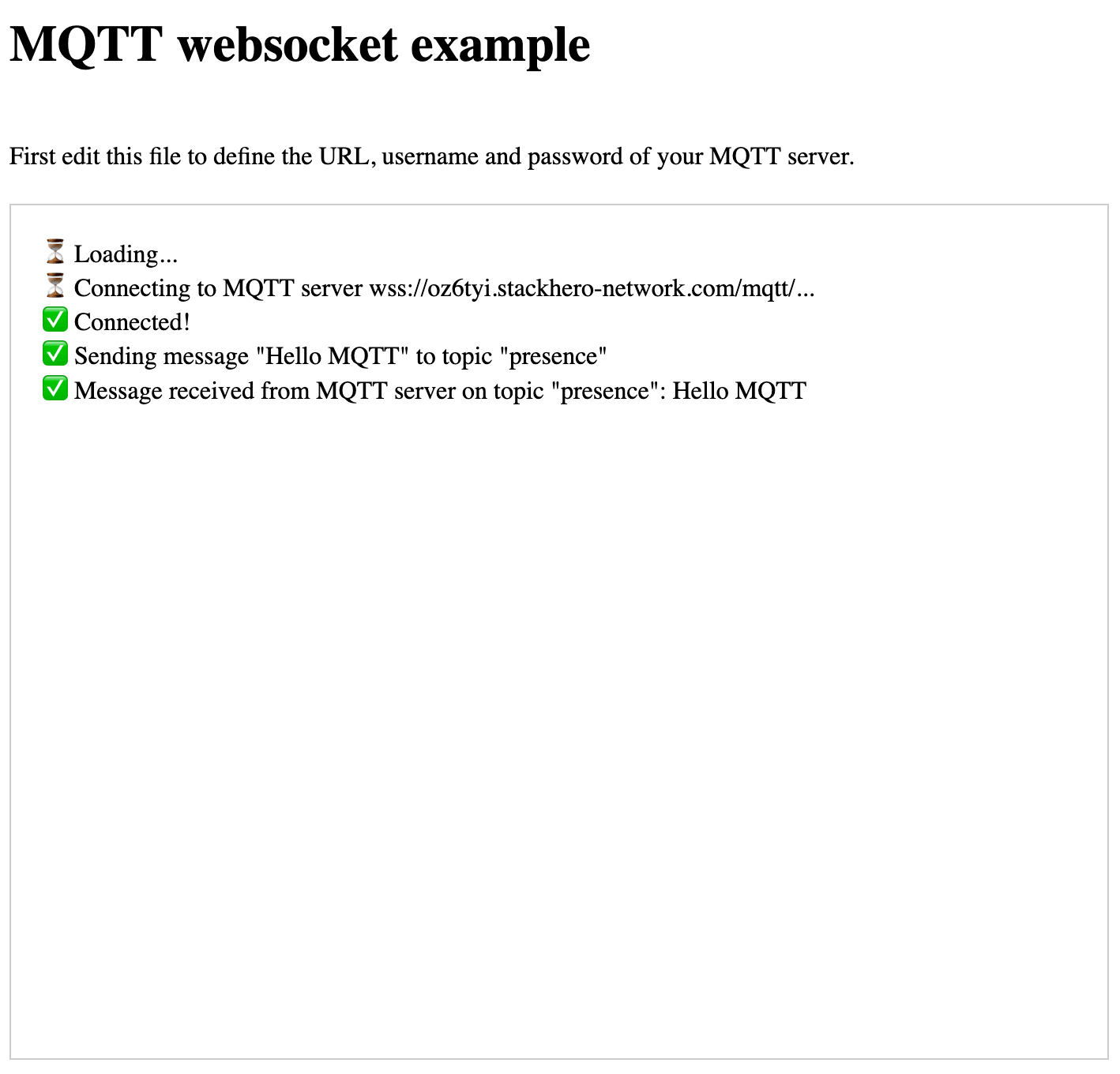 MQTT WebSocket example
Before you try this setup, make sure that WebSocket support is enabled in your Stackhero dashboard. This ensures everything runs smoothly for browser-based connections.