 Prometheus: Prometheus Blackbox Exporter configuration
This documentation is part of the Blackbox Exporter guide. You can view the complete guide here: How to use Prometheus Blackbox Exporter to probe HTTP and ICMP (ping) endpoints.
👋 Welcome to the Stackhero documentation!
Stackhero offers a ready-to-use Prometheus cloud solution designed for reliability and simplicity:
Alert Manageris included, allowing you to send alerts directly toSlack,Mattermost,PagerDuty, and other popular platforms.- A dedicated email server enables you to send unlimited email alerts with no additional configuration required.
Blackboxis provided, so you can probeHTTP,ICMP,TCP, and more for comprehensive monitoring.- Simple configuration with the online configuration file editor—no need to manage YAML manually.
- Easy updates with just one click.
- Optimal performance and enhanced security thanks to your own private, dedicated VM.
Save time and make your life easier: it takes just 5 minutes to try Stackhero's Prometheus cloud hosting solution!
Setting up the Blackbox Exporter involves working with two key files: blackbox-exporter.yml for core settings and prometheus.yml to define how Prometheus scrapes data from the exporter.
Configuring the Blackbox Exporter core
The core configuration, found in the blackbox-exporter.yml file, specifies which protocols to support and how they should be monitored.
On Stackhero for Prometheus, this file is preconfigured to support both ICMP monitoring and HTTP/HTTPS monitoring (via GET and POST requests) right out of the box. If you need to tailor this file for more advanced scenarios, you can check out configuration examples in the Blackbox Exporter repository and consult the official documentation for further guidance.
Configuring the Prometheus Blackbox Exporter target
Most of your configuration will take place in the prometheus.yml file, where you instruct Prometheus to scrape data from the Blackbox Exporter like any other exporter.
For instance, consider the configuration below that checks ICMP (ping) responses from prometheus.io and grafana.com every 15 seconds (as defined by the scrape_interval). You can add this block to your prometheus.yml file within the scrape_configs section and update the targets array with the domain names or IP addresses you wish to monitor:
  - job_name: "blackbox-icmp"
    metrics_path: "/blackbox-exporter/probe"
    params:
      module: [ "icmp" ]
    relabel_configs:
      - source_labels: [ "__address__" ]
        target_label: "__param_target"
      - source_labels: [ "__param_target" ]
        target_label: "instance"
      - target_label: "__address__"
        replacement: "prometheus-blackbox-exporter:9115"
    static_configs:
      - targets: [ "prometheus.io", "grafana.com" ]
Similarly, the configuration below monitors HTTP servers. In this setup, if the HTTP response status is not in the 2xx range, the target is flagged as erroneous. You can insert this block into your prometheus.yml file under the scrape_configs section and update the targets array with the URLs you wish to monitor:
  - job_name: "blackbox-http"
    metrics_path: "/blackbox-exporter/probe"
    params:
      module: [ "http_2xx" ]
    relabel_configs:
      - source_labels: [ "__address__" ]
        target_label: "__param_target"
      - source_labels: [ "__param_target" ]
        target_label: "instance"
      - target_label: "__address__"
        replacement: "prometheus-blackbox-exporter:9115"
    static_configs:
      - targets: [ "https://prometheus.io/", "https://grafana.com/" ]
Once your scrape jobs are configured, you can review debug logs in the Blackbox UI. The link to the UI is available on your Stackhero dashboard, offering valuable insights into the probe results.
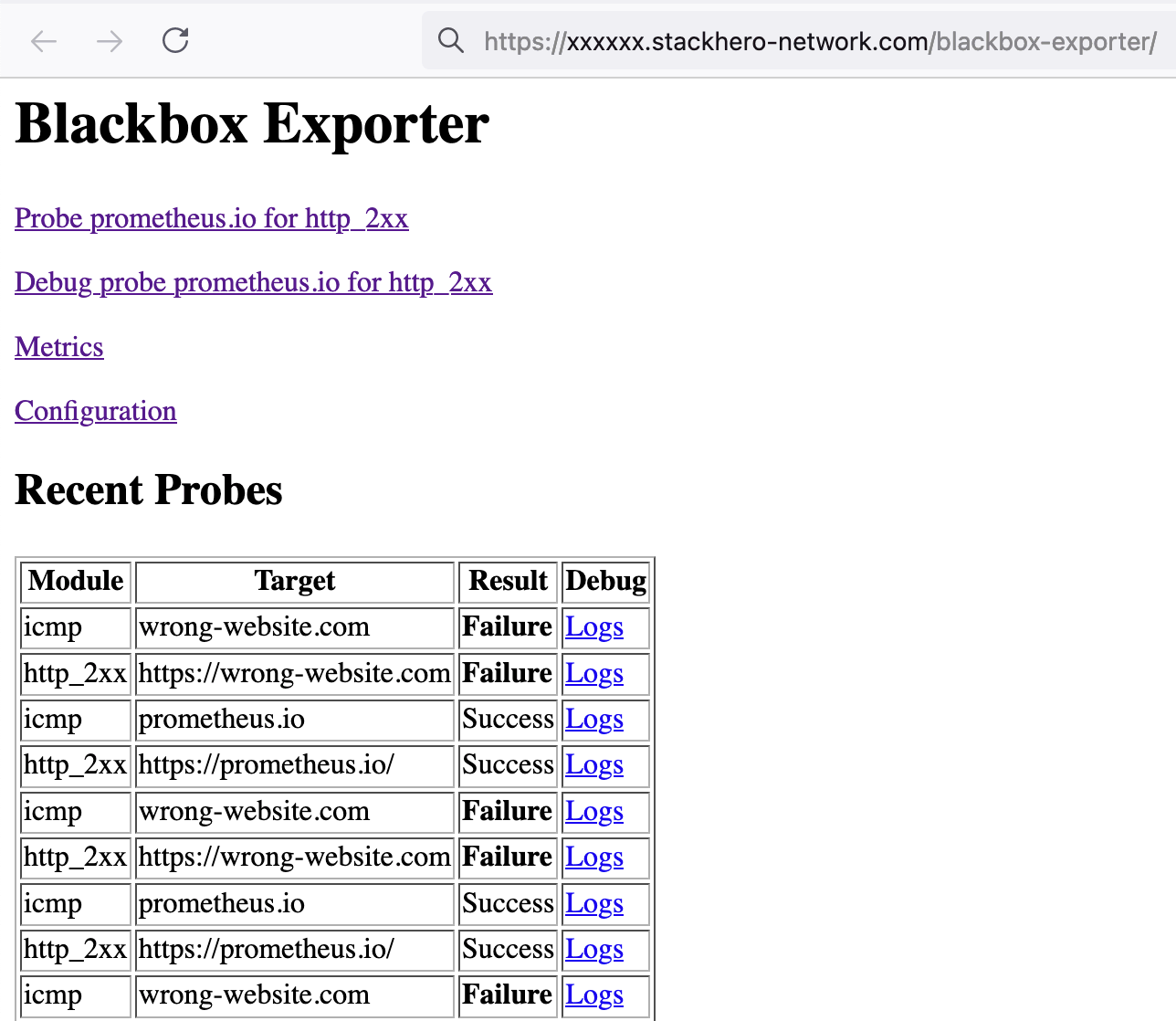 Blackbox UI showing the results of the last scrapes