 Graylog: 警示通知
如何透過 Email、Slack 或 Mattermost 發送 Graylog 警示通知
👋 歡迎使用 Stackhero 文件
Stackhero 提供全代管的 Graylog cloud 解決方案,專為速度與簡易性設計。您可以:
- 依賴隨服務附贈的無限制、專屬 SMTP 電子郵件伺服器。
- 只需一鍵即可輕鬆更新,無需手動操作。
- 使用由 HTTPS 保護的自訂網域名稱(例如 https://logs.your-company.com),讓您的團隊能安全且直接地存取。
- 在專屬私有基礎架構上享有卓越的效能與安全性,無需與他人共用資源,也沒有「吵雜鄰居」問題。
專注於您的資料,而非工具本身:只需幾分鐘,即可開始使用 Stackhero 的 Graylog cloud hosting 解決方案。
Graylog 讓您能夠主動回應特定狀況,並透過通知發送警示。這些通知可以經由 Email、Slack、Mattermost 或 HTTP webhook 傳送。
如需進一步瞭解警示通知,您可以參考 官方文件。
設定 Email 通知
每個由 Stackhero 提供的 Graylog 實例都內建 Email 伺服器,讓您可以直接從您的實例無限量發送 Email,且不會產生額外費用。
若要設定 Email 通知,您可以依照以下步驟操作:
-
進入您的 Graylog 服務,前往
Alerts>Notifications,然後點擊Get started!按鈕,或選擇Create notification。 -
輸入通知標題,並在
Notification type選擇Email Notification。 -
在
Sender欄位輸入noreply@<yourGraylogDomain>。請將<yourGraylogDomain>替換為您實際的 Graylog 網域名稱,通常格式為<XXXXXX>.stackhero-network.com。重要提醒: 請務必使用您的 Graylog 網域,以避免發送 Email 時發生錯誤。
-
在
Email recipient欄位填入您希望接收警示通知的 Email 地址。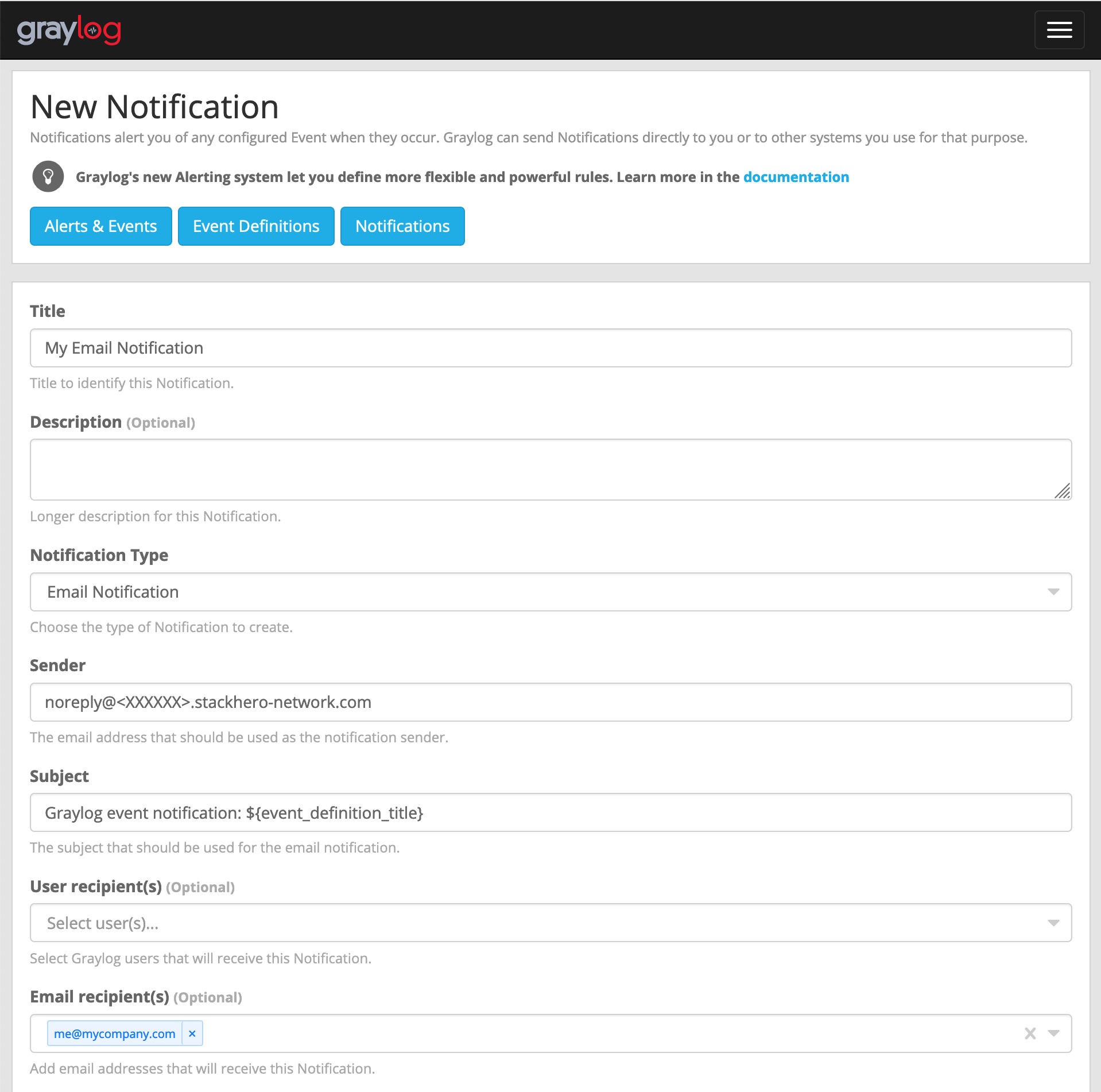 Email 設定範例
 -
點擊
Execute test notification按鈕,確認一切運作正常。測試無誤後,點擊Create完成設定。
恭喜!您的 Email 通知已經建立並開始運作!
處理錯誤:「Sending the email to the following server failed: postfix:25」
如果您遇到 Error: Notification has email recipients and is triggered, but sending emails failed. Sending the email to the following server failed: postfix:25 這個錯誤,通常是因為 sender 欄位格式不正確。正確格式應為 <something>@<yourGraylogDomain>。其中 "something" 可以自由命名(例如 "noreply"),但 "yourGraylogDomain" 必須是您的 Graylog 服務網域,通常為 <XXXXXX>.stackhero-network.com。
設定 Slack 與 Mattermost 通知
若要設定 Slack 或 Mattermost Cloud 通知,您需要先從 Slack 或 Mattermost Cloud 取得「incoming webhook」。
從 Slack 取得 incoming webhook URL
若您使用 Slack,請前往 https://api.slack.com/apps,點擊 Create New App。填寫並確認表單後,選擇 Incoming Webhooks 並啟用。接著點擊 Add New Webhook to Workspace,複製 Webhook URL 以供後續使用。
從 Mattermost 取得 incoming webhook URL
如果您偏好 Mattermost Cloud(開源的 Slack 替代方案),請進入您的 Mattermost 介面。從主選單選擇 Integrations,再點選 Incoming Webhooks,點擊 Add Incoming Webhook 並完成表單。系統會提供一組 URL,格式為 https://<domain>/hooks/<token>,請複製以便後續使用。
設定通知
在設定 Slack 與 Mattermost Cloud 通知前,請先確認 Stackhero 控制台中的 Integrations 外掛已啟用。請選擇您的 Graylog 服務,點擊 Configure,啟用 Integrations 外掛,並確認設定。
完成上述設定後,進入您的 Graylog 實例,前往 Alerts、Notifications,點擊 Get started! 或 Create notification。
輸入通知標題,並在 Notification type 選擇 Slack Notification。將您從 Slack 或 Mattermost 取得的 incoming webhook URL 貼到 Webhook URL 欄位。
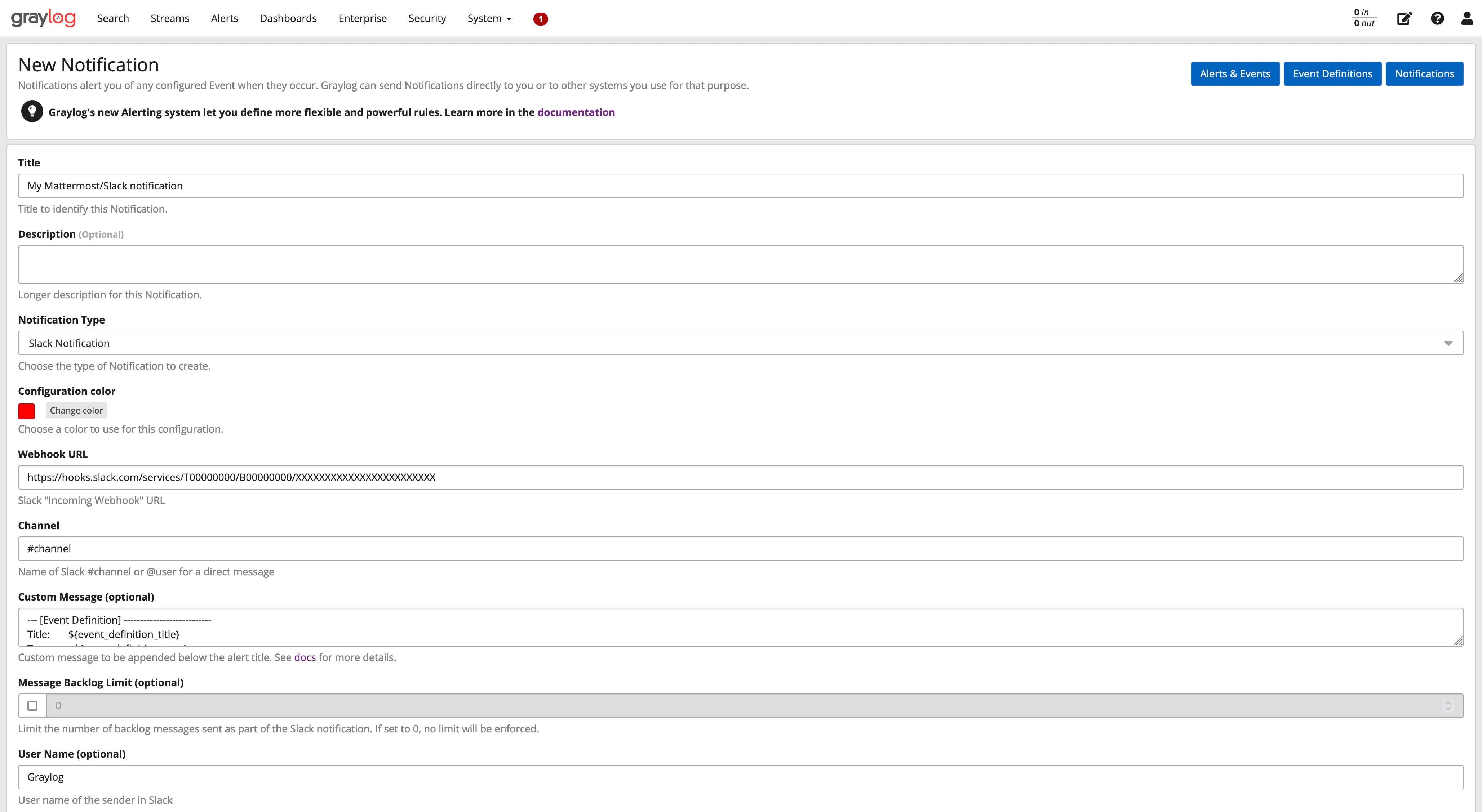 Slack/Mattermost 設定範例
點擊 Execute Test Notification 按鈕確認功能正常,最後點擊 Create 完成設定。
恭喜,您的 Slack/Mattermost 通知已經設定完成並可立即使用!