 MySQL: How to configure MySQL Workbench
This documentation is part of the Workbench guide. View the full guide here: How to configure MySQL Workbench.
👋 Welcome to the Stackhero documentation!
Stackhero provides a fully managed MySQL cloud service that simplifies deployment and management for production workloads:
- Unlimited connections and data transfers.
- Integrated phpMyAdmin web interface for easy database management.
- Hassle-free updates with one-click upgrades.
- Consistent performance and strong security on a private, dedicated infrastructure.
With Stackhero, you can have a reliable MySQL database ready in just a few minutes. Spend less time on setup and maintenance, and more time building your applications. Try MySQL cloud hosting on Stackhero today.
Setting up MySQL Workbench to connect to your Stackhero instance is a straightforward process. Below is a clear, step-by-step guide to help you through the configuration:
-
Launch MySQL Workbench
Begin by opening the MySQL Workbench application on your computer.
-
Create a new connection:
- Navigate to the connection settings interface.
- Provide the necessary details:
- Connection Name: Choose any name that helps you recognize this connection, such as
Stackhero. - Connection Method: Select
Standard (TCP/IP)from the dropdown list. - Hostname: Input your Stackhero instance's hostname. This typically looks like
<XXXXXX>.stackhero-network.com. - Username: Enter
root. - Password: Use the root password provided in your service configuration.
- Port: Specify the port number as indicated in your service configuration.
- Connection Name: Choose any name that helps you recognize this connection, such as
-
Save your connection settings:
- Save the connection details to make future access more convenient.
-
Test your connection:
- Click on the "Test Connection" button to confirm the settings are correct. If the test is successful, you are all set to proceed.
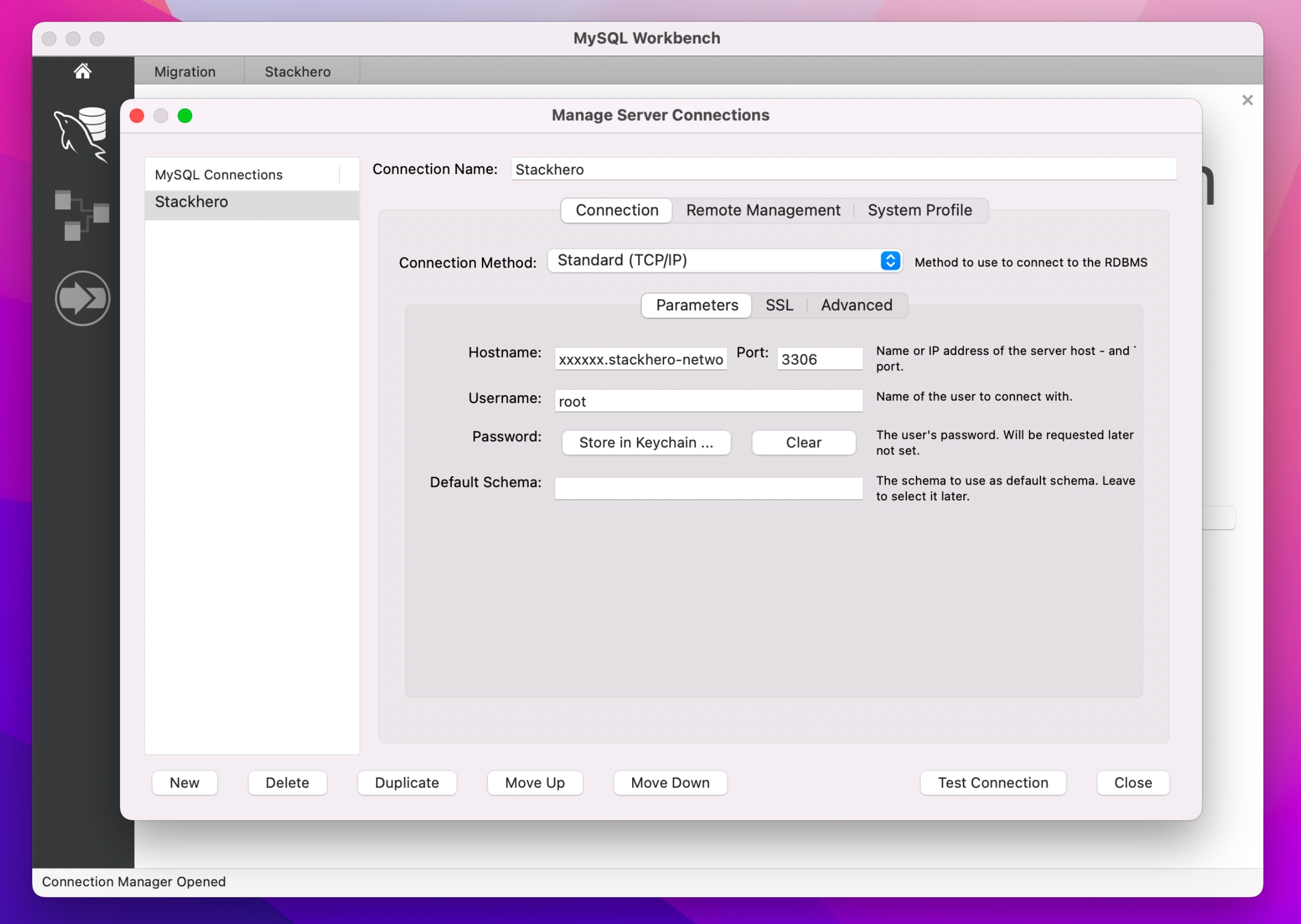 Example of MySQL Workbench Configuration
After completing these steps, your MySQL Workbench should be successfully connected to your Stackhero database instance. This setup allows you to manage your database with ease. If you encounter any issues, double-check the hostname, username, and port against the service configuration for accuracy.