 Graylog: Configure Slack and Mattermost notifications
This documentation is part of the Alerting guide. View the full guide here: How to send Graylog alerts by email, Slack, or Mattermost.
👋 Welcome to Stackhero documentation
Stackhero provides a fully managed Graylog cloud solution designed for speed and simplicity. You can:
- Rely on an unlimited, dedicated SMTP email server included with your service.
- Apply updates effortlessly with a single click, with no manual intervention needed.
- Use a custom domain name secured by HTTPS (for example, https://logs.your-company.com), giving your team secure, direct access.
- Experience strong performance and security on a private, dedicated infrastructure with no shared resources or noisy neighbors.
Focus on your data, not your tooling: you can get started with Stackhero's Graylog cloud hosting solution in just a few minutes.
To set up a Slack or Mattermost Cloud notification, you will first need an "incoming webhook" from Slack or Mattermost Cloud.
Obtain an incoming webhook URL from Slack
For Slack users, visit https://api.slack.com/apps and click Create New App. Complete the form, validate it, then select Incoming Webhooks and enable them. Click Add New Webhook to Workspace and copy the Webhook URL for use in the next steps.
Obtain an incoming webhook URL from Mattermost
If you prefer Mattermost Cloud, the open-source alternative to Slack, navigate to your Mattermost interface. From the main menu, select Integrations, then Incoming Webhooks, click Add Incoming Webhook, and complete the form. You will be given a URL in the format https://<domain>/hooks/<token> to copy for future use.
Configure the notification
Before configuring Slack and Mattermost Cloud notifications, ensure the Integrations plugin is activated in the Stackhero dashboard. To do this, choose your Graylog service, click Configure, activate the Integrations plugin, and confirm the configuration.
Once configured, proceed to your Graylog instance under Alerts, Notifications, and click Get started! or Create notification.
Assign a title and select Slack Notification in Notification type. Paste the incoming webhook URL you obtained from Slack or Mattermost into Webhook URL.
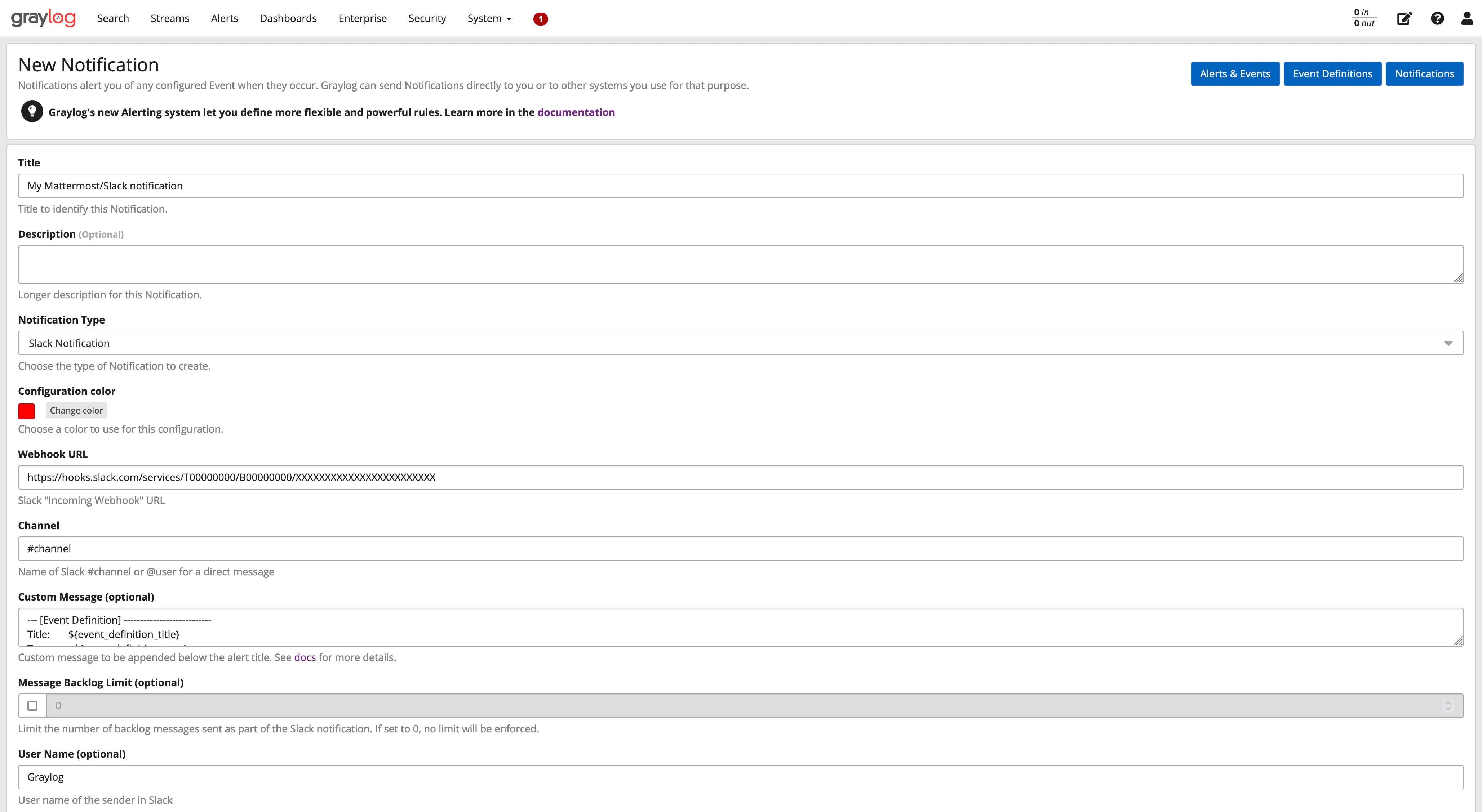 Example of a Slack/Mattermost configuration
Click the Execute Test Notification button to ensure functionality, then finalize by clicking Create.
Congratulations, your Slack/Mattermost notification is now set up and ready for action!