 Docker: Configure the environment variables and secrets
This documentation is part of the Deploy with GitHub Actions guide. View the full guide here: Learn how to deploy your Docker containers using GitHub Actions.
Welcome to the Stackhero documentation
Stackhero provides a ready-to-use Docker cloud CaaS (Containers as a Service) platform, designed for fast and reliable container deployments:
- Deploy to production with a single
docker-compose up. There is no extra setup: just start your containers.- Pick your own domain name, secured automatically with HTTPS (for example: https://api.your-company.com, https://www.your-company.com, or https://backoffice.your-company.com).
- Benefit from strong performance and robust security on private, dedicated infrastructure.
- Apply updates with one click for simple, low-effort maintenance.
You can have your containers live in production in about five minutes. Stackhero manages the infrastructure, updates, and security for you, so you can focus on delivering your applications. Read more about Docker CaaS cloud hosting.
Get the domain name and certificates password
To let GitHub Actions connect to your Stackhero Docker service, you will need two pieces of information: the domain name of your service and the certificates password.
-
In the Stackhero dashboard, select your "production" Docker service and click the "Configure" button.
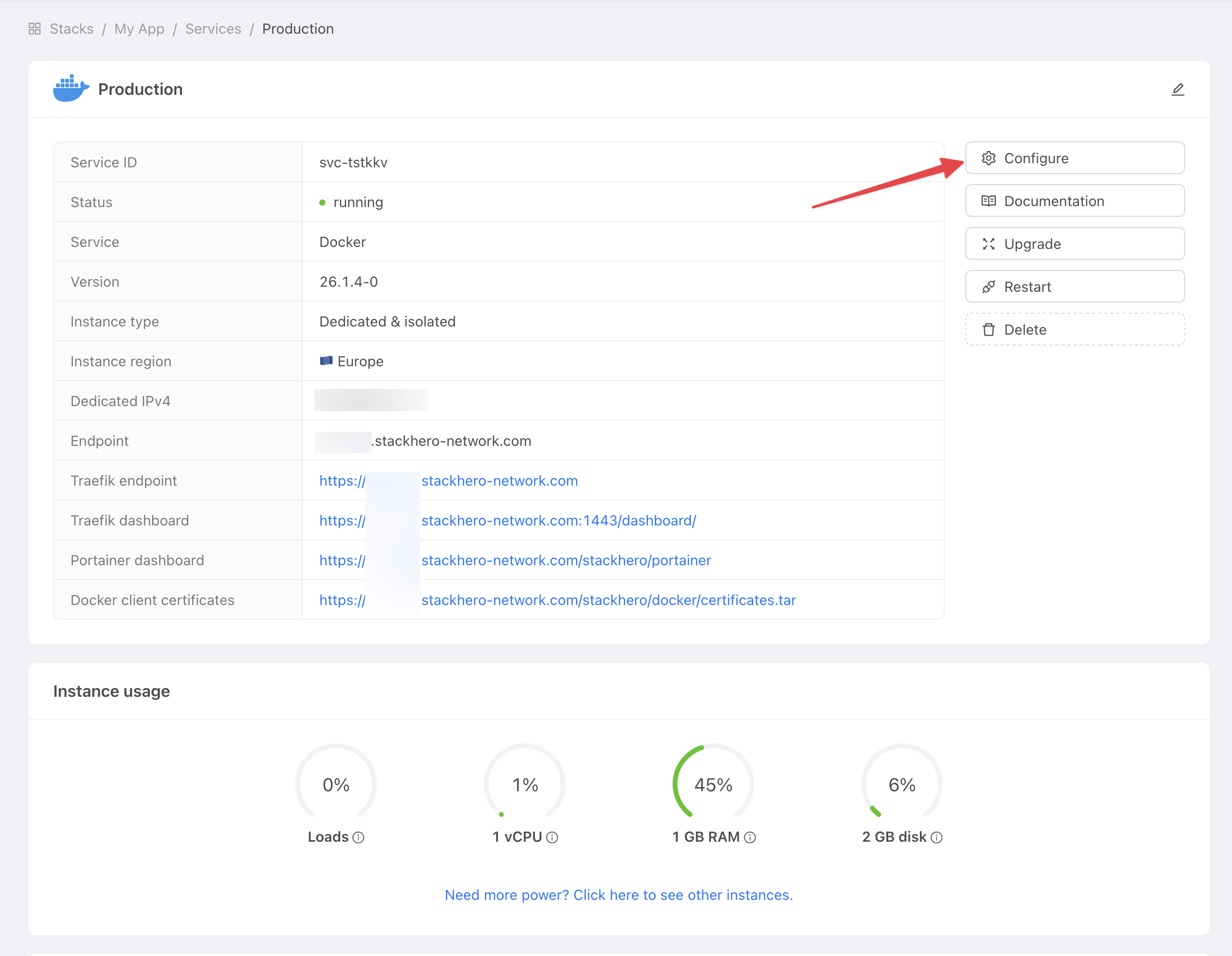 Get service settings
 -
Copy both the "Domain name" and the "Docker certificates password" for use in the next steps.
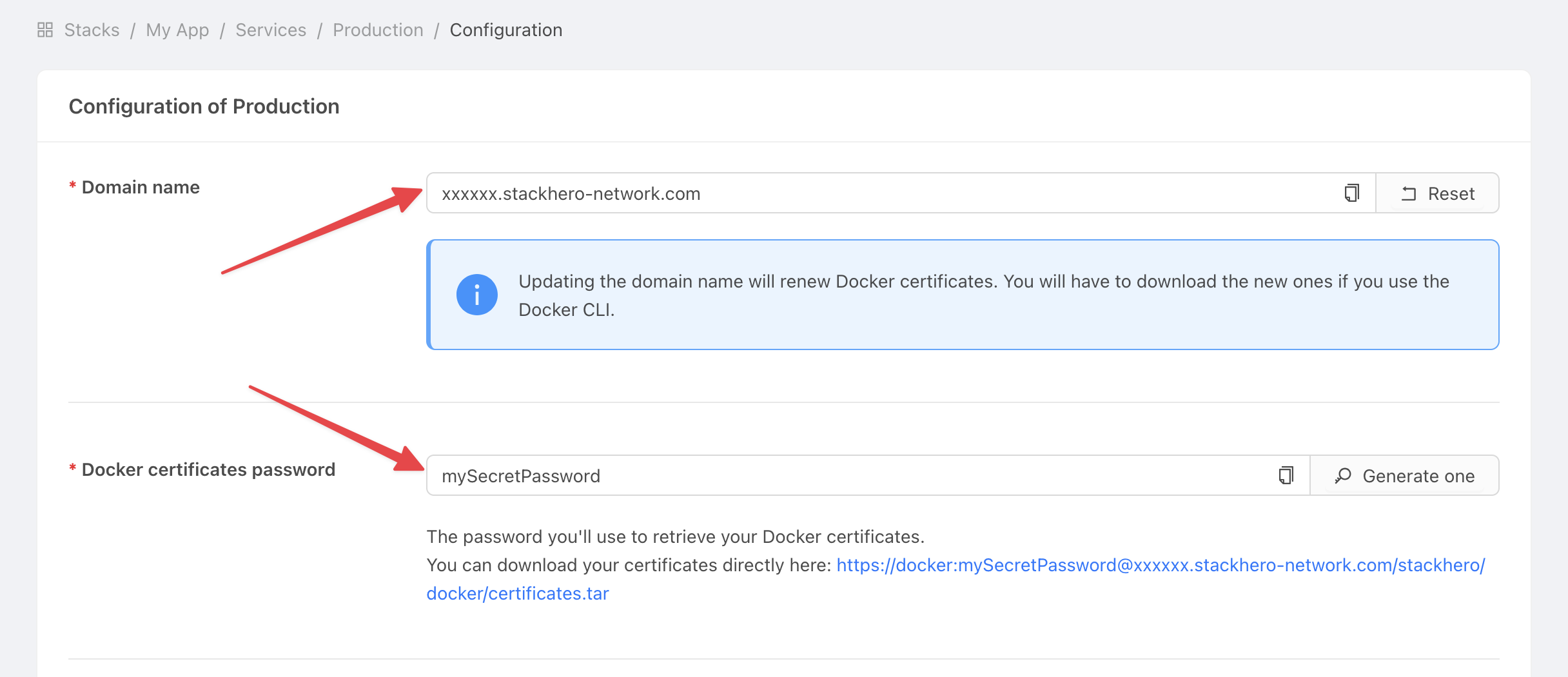 Get service settings
Set the domain name and certificates password in GitHub
-
In GitHub, open your project.
-
Go to Settings > Environments, then click New environment.
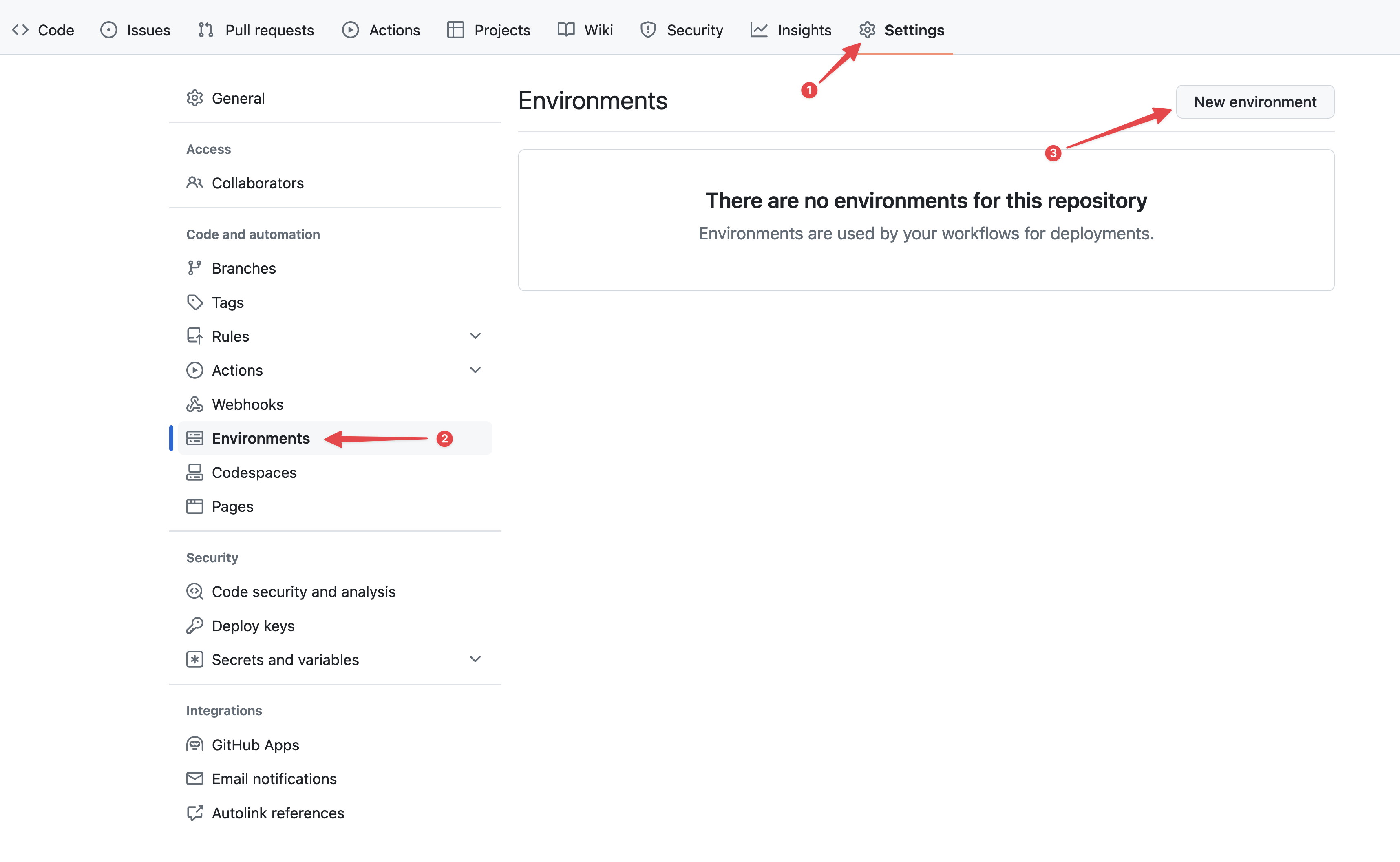 Configuring GitHub environments
 -
In the Name field, type "production" and confirm.
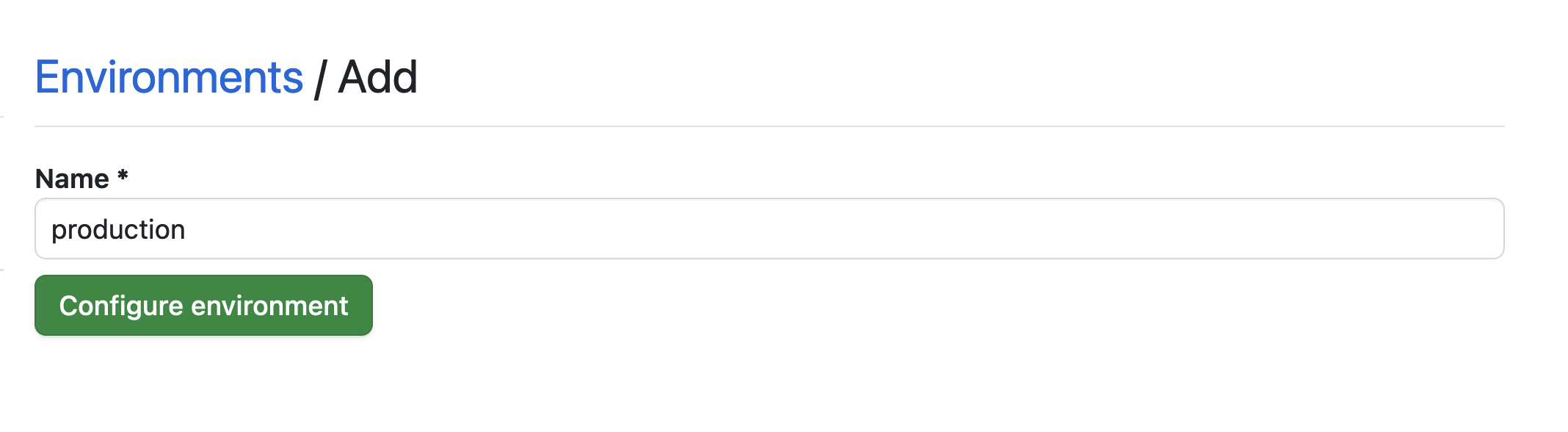 Setting the environment
 -
Click the No restriction button and choose Selected branches and tags.
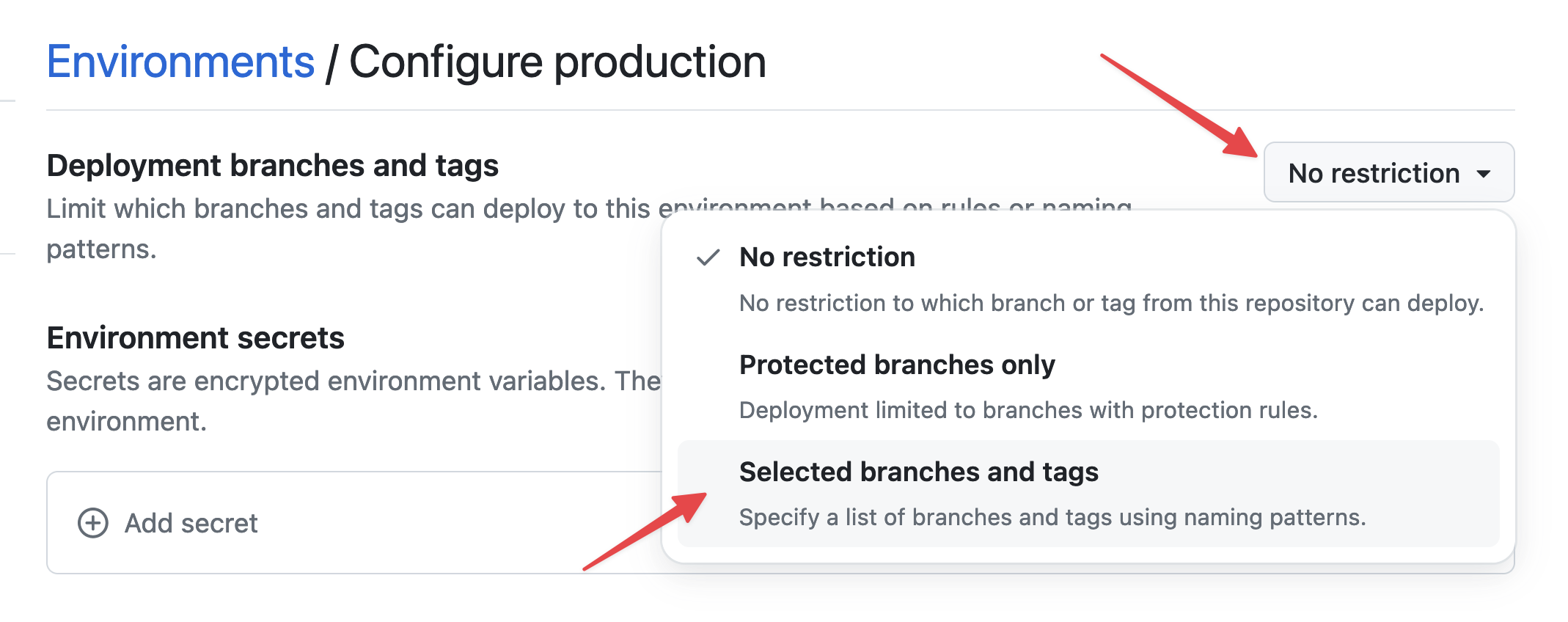 Setting environment restrictions
 -
Click Add deployment branch or tag rule, enter "production" in the Name pattern field, and then click Add rule.
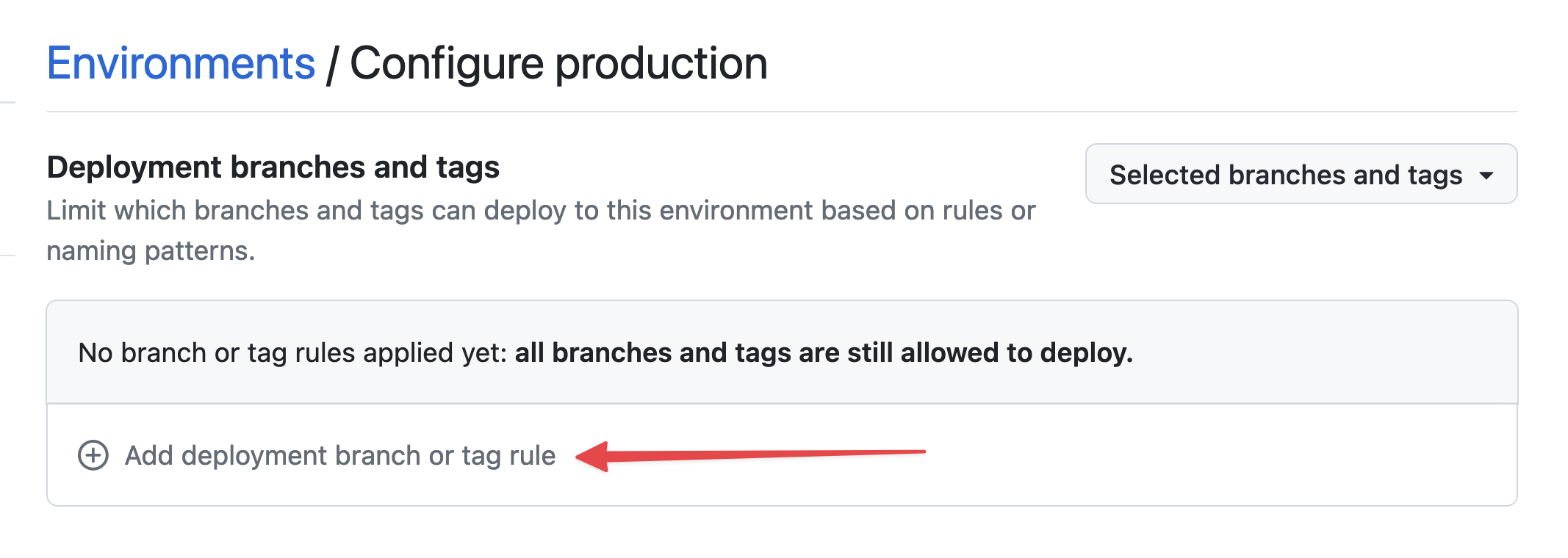 Setting environment branch
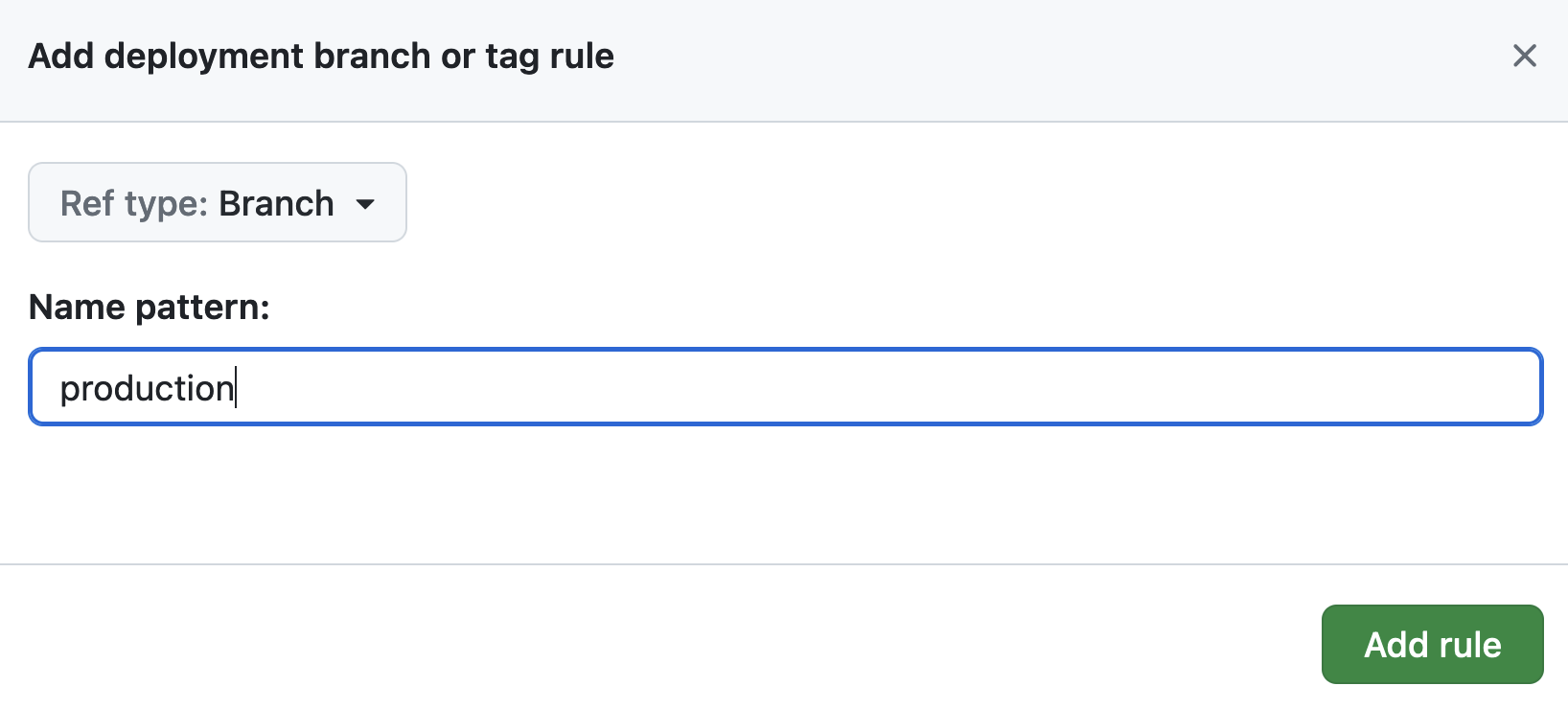 Setting environment branch
 -
Under Environment secrets, click Add secret.
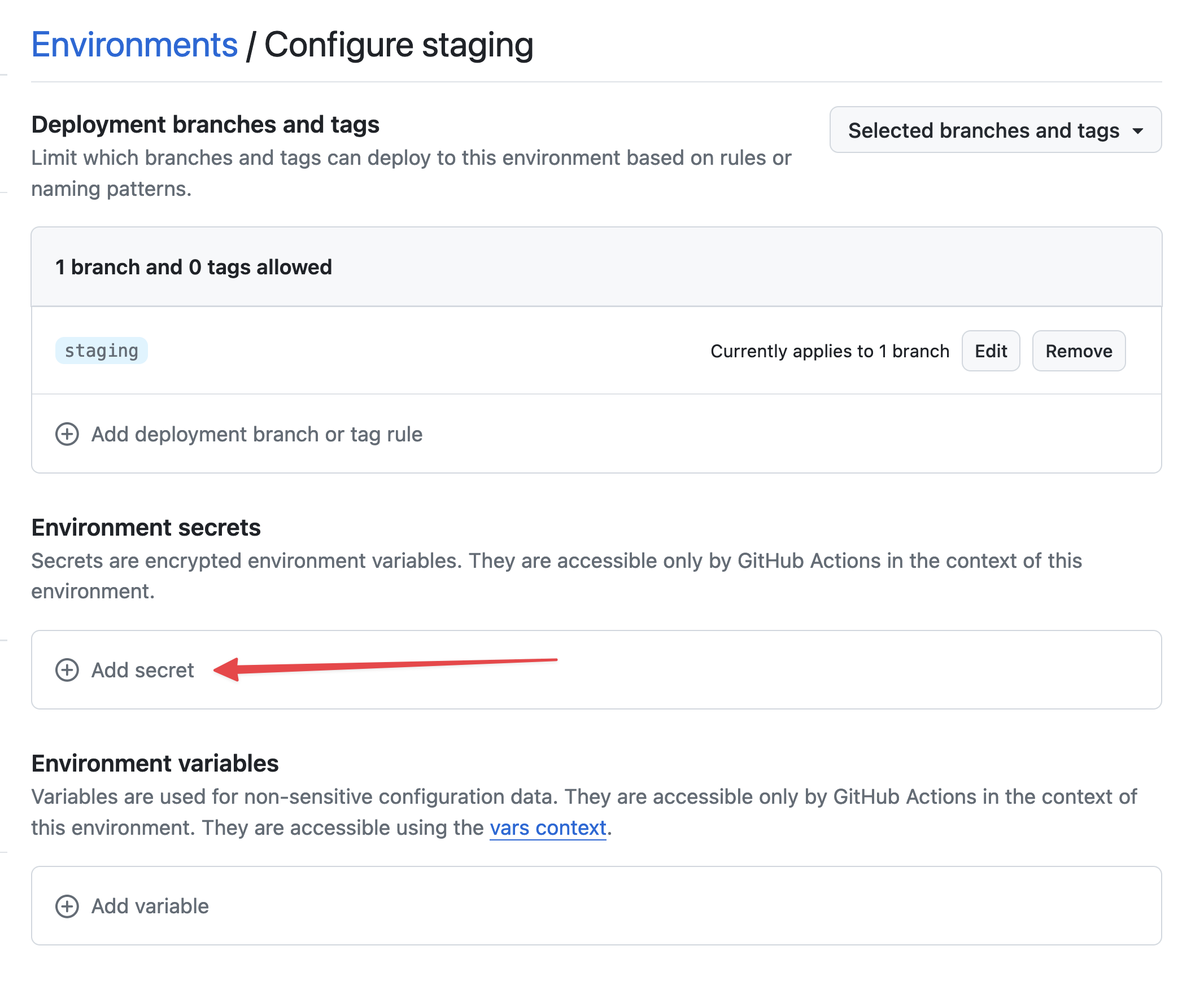 Add secret
 -
For the secret, use
STACKHERO_CERTIFICATES_PASSWORDas the name and paste your certificates password into the Value field.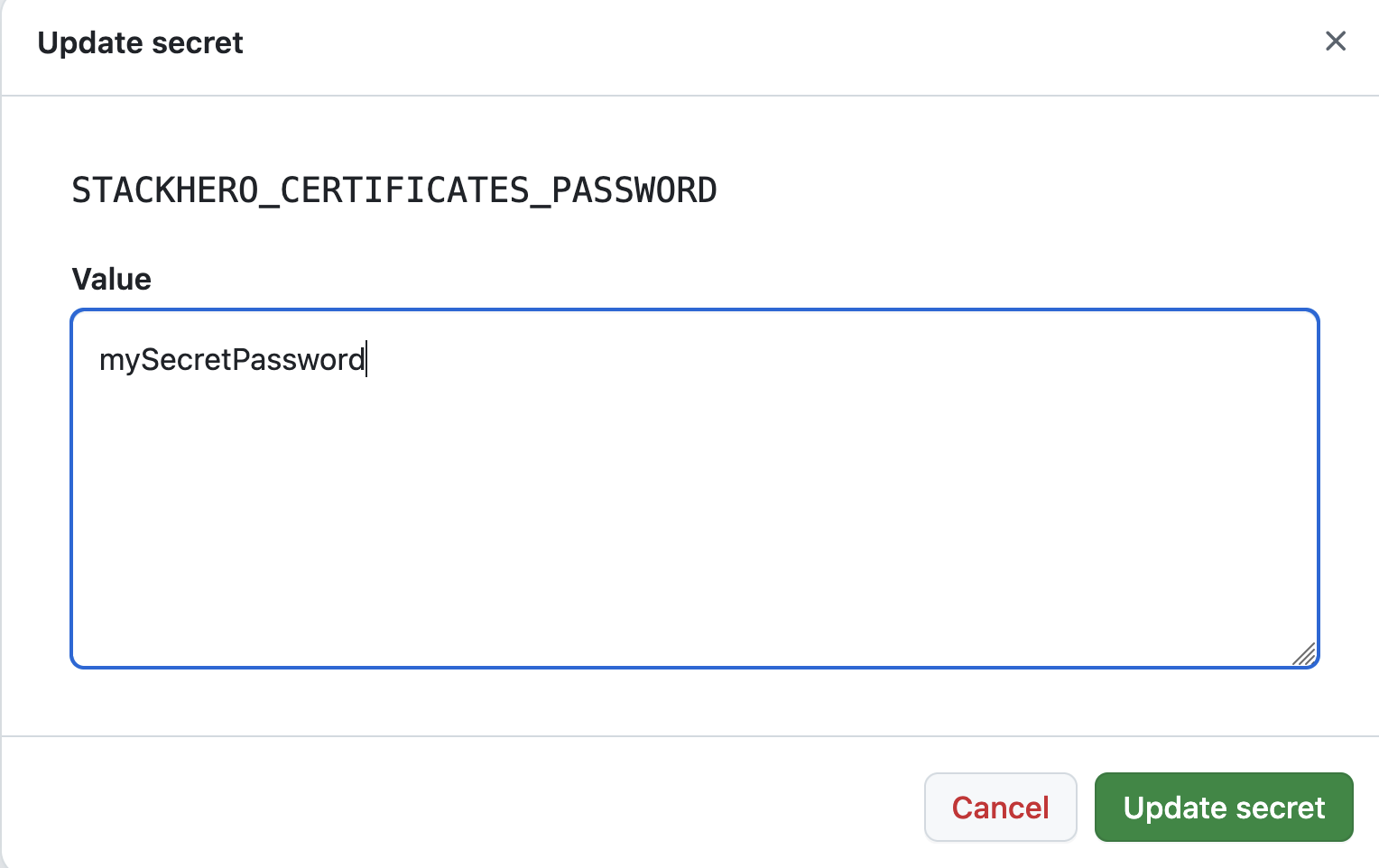 Setting the certificates password secret
 -
Under Environment variables, click Add variable.
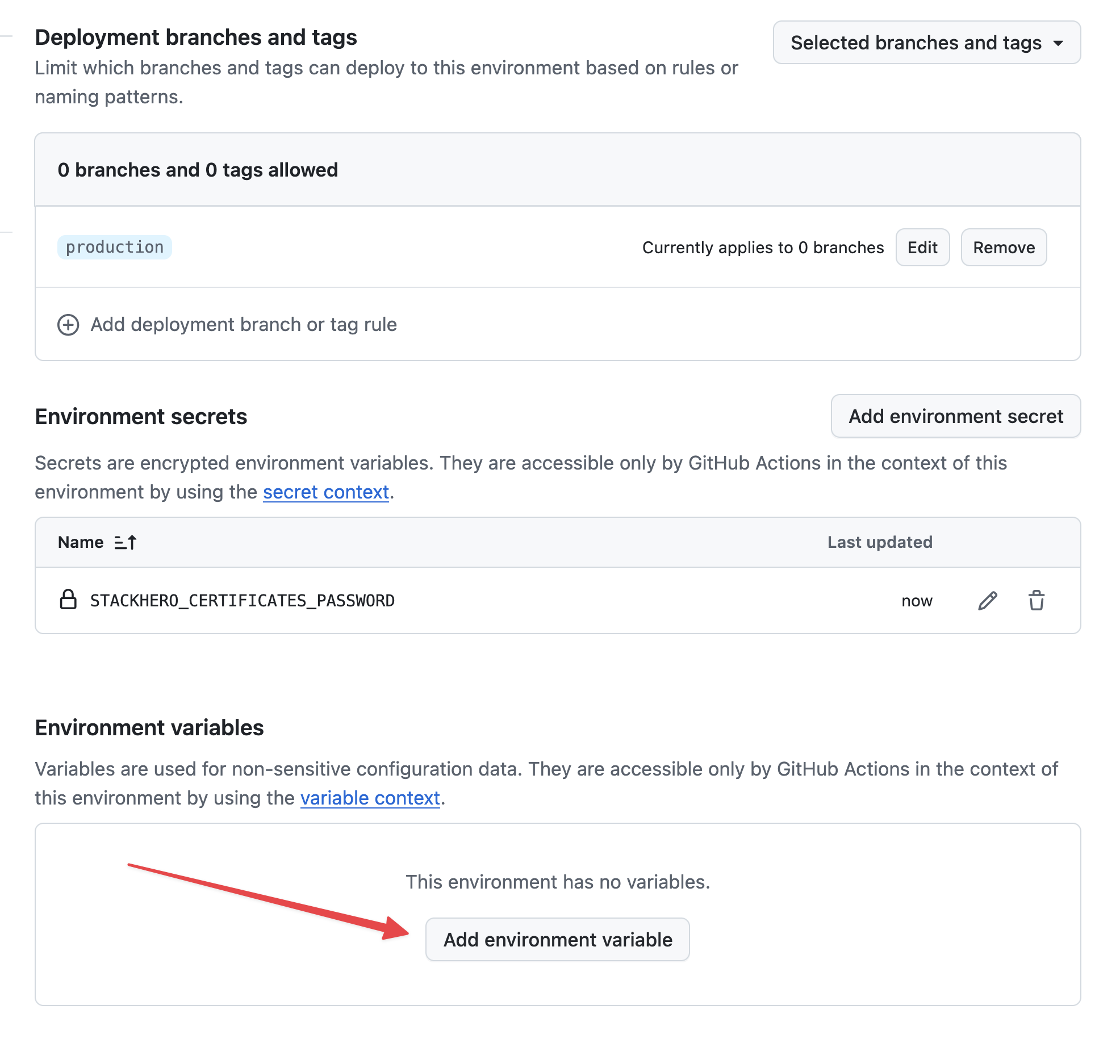 Setting variables
 -
Use
STACKHERO_ENDPOINTas the name and paste your Docker service endpoint into the Value field. You can find this endpoint in your Stackhero dashboard.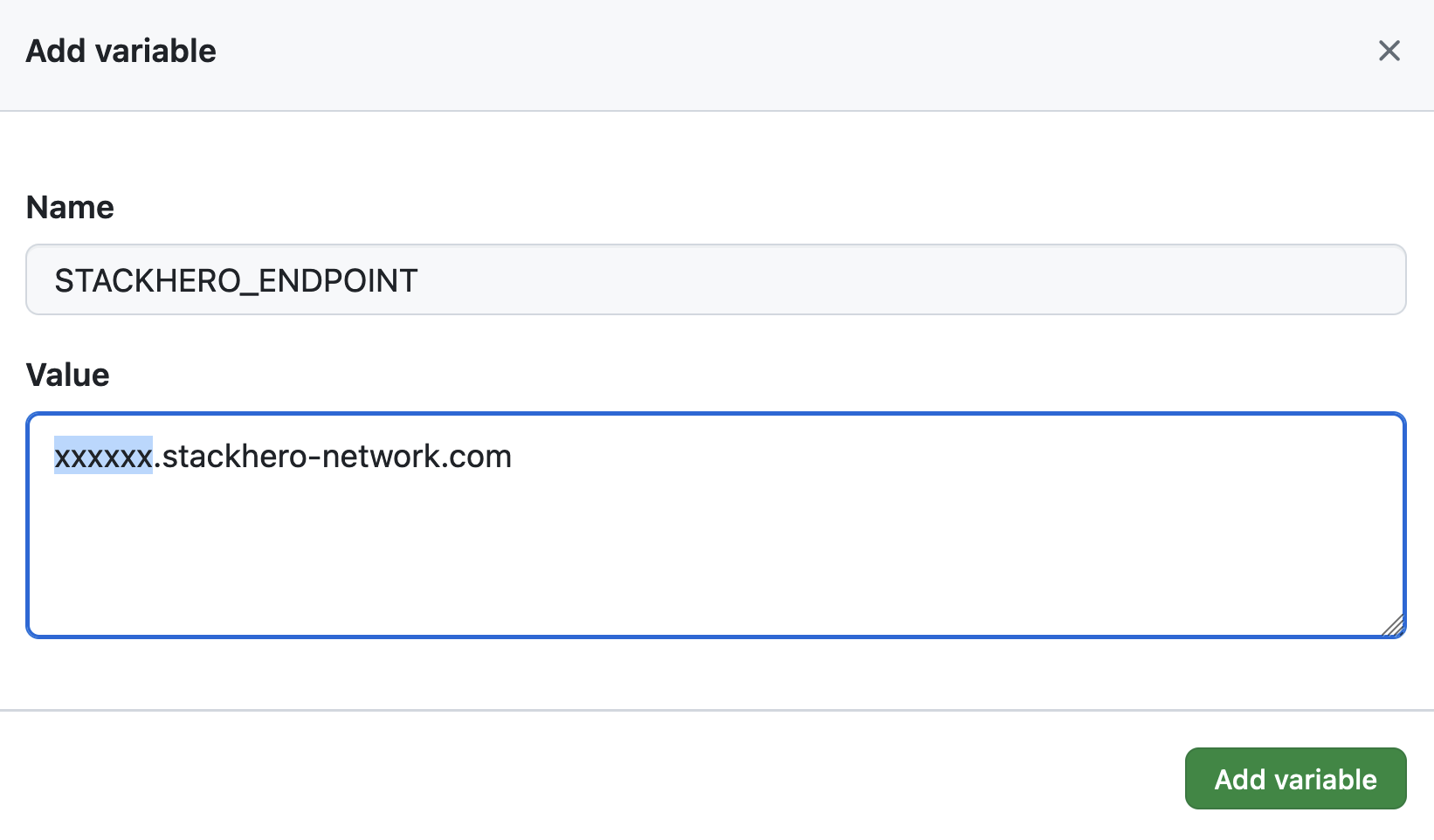 Setting the endpoint variable
If you have customized your service's domain name, remember to use your custom domain instead of <XXXXXX>.stackhero-network.com.
Customize the Docker Compose configuration file
If the
docker-compose.ymlfile is already at the root of your project and you do not need customizations, you can skip this section.
By default, GitHub Actions will look for the docker-compose.yml file in your project's root directory. If you need to use a different file or setup, you can adjust the deployment command. For example, if you are using our Getting started with Node.js and Docker boilerplate, you can create a new environment variable called STACKHERO_DEPLOY_COMMAND and set it to:
docker compose --env-file env.list --file docker/docker-compose.yml --file docker/docker-compose.production.yml up --build --remove-orphans -d